

How to Configure Connected Sources
Choose the required connection from the connected sources list to dive into its settings and see the related extraction orders list.
To see all connections of one data source together — with their accounts, extracts and what needs your attention — open the data source's page.
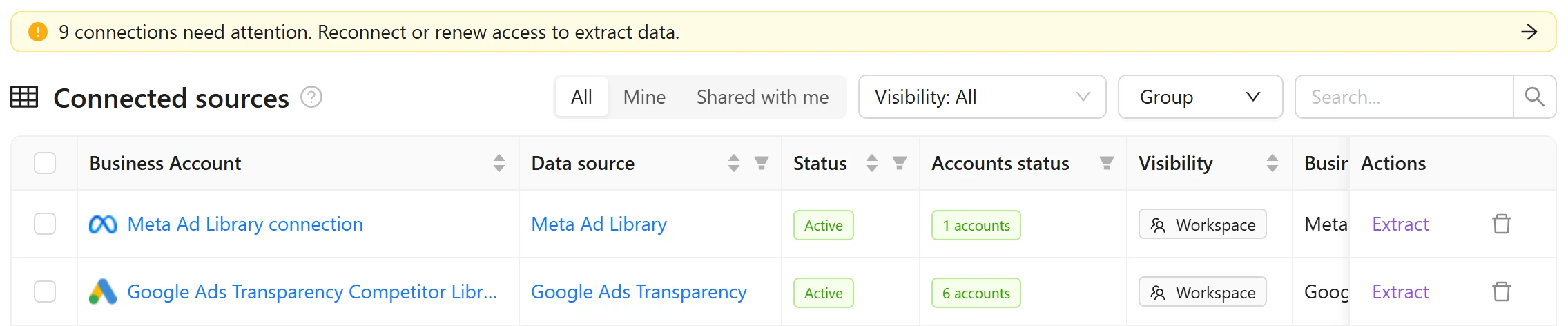
Connections list
- Connections that need attention. When connections have authorization errors or credentials that are about to expire, a yellow warning above the list shows how many. Click it to show only those connections; click it again to clear the filter.
- Owner. Switch between All, Mine and Shared with me to see every connection, only the ones you own, or the ones other people shared with you.
- Visibility. Use the Visibility filter to show Private or Workspace connections. The Visibility column shows who can use each connection — Only you, N users or Workspace — and you can hover over it for the access details. Private connections have a lock next to their name.
The filters work together, in both the table and the grouped view. Changing a filter clears the rows you selected for bulk actions.
Page header
The Page header shows brief details about the connected data source, business account, your credentials validity status, and the number of active accounts.

You can set up data extraction only for an active connection with at least one connected account by clicking on the Extract button on the top right corner of this page. In other cases, this button will be non-clickable.
The number of active accounts is displayed in the Page header.

Sharing access
By default a connection is available to everyone in the workspace. Connection owners can make a connection private to protect sensitive credentials, and then share access with specific people — giving full control over who can extract data from each connected source.
- Owners — the person who created the connection and whoever last re-authorized it (up to two). Owners always have access and can manage sharing.
- General access — set it to Full access so everyone in the workspace can use the connection, or No access to make the connection private, so only owners and the people you share it with can use it.
- Shared users — while a connection is private, you can grant access to specific people. Shared users get the same owner-level access: they can use, re-share and manage the connection.
To manage access, open a connection and click Share in the top-right corner.
If a connection has write permissions in the data source, Improvado asks you to confirm before you give the whole workspace access to it or share it with specific people. Connections with read-only permissions are shared right away.
You can also switch a connection between public and private on its edit page. Expand Advanced settings and set Connection visibility to Public (anyone in the workspace can use the connection to extract new data) or Private. The change is saved as soon as you click it: you don't need to re-authorize the connection or enter its credentials again. The control is unavailable while the connection is being authorized or saved.
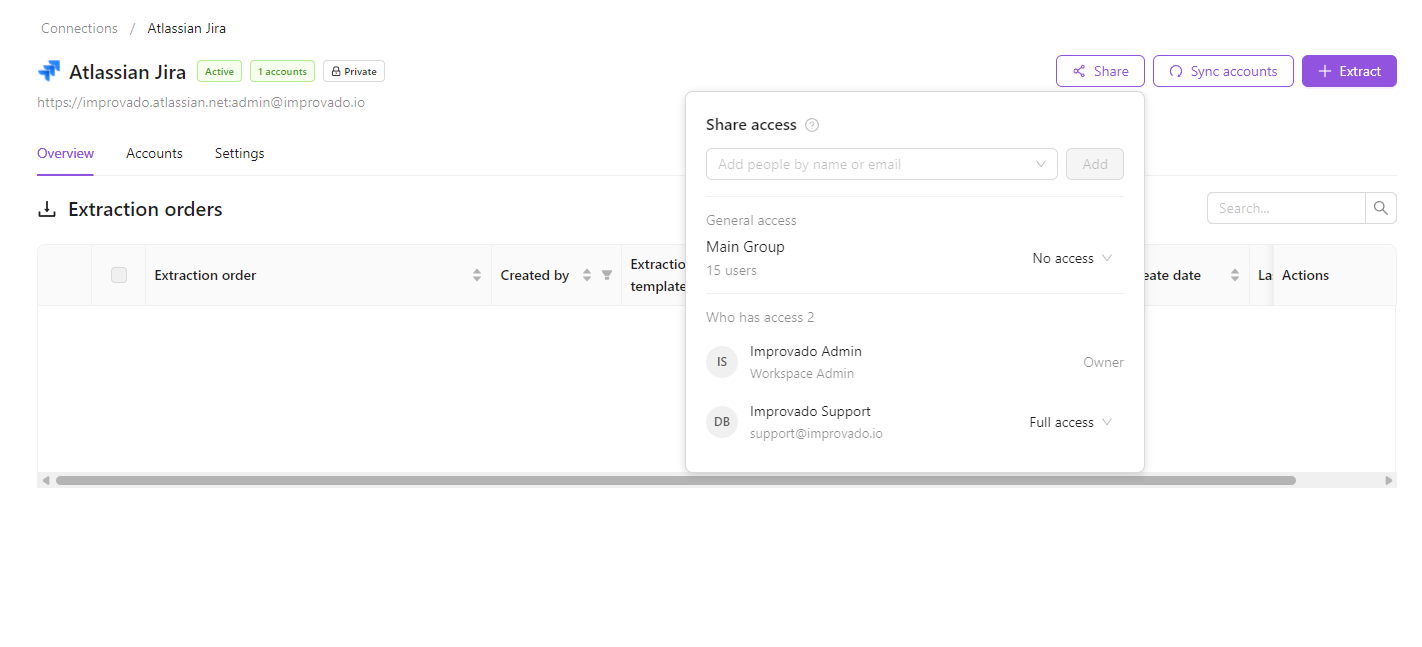
You can share a connection only with existing workspace members and agency owners — no invitations are sent. Sharing settings are saved even while the connection has Full access, and take effect again whenever you switch it back to No access. The owner, the last person to authorize the connection, and anyone it's shared with can manage who has access.
Credentials expiration
Some platforms issue credentials that stop working on a fixed date. Improvado takes that date from the platform for each connection and warns you ahead of it, so you can reconnect before extractions are affected.

What you see
- A warning on the connection. From 30 days before the date, the connection shows an orange Expires in N days tag in the connections list and on its page, and the page shows a banner with a Reconnect button on every tab.
- Email ahead of time. A Notification Center email 30, 14, 7 and 1 days before the date, listing each expiring connection with its date and a link to reconnect it.
- A clear status if it lapses. A connection that stops working after its date shows Expired next to Error, and the banner turns red, with the same Reconnect button.

Which connections have a date
Apple Search Ads, LinkedIn Ads, LinkedIn Organic and LinkedIn Personal — the sources whose platforms publish an expiry date. Connections created before this was released have their dates too.
Who is notified
Everyone subscribed to Data source connection error is also subscribed to the Data source credentials expiring event, and can turn it off in Notification Center. The people who connected a data source, last re-authorized it, or have it shared with them are notified even without a subscription. A private connection is announced only to the people who can see it.
How to renew
Click Reconnect on the connection or in the email. For LinkedIn, sign in again; for Apple Search Ads, follow the Apple Search Ads guide.
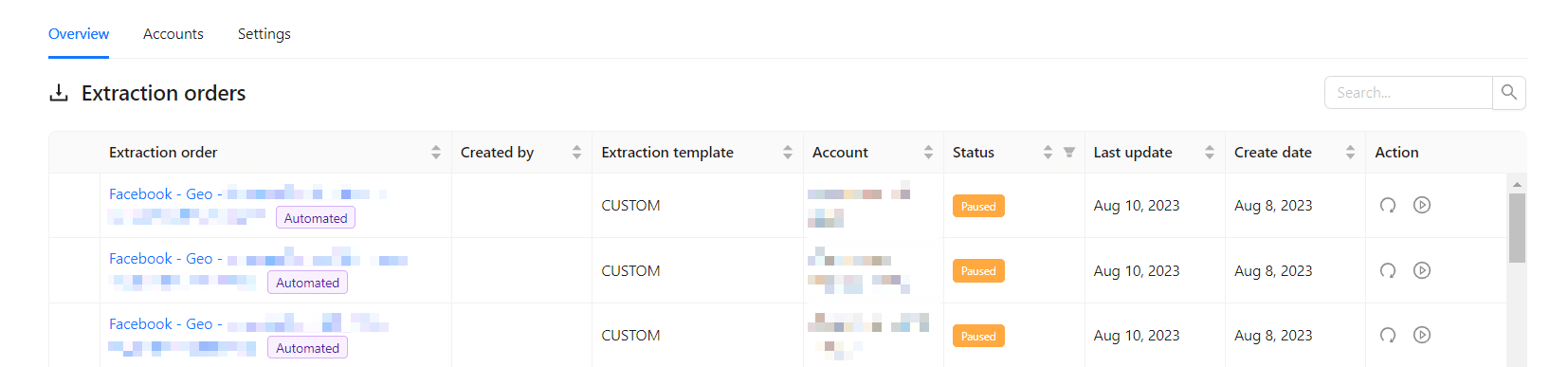
Overview tab
This tab shows you the list of extraction orders for the current connection. You can read more about it here.
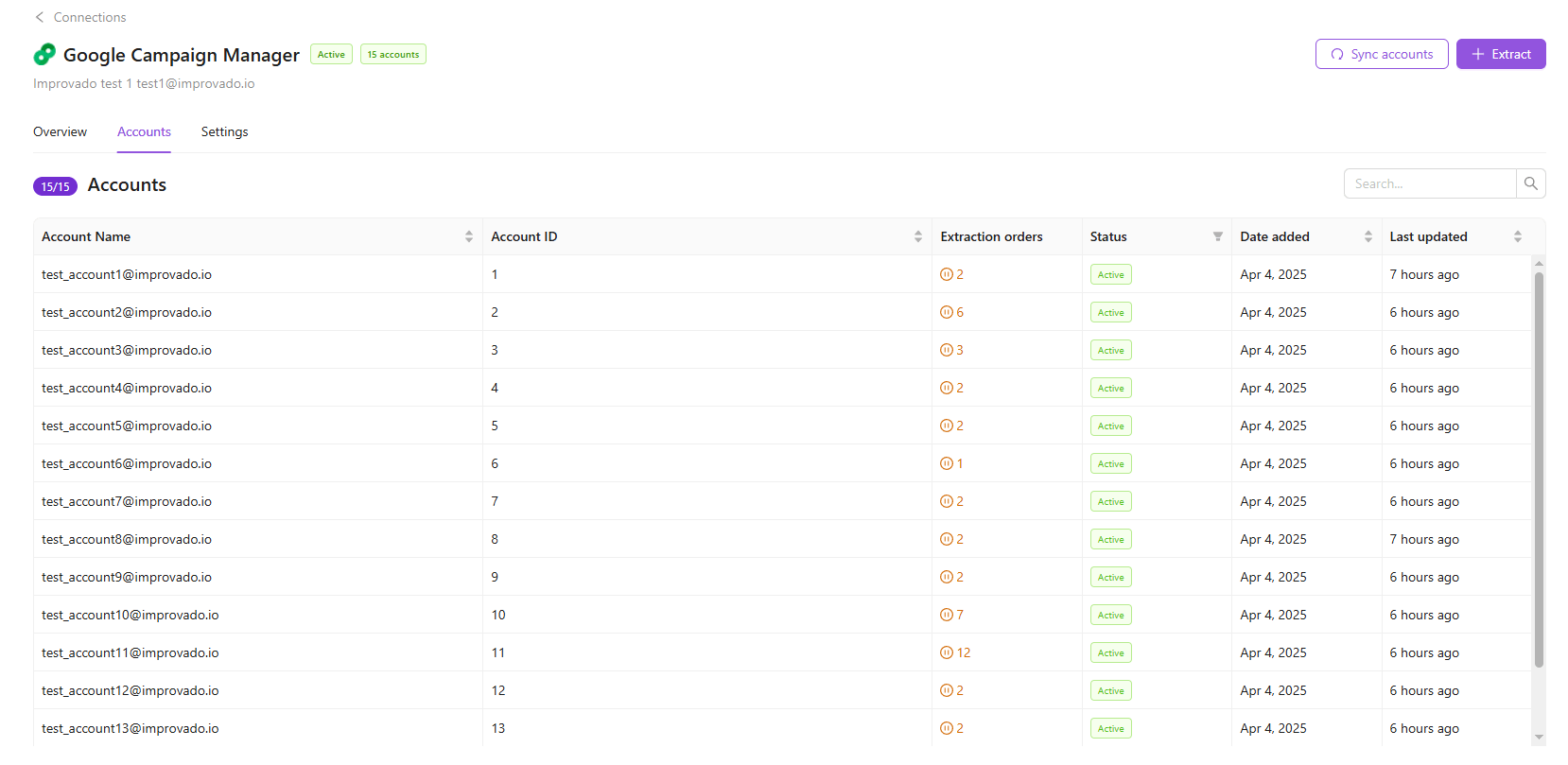
Accounts tab
This tab shows a list of connected accounts for data source connection, including the number of their extraction orders, current status, addition and last updated dates.
The list of active ad accounts is updated daily. You can manually refresh the account list for the connection by clicking Sync accounts. Alternatively, re-connecting will also update the list of available accounts.
Settings tab
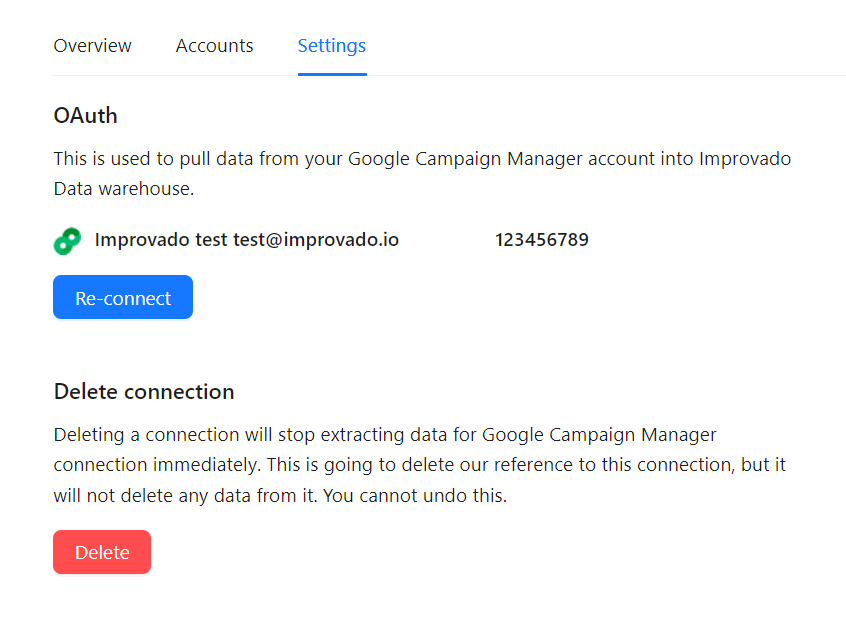
Connection Details
Who connected the data source and when, when the connection was last authorized and by whom, its scope level (for sources that have one), business account ID and Account Sync Mode.
Authentication
This section shows what is used to pull data from your account into Improvado Data warehouse — OAuth, login and password, or an SQL connection — with the business account and business account ID of this connection, and a Reconnect button.
Delete connection
Deleting a connection will stop extracting data for this connection immediately. You will delete our reference to this connection, but it will not affect the data.
Please note that you can not undo this change!
Reconnect a connection
Reconnect a connection when its credentials have expired or been revoked, when you need different permissions, or to change which accounts it syncs.
You can start from:
- the ⋯ menu next to Extract on the connection page — when the connection has an error, Reconnect is shown as a button instead;
- the Reconnect button in the Settings tab;
- the banner and email about expiring credentials;
- Needs attention on the data source's page.
OAuth connections
Reconnect opens the connection's edit page, which re-authorizes this connection instead of creating a new one. Its extraction orders, data and private or shared status stay as they are.
- Check the parameters. The authentication method is the one the connection already uses. For sources that ask for extra input or let you choose scopes, the current values are filled in.
- Click Re-authorize and sign in to the data source with the same account you connected before.
- For sources with account selection, review the accounts — the current selection is already applied — and click Save account selection.
Signing in with a different account? A connection belongs to one account, so re-authorizing it with another one is refused. To pull data from another account, click Create a new connection in the message.
Connections with an API key, login and password or SQL credentials
On the connection page, Reconnect opens the data source's connection form, where you enter the credentials to create a new connection. To keep your existing extraction orders, switch them to the new connection.
Re-authorize in Needs attention on the data source's page updates the existing connection instead. Non-secret values are filled in; enter the API key, password or other secrets again — they are never shown. The field that identifies the account can't be changed, and credentials for a different account are refused.
Was this article helpful?
Thanks for the feedback!
Questions? The Improvado team is always happy to help. Send us an email, contact your Customer Success Manager, or raise a request in the Improvado Service Desk.