
Connected sources
The connection provides access to a specific data source according to your credentials. To see all your connected sources select the Connections item from the left menu.
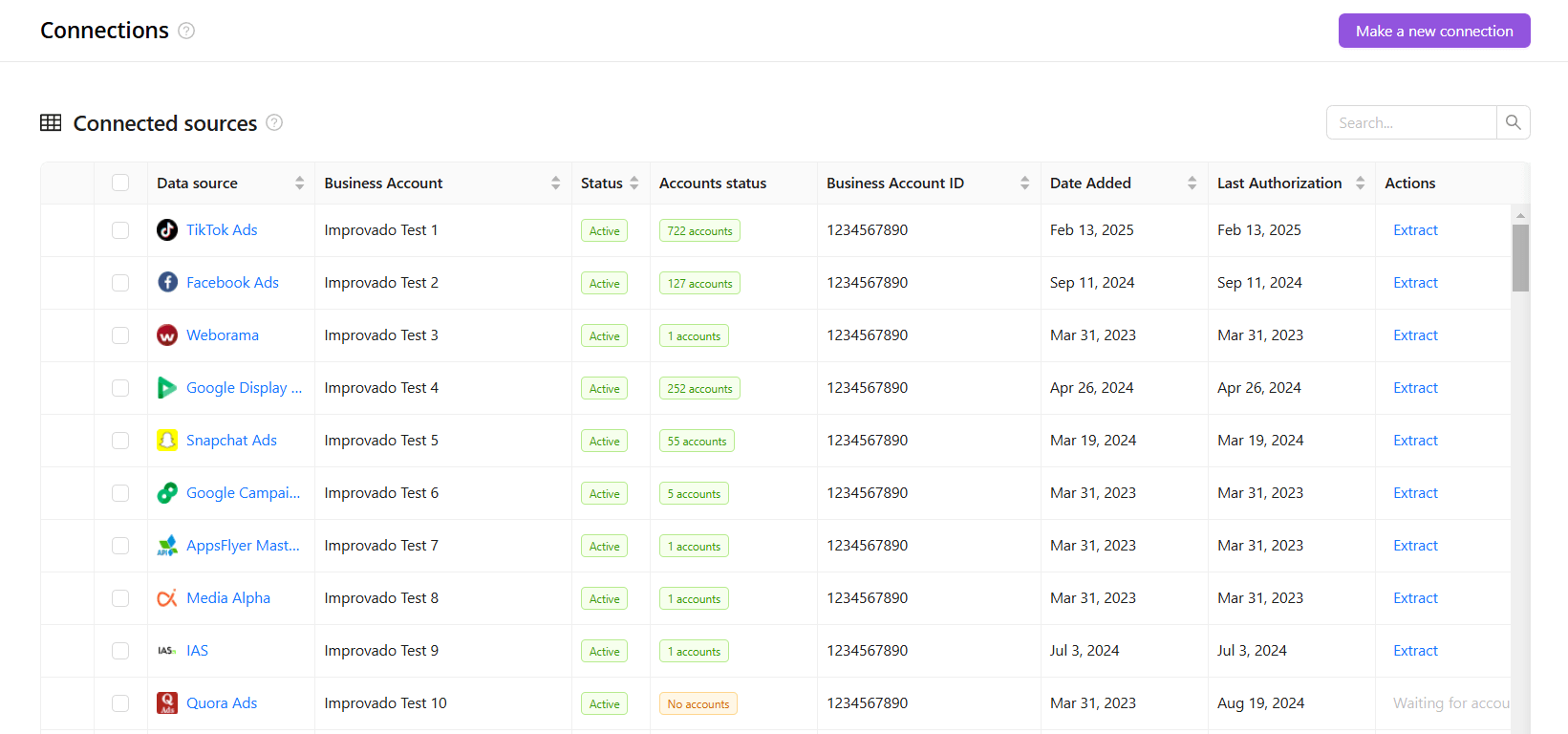
If you want to create a new connection, click the Make a new connection button in the upper right corner of the screen. See the setup guide.
Use the search field to find the necessary connection by the data source name. Also, you can sort the data ascending or descending in every column except Status and Actions.
The Connected Source list contains eight columns. Let's look at each of them in more detail.
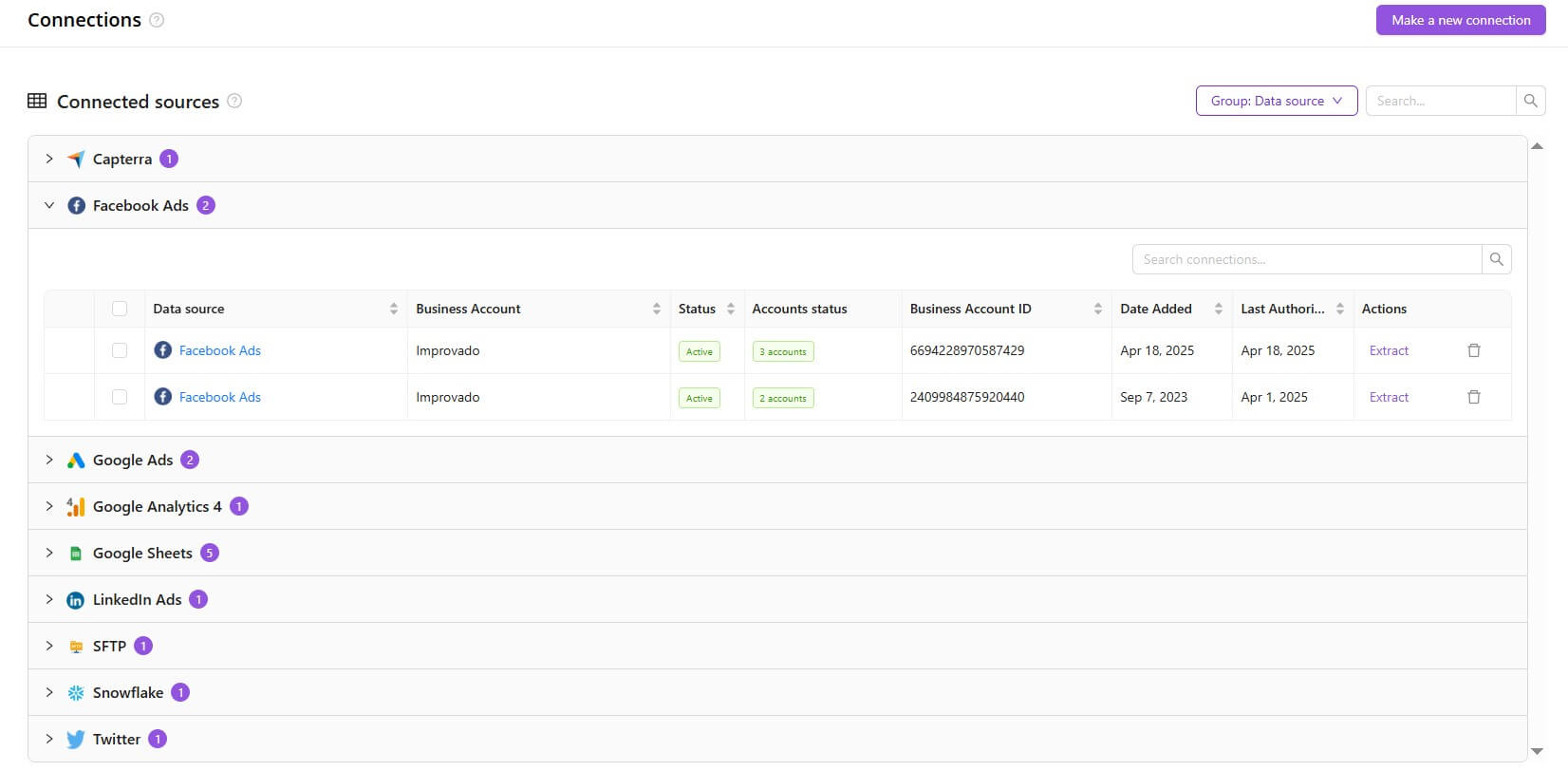
Grouped view
The Group option allow you to organize connections by data source, making it easier to manage and navigate large sets of items.
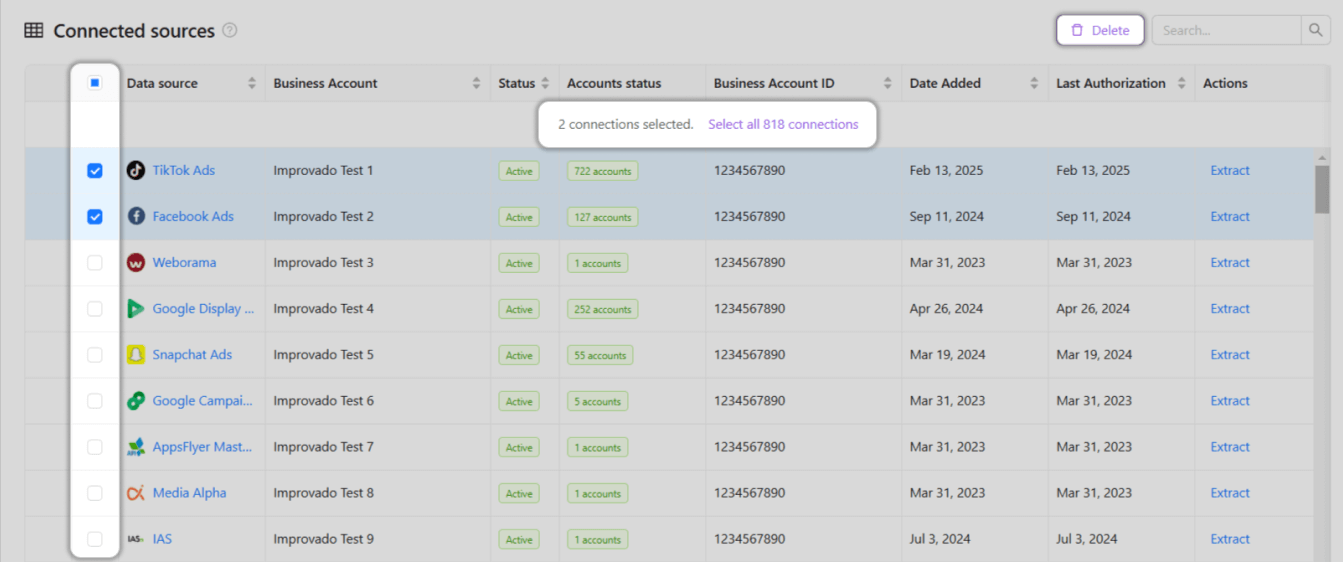
Bulk Select
The Bulk Select column lets you select multiple connections at once, enabling quick and efficient removal with the Delete button. When selecting a connection, you’ll also see a Select all n connections option that instantly selects every connection in the list.
Data Source
This column shows the provider name for which you created this connection. Click it to see the configuration of this exact connection
Business Account
A business account is an email or login associated with available accounts for the data source.
Status
This column shows business account credentials validity. It has two states:
- Active means that you can access the data source by these credentials
- Error warns that credentials are not valid
You can see the issue details by clicking the "plus" icon at the beginning of the line.

Account Status
- Loading accounts - authorization has not been completed yet
- No accounts - authorization has been completed, but there are no accounts yet
- N accounts - n accounts are connected, everything is ready for data extraction
- Error - anything is wrong with your accounts
Business Account ID
This ID is used to identify which credentials were used when connecting if you have multiple accounts with the same name
Created
Нere you can see when the connection was created.
Last Authorization
This column shows the last authorization date of the connection. It will be empty if the connection has not been authorized yet.
Actions
The set of available actions depends on connection status.
- You can set up data extraction only for an active connection with at least one connected account.
- If you have some issues with business account credentials, you can reconnect it.
Also, you can delete a connection using the "trash bin" icon at the end of each line. You will remove our reference to your source but will not delete any data from your source.
Related articles
Was this page helpful?
Thanks for the feedback!
Questions? The Improvado team is always happy to help. Send us an email, contact your Customer Success Manager, or raise a request in the Improvado Service Desk.