

Automations
Automations is where you set up and watch the work Improvado does for you on a schedule. It holds two kinds of automation:
- Agent automations — the AI Agent runs a prompt on a schedule: a weekly client summary, a daily account health check, a review of budget changes. Each run produces a result you can open later.
- Pipelines — multi-step workflows that move and transform data and act on it, such as audience syncs or data quality checks. See Pipelines.
Open Automations in the left menu, under AI Agent.
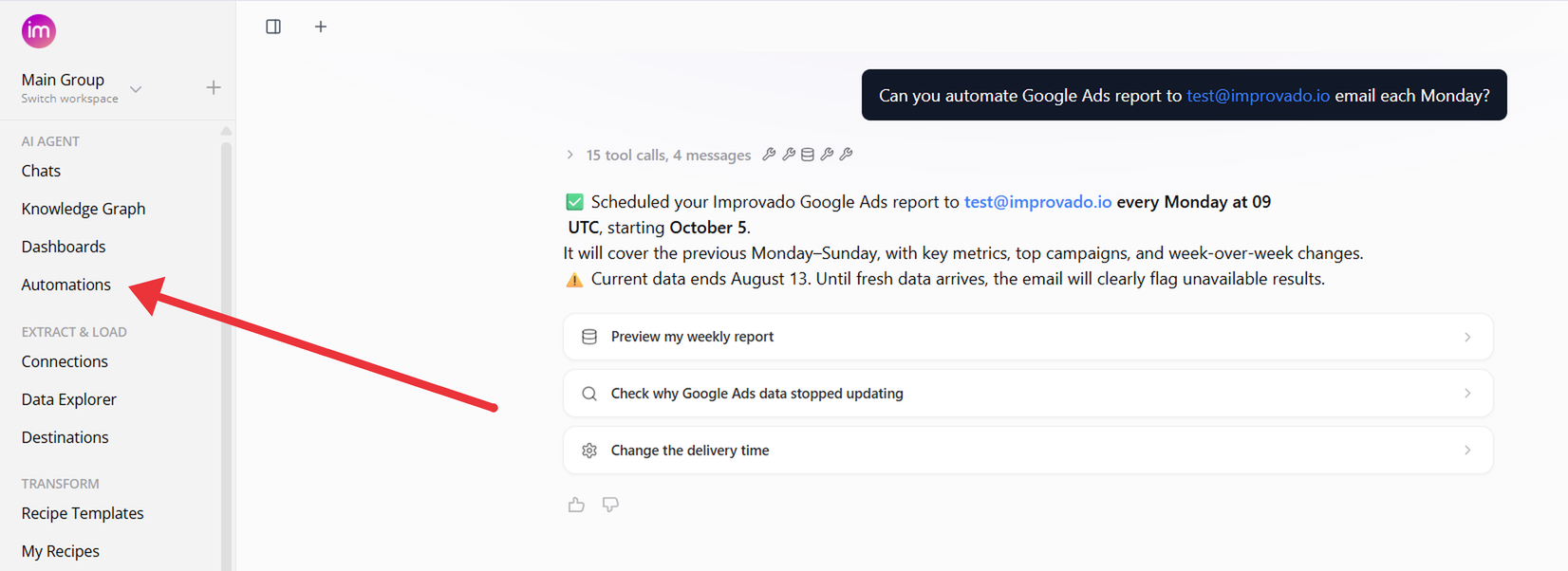
Scheduled chats used to live on the Chats page. They are now agent automations: your existing schedules were moved to Automations with their name, prompt and schedule, and their earlier results became the automation's run history.
The Automations list
The list shows your agent automations and the workspace's pipelines together. Use the tabs — All, Agent automations and Pipelines — to narrow it down, search by name, and filter by status: Enabled, Paused, Running or Failed.
Each row shows:
- Automation — its name and kind; for an agent automation, the result type, for a pipeline, its category.
- Schedule — when it runs, in which time zone, whether it is enabled, and when the next run is.
- Latest run — how the last run went.
- Created by and, for pipelines, Last edited by, alongside the last update time.
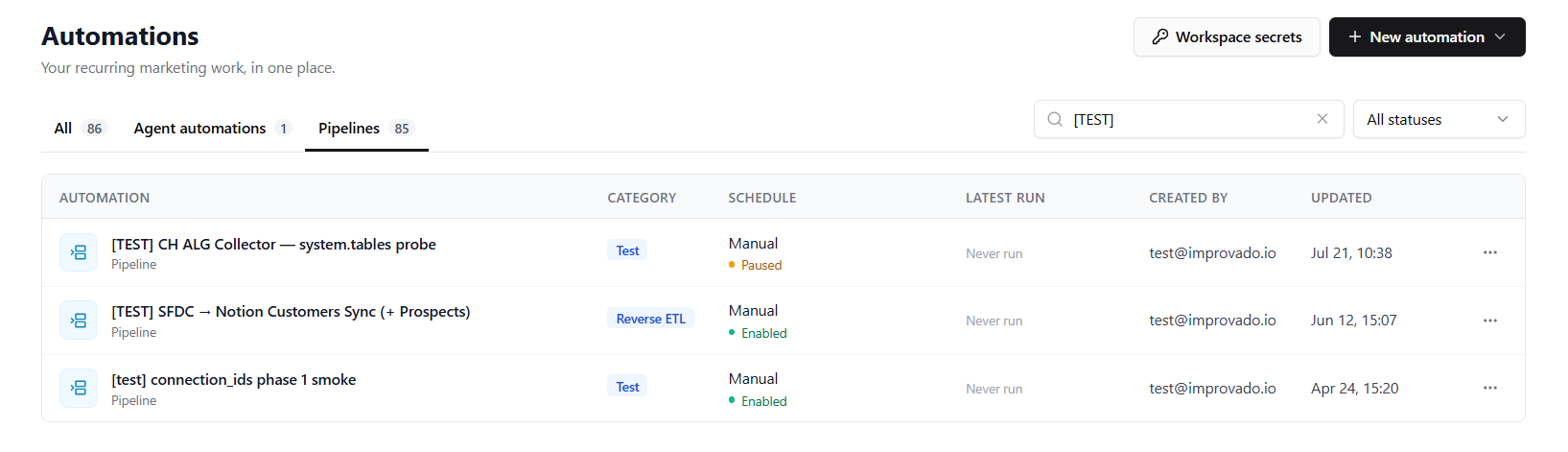
Click a row to open the automation. The row menu also lets you run it right away with Run now, and pause or resume a pipeline.
A private pipeline has a lock icon beside its title, above the Pipeline / Automation label. Its creator can access it; sharing and privacy do not change when you restore a version.
The list shows the agent automations you created and every pipeline in the workspace. The Pipelines tab and Workspace secrets appear only when Pipelines are enabled for your workspace.
Create an agent automation
Click New automation and choose Agent automation. To build a pipeline instead, choose Pipeline — that opens a chat with the AI Agent, which builds it for you.

In the form, fill in:
- Automation name — how it appears in the list.
- What should the agent help with? — what the agent should do on every run, in plain language. For example: “Check campaign health, explain issues, and prepare actions I can approve.” Use Try an example to start from a ready-made prompt.
- Result type — what each run produces:
- Summary — a written summary of what the run found.
- Plan for review — a list of proposed actions for you to approve.
- Email report — a report written as an email.
- Execution — the run carries out the changes the prompt asks for, such as refreshing data, and reports what it changed.
- Schedule — Once, Daily, Weekly or Monthly, with the day, time and time zone.
- Runs as — always you, the person who creates the automation. Each run uses your access to data and connections.
Then click Create automation.
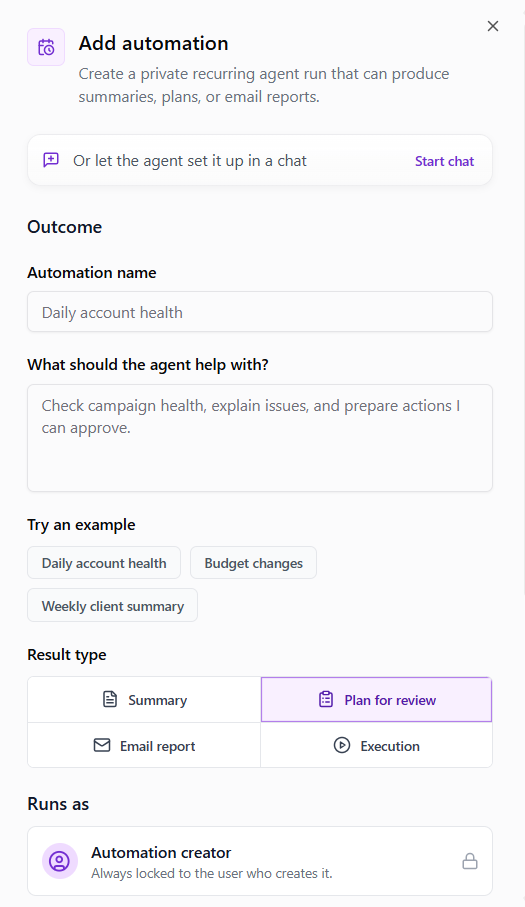
Every result type except Execution only reports: the run reads your data and writes its result, without changing anything in your platforms.
Email report sets the format of the result. To have it delivered, say so in the prompt, for example “…and email the report to the team at marketing@yourcompany.com”. Emails can only go to the domains and addresses allowed for your workspace.
Or ask the AI Agent in a chat
You can set up the same thing by asking the agent — either with Start chat in the form, or in any chat where you already have the analysis you want to repeat:
- “Run this analysis every Monday at 9 AM Eastern and send me the summary.”
- “Tomorrow at 8 AM, check whether yesterday's Google Ads spend loaded.”
- “Every 1st of the month, prepare a cross-channel performance review for the leadership team.”
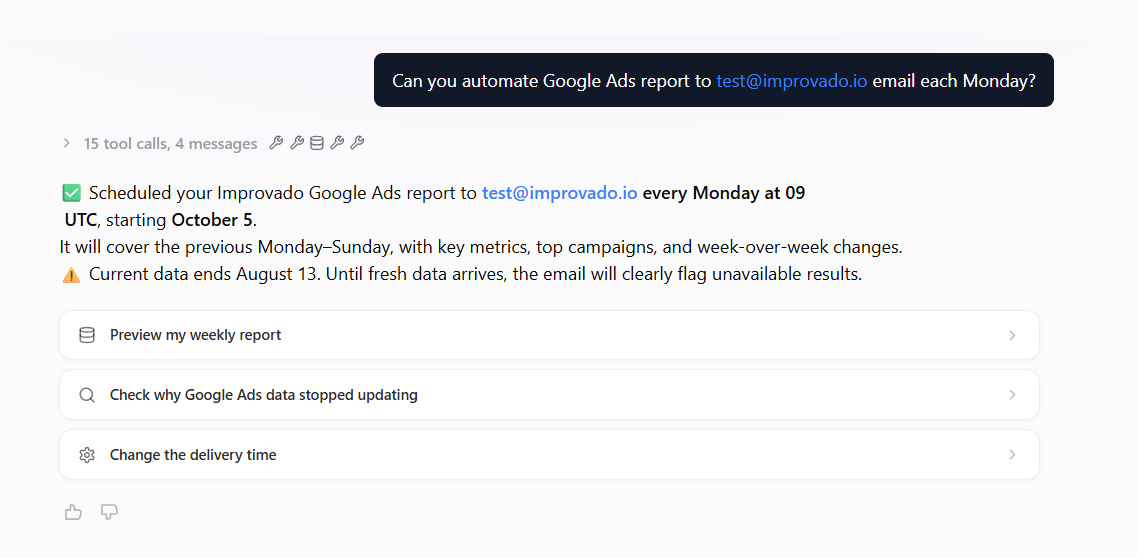
The agent creates the automation, and it appears in the Automations list. A one-time automation created from a chat also reports its result back to that chat.
Follow an agent automation
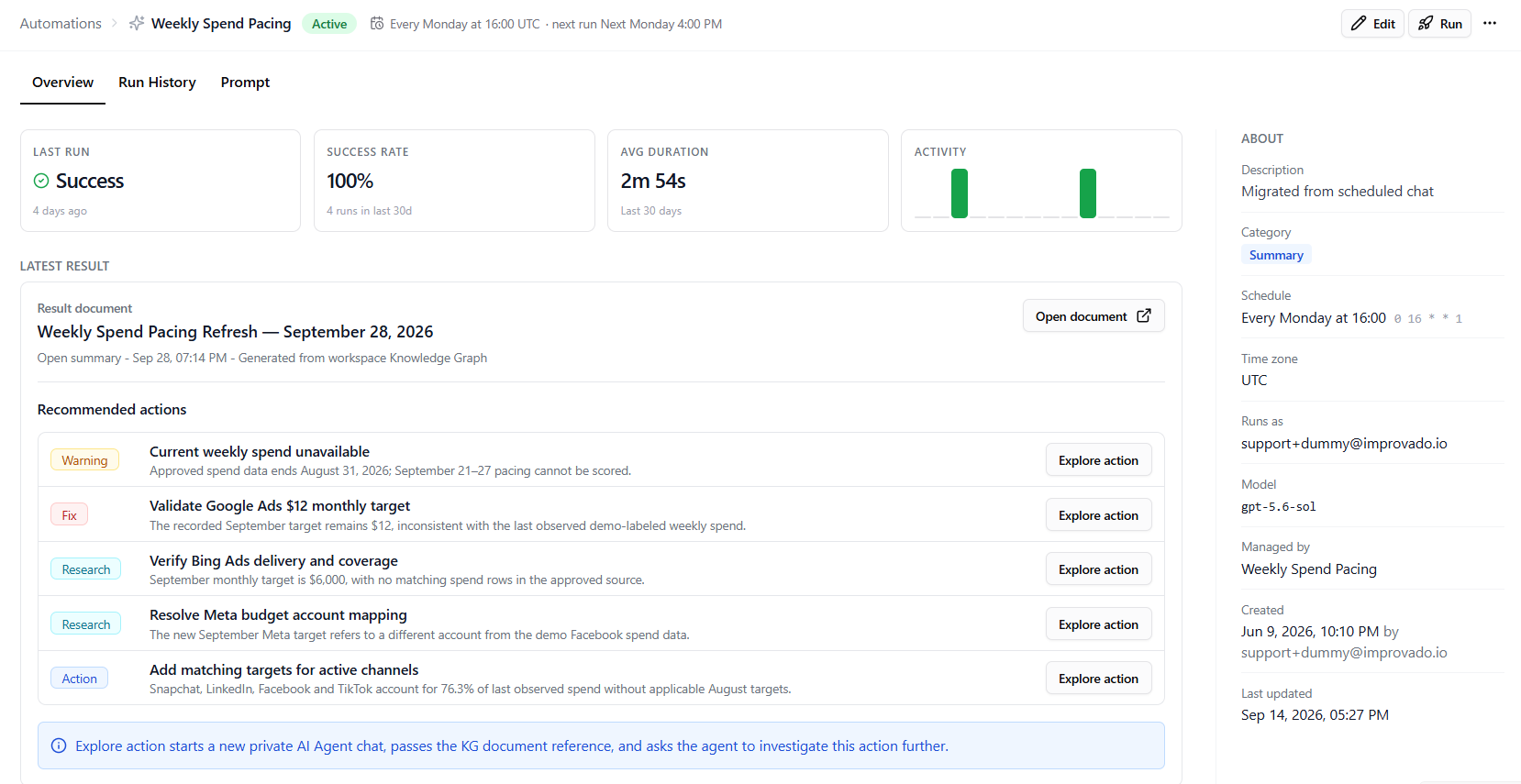
Open an automation from the list to see its page. The header shows its status and schedule with the next run, and has Edit, Run, and Delete in the More menu. The page has three tabs:
- Overview — the last run, success rate, average duration and recent activity; the result of the latest run — open the full document with Open document, and use Explore action on a recommended action to have the agent look into it in a new private chat; and an About panel with the description, result type, schedule, time zone, who it runs as, and when it was created and last updated.
- Run History — every run with its status, start time and duration. Expand a run to see its error, if there was one, and open the chat where it ran.
- Prompt — the prompt sent on every run, with a Copy button.
Each run takes place in its own chat, visible only to you. To change what an automation does or when it runs, click Edit. If you ask the agent to change one instead, it deletes the automation and creates a new one, and asks you to confirm first.
You can’t pause an agent automation yourself — to stop it, delete it. An automation that shows Paused was paused by Improvado; contact your Improvado representative to resume it.
Use cases
- Performance reporting — a weekly Google Ads summary, a daily Meta spend and ROI check, a monthly cross-channel review for executives.
- Monitoring — a daily account health check, a weekly report on unusual spend or CTR drops.
- Client reporting — a weekly summary of wins, risks and follow-ups for each client, emailed to the client team.
- Reviews before you act — budget changes reviewed every morning, with the proposed actions waiting for your approval.
For work that moves data between systems or runs many steps, use a pipeline instead.
Related articles
Was this page helpful?
Thanks for the feedback!
Questions? The Improvado team is always happy to help. Send us an email, contact your Customer Success Manager, or raise a request in the Improvado Service Desk.