

Pipeline Runs, Schedules & Artifacts
Overview
Once a Pipeline exists, everything you do with it happens on its detail page: run it, put it on a schedule, watch what each run did, and download what it produced. This page covers that lifecycle.
Running a pipeline
There are two ways a pipeline runs:
- On demand — you click Run. Use this for the first test after the Agent builds it, for one-off reruns, and for anything you'd rather trigger by hand.
- On a schedule — the pipeline runs itself on a recurring cadence.
A pipeline does not need a schedule to be useful. Plenty of pipelines exist purely as an on-demand button — a backfill you run twice a year, a QA export you pull before a client call.
Before the first full run, ask the Agent to limit the pipeline — one day, one account, a row cap — and review the output. It is much cheaper than debugging an hour-long run, and it is the only way to catch a business-logic mistake before it reaches your warehouse or your ad accounts.
Schedules
A schedule is defined as a cron expression and always runs in UTC. If you want a report to land at 9am local time, do the conversion — the Agent will do it for you if you say which timezone you mean.
Two behaviours are worth deciding deliberately when you set one up:
What happens if a run is still going when the next one is due
| Behaviour | What it does | Good default for |
|---|---|---|
| Skip | Drops the new trigger while a run is still going | Most recurring ETL, where re-running the same window is harmless |
| Queue one | Holds exactly one missed trigger and runs it after | Cases where missing a run is worse than delaying it |
| Cancel the running one | Stops the in-flight run and starts the new one | Refreshes where the latest data wins — audience syncs, pacing checks |
Under Skip, a run that never finishes will silently swallow every future trigger — the pipeline looks scheduled but nothing fires. If a scheduled pipeline goes quiet, check Run History for a run stuck in a running state before looking anywhere else.
Catch-up
Triggers missed while the platform was unavailable are replayed within a catch-up window. For hourly-or-slower jobs this is what you want — one missed tick replays. For very frequent jobs, keep the window short so a brief outage doesn't produce a burst of runs.
Enable the schedule only after a manual run has produced output you're happy with. Once cron is live, a bug fires on every tick.
The latest run on the Overview
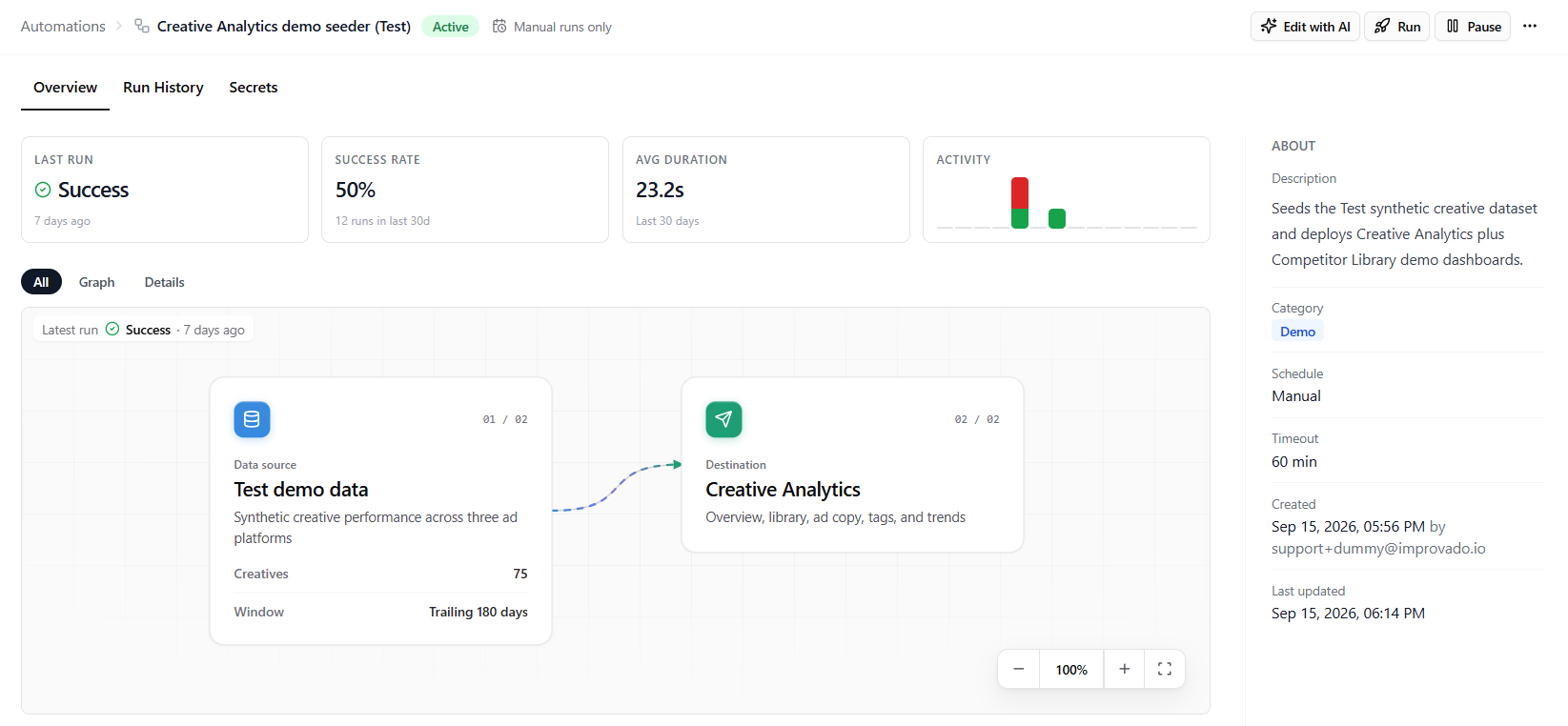
The Overview tab shows the pipeline as a diagram of its steps, colored by the latest run: steps that finished turn green, a step that failed turns red. A caption on the diagram shows that run's status and when it started.
Above the diagram, a summary row shows the last run, the success rate, the average duration and recent activity. Use the All, Graph and Details pills to see the diagram and the step details together or one at a time.
Run history
Every execution is recorded. For each run you get:
- Status — running, completed or failed
- Duration and start/finish times
- A step timeline — which steps completed and which one failed
- Output — whatever the pipeline returned as its result
- Logs and metrics
- Errors, attached to the step that raised them
Steps are isolated: one failing step does not cascade through the rest, and a step that fails on a transient problem — a timeout, a rate limit, a platform 5xx — is retried automatically. An error that won't get better on retry (a revoked token, a policy rejection, a permission problem) is surfaced to you instead of consuming the retry budget.
Artifacts
Any file a run writes — a report, an export, a debug dump — is listed under that run as an artifact. There is no separate publish step: if the pipeline wrote it, it's there. Download links are short-lived and generated on demand, so use the run page rather than saving a link.
Artifacts are per run, which makes them the natural place to keep evidence: the list of rows a data-quality run rejected, the before/after of a governance rename, the exact file a client was sent last Tuesday.
Activity: what a run changed
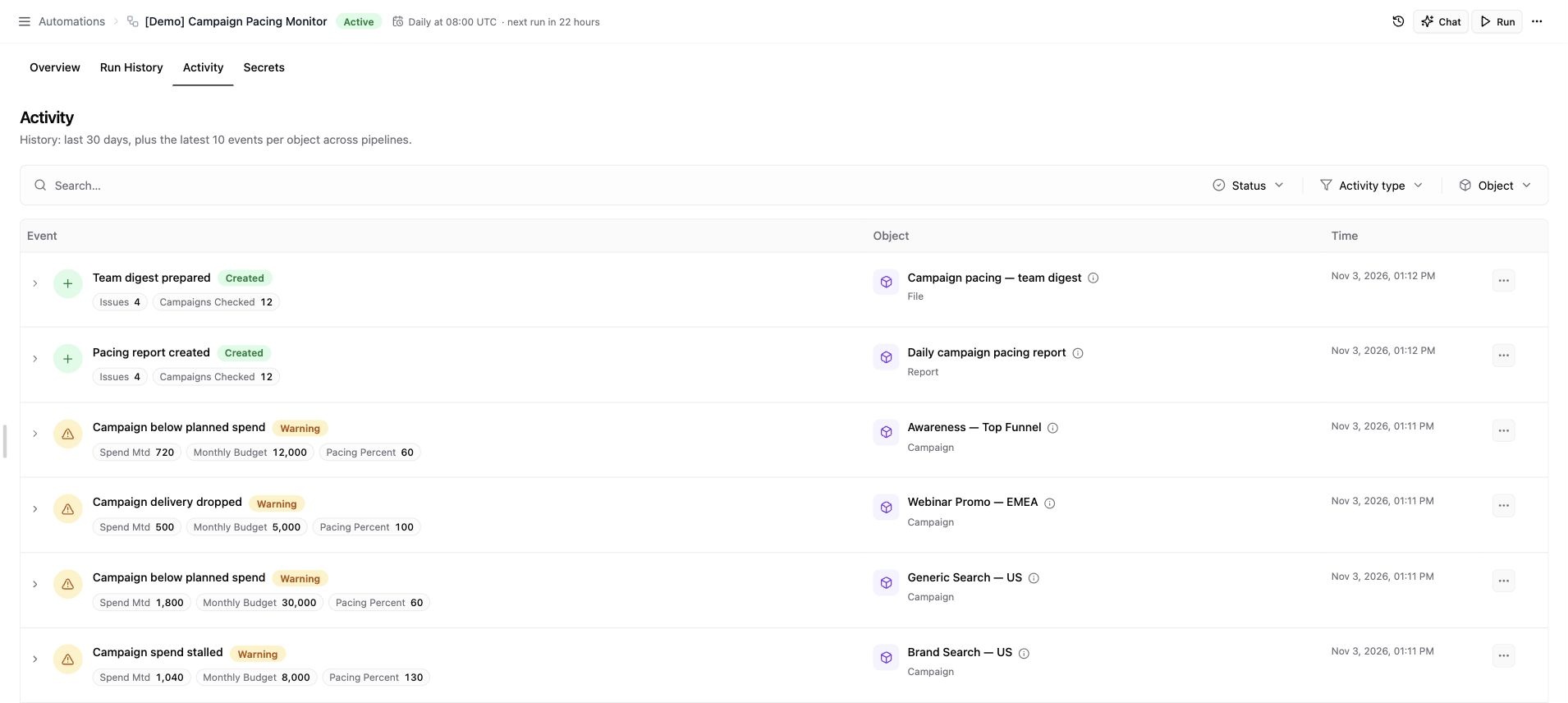
A pipeline can record what it did to the objects it works with: an audience refreshed, a campaign below its planned spend, a report created or an email sent. Each record is an event, with an object name, an activity type and an exact date and time. Events can also include numbers, such as rows added, monthly budget or audience size, and extra details.
Ask the Agent to add event recording when it builds or edits a pipeline. Events are written by the pipeline code during a run, including scheduled runs. Existing pipelines need this code before new events appear; routine checks that change nothing do not need to create events. Declared object types appear under Objects in the About panel on the Overview.
Events appear under the run that recorded them and on the pipeline's Activity tab.
Find and inspect an event
- Search matches part of an event title, object name or object ID.
- Status filters by the event's result: Success, Warning or Error. This is separate from the activity type, such as Created or Updated, and from the run's status.
- Activity type and Object narrow the list further. Use the clear button beside a selected filter to remove it, or Reset to clear all filters and search.
- Expand a row to read the additional event details. The numbers shown below the title are the metrics recorded by the pipeline.
The Object column shows the object's name and type. Hover over or focus the information icon beside its name to see its ID, source and scope. If the object has a source platform link, clicking it opens the object there.
An object keeps the same identity across runs and pipelines through its source ID and account or namespace, rather than its connection or display name. Ask the Agent for an object's history across the pipelines you can access.
Improvado keeps every event from the last 30 days, plus the ten latest visible events per object across pipelines, even when those events are older. Older events outside this minimum are removed, so an old run's event list may be incomplete.
Remove an event
Open the row's ⋯ menu, choose Delete and confirm. This removes the event from the history; it does not delete the campaign, audience, report or other source object. Ask the Agent to restore a deleted event within the 30-day recovery window.
Incremental runs and pipeline state
Pipelines can keep durable state between runs — a cursor, a bookmark, a set of already-processed ids. This is what makes incremental processing and resumable backfills work: the run picks up where the last one stopped rather than reprocessing everything.
The rule that matters when you're reviewing a pipeline the Agent built: the cursor should advance only after the target has accepted the data, never before. If it advances first, a failure halfway through loses that window permanently.
Editing, pausing and deleting
- Chat — describe the change (different filter, wider window, new destination, different schedule) and the Agent patches the existing pipeline. It edits what's there rather than rebuilding from scratch, so your run history and state survive. The chat opens in a panel next to the pipeline, and the page updates while the Agent works.
- Pause / Resume (in the ⋯ menu) — stops and restarts scheduled execution without deleting anything. On-demand runs still work while paused.
- Delete (in the ⋯ menu) — removes the pipeline from the list and deletes its schedule. A run already in flight finishes.
Editing a pipeline while a run is in flight does not change that run. The next run picks up the new version, a short moment after the edit is saved.
Version history
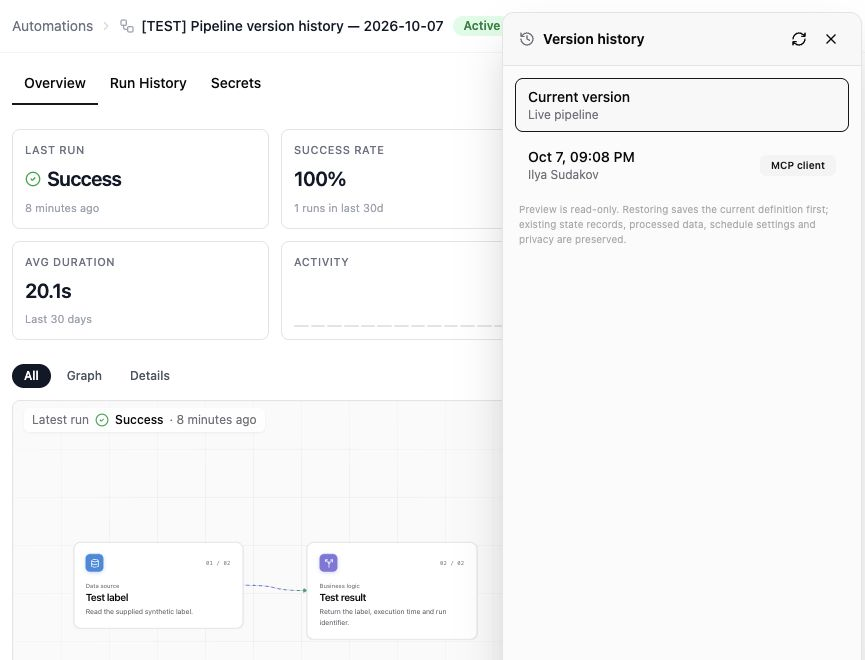
When a pipeline definition changes, its previous definition is saved automatically. This includes changes made through the Agent, MCP tools and Python uploads. Open the Version history icon in the pipeline header to see saved versions with their timestamp, author and source. When an edit is linked to an Agent chat, you can open that conversation from its history entry.
Preview a version
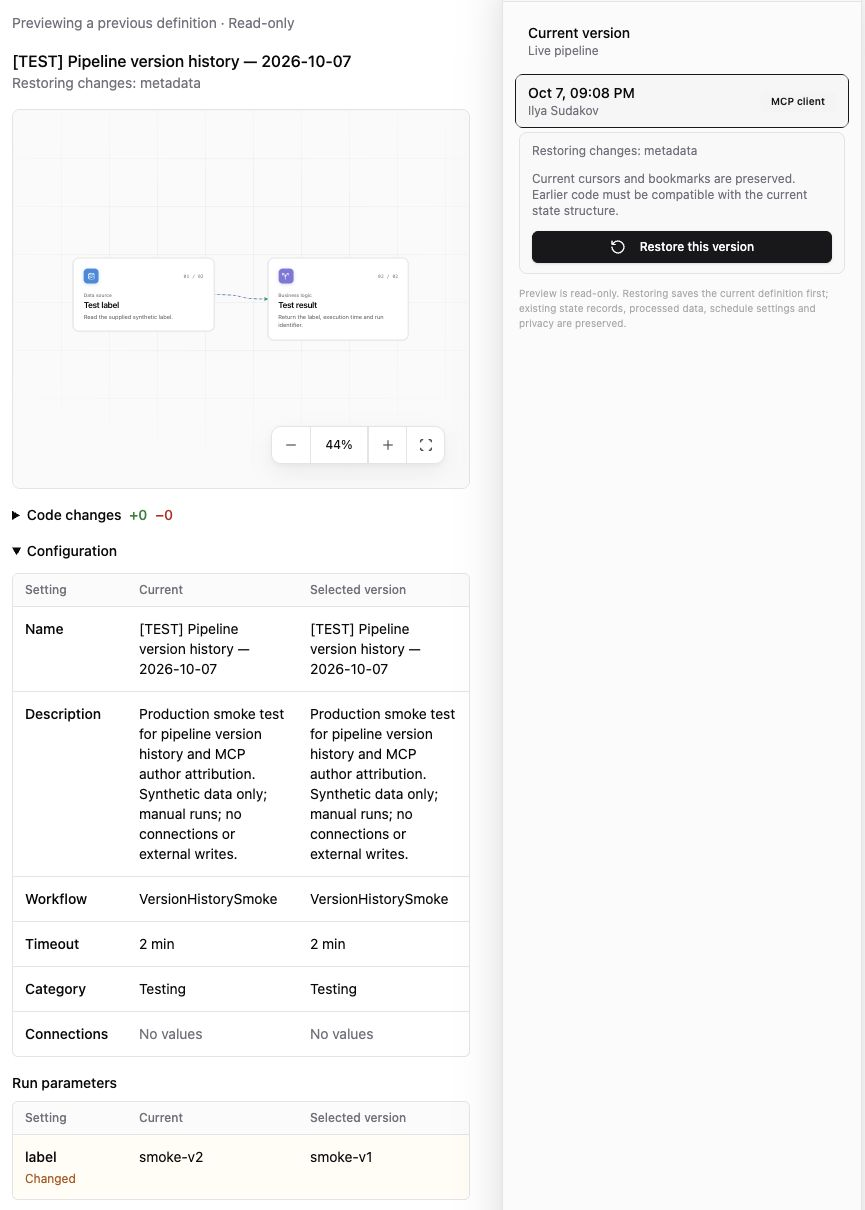
Select a saved version to enter read-only preview. Review its diagram, expand Code changes to see changed lines and the counts of additions and removals, and compare Current with Selected version in the configuration table. Settings and run parameters are shown separately from code.
Restore a version
In preview, click Restore this version and confirm. The current definition is saved first, so you can return to it later. Restore brings back the saved code, run parameters, connections, diagram and other definition settings. For a scheduled pipeline, future runs use the restored definition; a run already in progress continues with the code it started with.
Restore preserves the current state, already-processed data, run history, schedule settings and privacy. It does not undo external actions from earlier runs or reset cursors and bookmarks. If the workflow name changes, review and acknowledge the state warning before confirming the restore.
Earlier code may expect a different state structure. Before running a restored pipeline, ask the Agent to compare its state expectations with the records that exist now and adapt the code or state if needed. Preserving state avoids losing progress, but incompatible code can fail or process data incorrectly.
If another editor changes the pipeline while you are restoring, refresh the history and review the latest definition before trying again. If restore reports a schedule-sync warning, ask the Agent to check the schedule before relying on the next scheduled run.
Troubleshooting
| Symptom | Usual cause |
|---|---|
| Scheduled pipeline stopped producing runs | A previous run is stuck in a running state and the schedule is set to Skip |
| Run fails with an authorization error | The underlying connection's credentials expired — reconnect the source, then rerun. For a service reached with a secret, update the secret instead |
| Run fails because a secret is missing | The Secrets tab lists it as Required by code, no value set — add the value, see Pipeline secrets |
| Run completes but writes nothing | The cursor is already past the window, or the filter matched no rows — check the run output, which reports counts, not just success |
| Run fails only at full volume | The run exceeded its resource budget — see Limits & Availability |
| Audience uploaded, size shows 0 | Expected — population is asynchronous on every ad platform. Check again later; do not re-upload |
If a pipeline is failing and the cause isn't obvious from the run timeline, ask the Agent in chat — it can read the failing run's logs and errors directly.
Related articles
Was this article helpful?
Thanks for the feedback!
Questions? The Improvado team is always happy to help. Send us an email, contact your Customer Success Manager, or raise a request in the Improvado Service Desk.