
Monitor Any Connected Source with Discovery API Rules
Overview
Data governance rules watch your marketing data and alert you when something looks wrong — overspend, a paused campaign that should be live, a metric outside its expected range. Normally a rule can only watch data that has already been loaded into Improvado through an extraction pipeline. If you haven't set up extraction for a source, you can't write a rule against it.
Discovery API-backed rules remove that limit. They let you monitor metrics from any connected data source — Facebook Ads, Google Ads, TikTok, LinkedIn, and the rest of Improvado's connectors — even when you have no extraction set up for that source. You connect the account once, describe what you want to watch, and the AI agent does the rest.
This is built for monitoring: keeping an eye on a handful of important metrics and getting alerted when they drift. It is not a replacement for full data extraction when you need to load large datasets for reporting.
This page covers the governance-rule side. The underlying capabilities have their own documentation: Discovery API in AI Agent for reading and changing live data from chat, and Pipelines for the scheduled workflows these rules run on.
How It Works
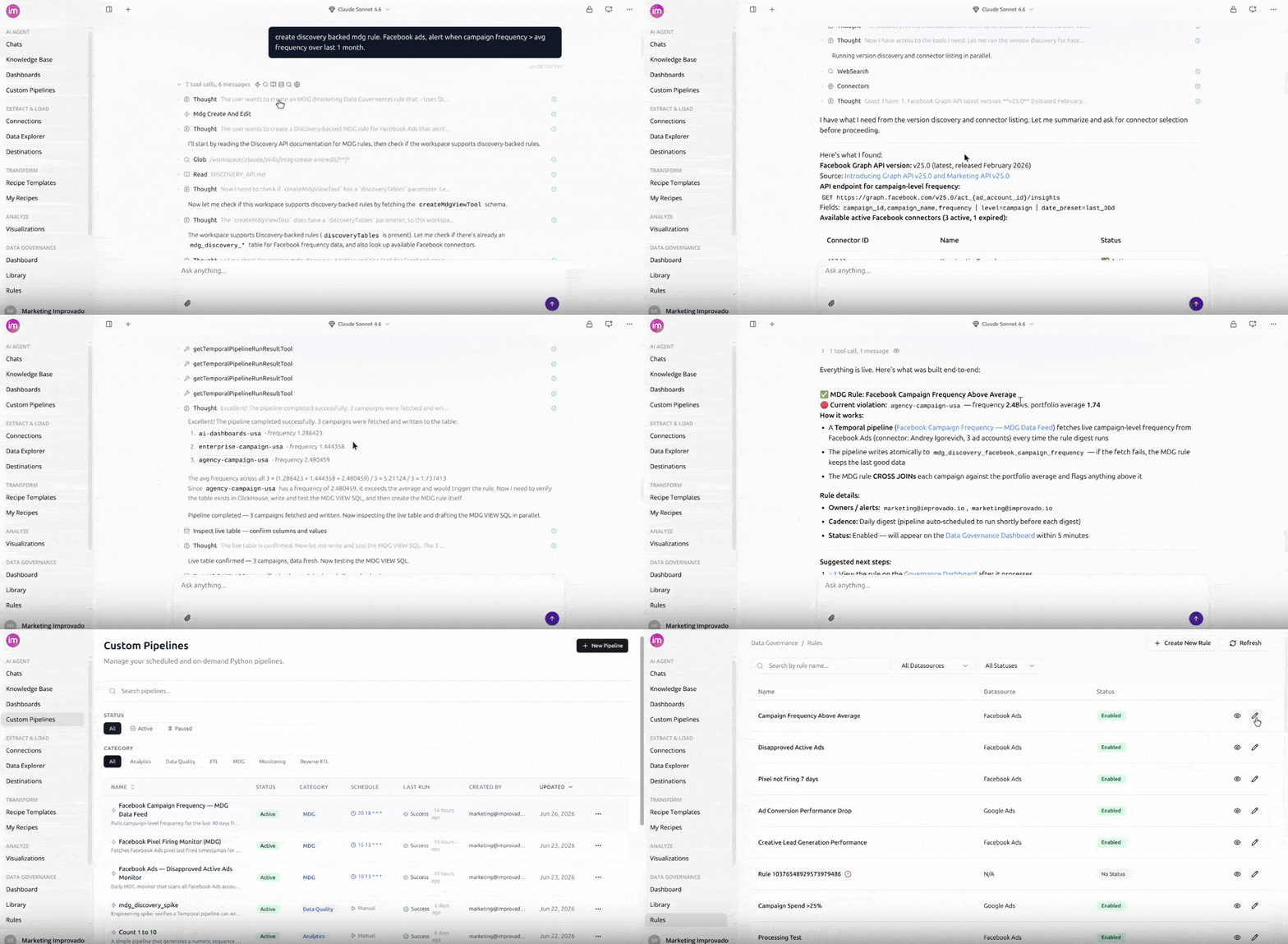
- You describe the rule in chat. Tell the AI agent what you want to monitor and which connected source it lives in — for example, "alert me when live Facebook ad spend goes over $10,000 a day."
- The agent sets up a data feed (Pipeline) for you. Behind the scenes it builds a Pipeline that pulls the data you asked for directly from the platform on a schedule. You don't write any code or configure anything yourself.
- The rule watches that pipeline. Once the data is flowing, the agent writes the governance rule on top of it. From that point the rule behaves like any other MDG rule — it runs on your chosen frequency and is included in your digest email.
- The pipeline refreshes automatically. Fresh data is pulled shortly before each rule check, so every alert is based on up-to-date numbers.
Creating a Rule
- Open a chat with the AI agent.
- Describe what you want to monitor and name the connected source — be specific about the metric, the threshold, and the platform.
- The agent explores your live data to confirm it can pull the metric you want, and may ask follow-up questions to get the request right.
- The agent sets up the Pipeline, pulls a first batch so you can review it, and adjusts if anything looks off.
- Once the data is correct, the agent creates the rule and adds it to your data governance rules. From here it works exactly like any other rule — you can edit its threshold, frequency, notification settings, and status from the Rules page.
💡 The data source has to be connected in Improvado first. Connecting an account is not the same as setting up extraction — Discovery API rules need only the connection, not a full extraction pipeline.
Where the Pipeline Lives
Each Discovery API rule is powered by a Pipeline that runs on a schedule. You can view these pipelines in Automations, on the Pipelines tab, where each one shows its status and latest run.
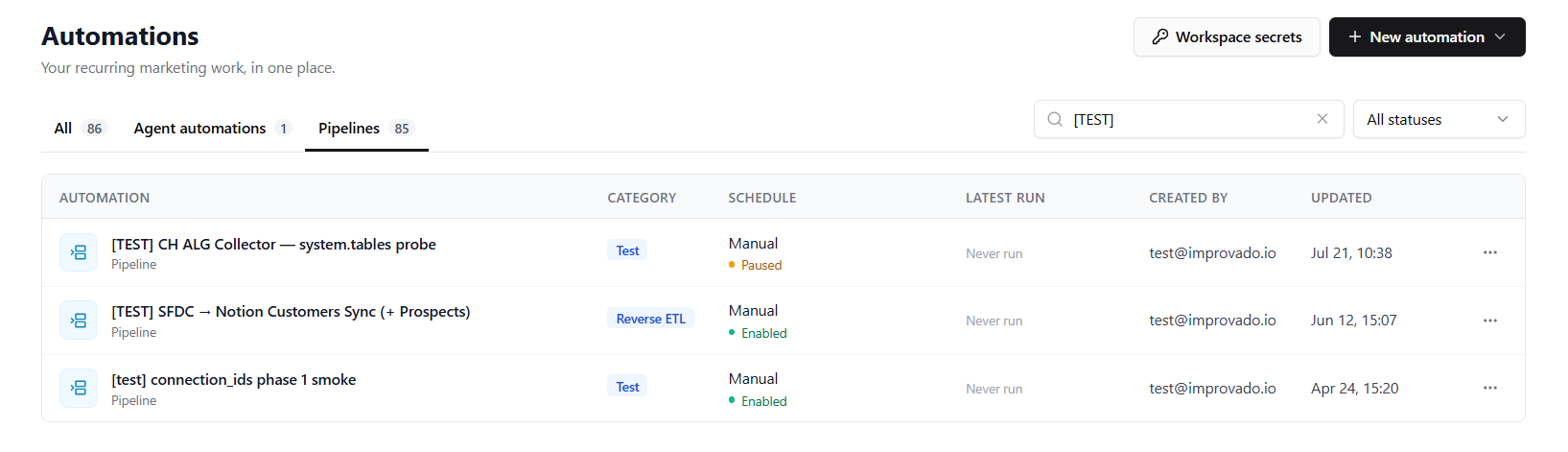
You don't normally need to touch the pipeline directly — creating, editing, enabling, or deleting the rule keeps it in sync for you. Automations is there when you want to confirm a pipeline is running or check when it last refreshed.
Refresh Schedule
The Pipeline refreshes on its own, timed to run shortly before each rule check so your alerts always use fresh numbers. Its schedule is derived automatically from the rule's frequency and alert time — you set the rule's schedule, and the pipeline follows.
When several rules rely on the same data, the pipeline simply refreshes at the pace of the most frequent rule, so every rule that depends on it stays current. Hourly is the fastest supported refresh.
Rule Status and Stale Data
Because Discovery API rules depend on a live Pipeline, they have one extra status beyond pass / violation:
| Status | Meaning |
|---|---|
| 🕒 Stale data | The pipeline is still catching up, so the rule waited rather than checking older numbers. |
Stale data simply means the rule is waiting for fresh numbers. The pipeline hasn't refreshed within the expected window yet — usually a brief, self-resolving lag right after a rule is created or re-enabled. When this happens, Improvado holds off rather than alerting on out-of-date data: it shows the 🕒 status in your digest and clears it automatically on the next refresh. Nothing is needed from you; if a rule stays in this state across several digests, it's a sign the source connection may need to be reconnected.
Editing a Rule
You edit a Discovery API rule the same way you edit any other rule — change its notification settings from the Rules page. The Pipeline's schedule is kept in sync automatically.
If you need to change what data the rule watches (a different metric, a wider date window, a different account), ask the agent — it will adjust the underlying pipeline and update the rule for you.
Enabling and Disabling a Rule
- Disabling a rule pauses its Pipeline, so it stops pulling data and stops consuming any quota — as long as no other active rule still relies on that pipeline.
- Enabling a rule resumes its pipeline.
Deleting a Rule
Deleting a Discovery API rule stops and cleans up its Pipeline, provided no other rule still uses it. If the pipeline is shared with another active rule, it keeps running for that rule and the remaining rules continue as normal.
What Gets Checked
A Discovery API rule can monitor essentially any metric the platform's API exposes for a connected account, for example:
- Daily or lifetime spend against a budget threshold
- Delivery signals — impressions, clicks, conversions outside an expected range
- Status checks — campaigns or ad sets that should (or shouldn't) be active
- Pacing — actual spend versus a planned budget over a period
Things to Keep in Mind
- Built for monitoring, not bulk loading. Discovery API rules are for watching a focused set of metrics. For large datasets and historical reporting, use a full extraction pipeline instead.
- The source must stay connected. If the connection to the platform breaks or its credentials expire, the pipeline can't refresh and the rule will show as stale.
- Availability depends on your plan. Discovery API rules rely on the Pipelines capability being enabled for your workspace. If you don't see the option, contact your Improvado representative.
Frequently Asked Questions
Can one rule combine data from several sources?
Yes. If a check needs data from more than one platform, the agent sets up a Pipeline for each source and combines them in a single rule.
Does a Discovery API rule cost more than a regular rule?
Only to create. Setting one up uses more credits than a regular rule, because the agent explores your live data and builds the Pipeline for you. Once the rule is running, its scheduled data refreshes are credit-free — ongoing monitoring does not rely on AI agent.
Why does this kind of rule take longer to set up?
Creating a Discovery API rule involves more steps than a regular rule. The agent has to explore your live data, build and run the Pipeline, let you review a first batch, and only then write the rule on top. Expect setup to take a few minutes rather than being instant. Once it's running, it refreshes and runs just as fast as any other rule.
Do I need to set up extraction for the source first?
No. That's the point of a Discovery API rule — it only needs the source to be connected in Improvado. No extraction pipeline is required.
What happens if the connection to the source breaks?
The Pipeline can't refresh, so the rule shows 🕒 Stale data instead of alerting on old numbers. Reconnecting the source clears it on the next refresh.
Was this page helpful?
Thanks for the feedback!
Questions? The Improvado team is always happy to help. Send us an email, contact your Customer Success Manager, or raise a request in the Improvado Service Desk.