
Assign Account Owner
Overview
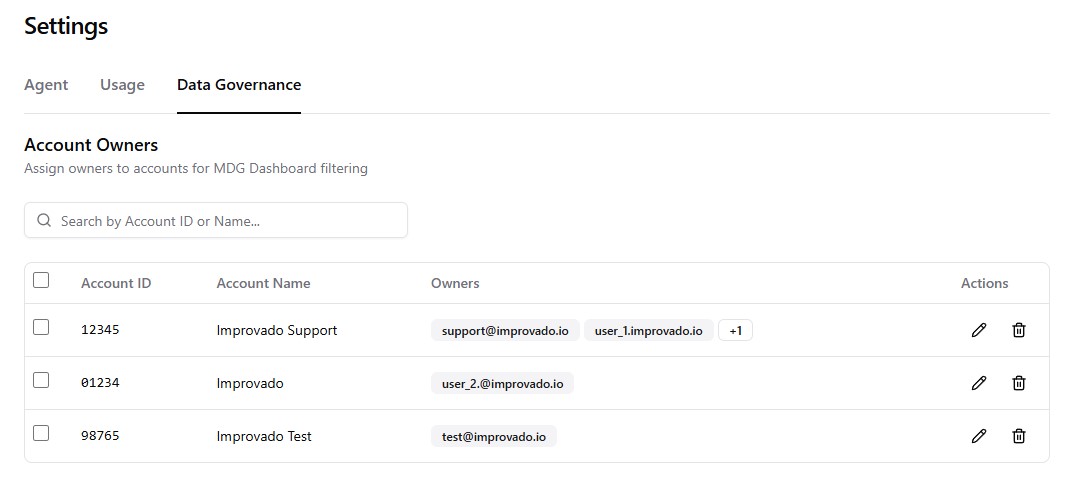
The Account Owners feature enables filtering capabilities for the Data Governance dashboard and personalizes email digests for rule owners. Users can assign ownership of monitoring accounts to specific individuals from Settings, allowing filtered views of violations and compliance metrics — both on the dashboard and in alert emails.
Understanding Account Owners vs Rule Owners
The MDG feature distinguishes between two ownership types:
Account Owners determine what data is visible to you in the Data Governance dashboard and in your email digests. When assigned this role, you can filter the dashboard to see only accounts you own, and your digest emails will only include violations tied to those accounts.
Rule Owners control who receives email notifications for rule violations. Rule owners are assigned to individual rules and determine who gets the digest email when violations occur.
The key difference: Account Owners define the scope of what you see both on the dashboard and in emails. Rule Owners define who gets notified at all. Being an account owner does not automatically grant email notifications, you must also be assigned as a Rule Owner on the relevant rules to receive digest emails.
How Account Ownership Affects Email Digests
When a rule tracks data at the account level (i.e., violations include an account_id), each rule owner's digest email is filtered to show only the violations for accounts they own.
This means:
- Two rule owners on the same rule may receive different violation lists in their emails, based on which accounts each of them owns.
- The broken entities count in the email reflects only the violations relevant to that recipient.
- The total entities checked and compliant entities count remain rule-wide figures, not filtered per recipient.
- If an entity's account has no assigned owner, it is included in every rule owner's email no violations are hidden when ownership is unassigned.
- If no account owners are configured at all, digest emails behave as before: all violations are sent to all rule owners.
Using the Dashboard Filter
The Account Owner filter allows you to:
- Select one or multiple owners from a dropdown menu
- Filter dashboard data to show only selected owners' accounts
- Combine with other filters (rule owner, campaign name)
- Share filtered views via URL (filter selections persist)
Setup Guide
Follow these steps to assign an Account Owner:
Navigate to Settings.
Locate the account to assign.
Select or assign appropriate Owner(s).
Save changes.
You can assign multiple owner emails to a single account. Different agencies or workspaces can have different owners for the same account.
To receive email notifications, ensure you're also assigned as a Rule Owner on the relevant rules. See Data Governance Email Alerts documentation for details on how digest emails work.
Was this page helpful?
Thanks for the feedback!
Questions? The Improvado team is always happy to help. Send us an email, contact your Customer Success Manager, or raise a request in the Improvado Service Desk.