

Budgets Feature Overview
Overview
The Budgets feature lets teams plan monthly ads-account budgets directly in Improvado. Plan the spend for each account, schedule changes ahead of time, and keep the full history of what was planned and by whom — all in one place, next to the data the plan is measured against.
Budget Pacing data governance rules read those plans automatically: they compare the planned budget with actual spend for the same month and raise a violation when an account overspends.
Key Characteristics
Scope and sharing
- Budgets are set per ads account, on a specific platform.
- Budgets are workspace-scoped. Workspaces never see or affect each other's budgets.
- Budgets are not user-specific: a budget entered by one team member is the budget everyone in that workspace sees, and every entry records who set it and when.
- Budgets spanning several workspaces are not supported today.
Monthly granularity
Every budget starts on the first day of a month. The editor offers a month picker, and any other start date is rejected. Only one budget can exist per account per month.
Carry-forward
A budget applies from its start month onward until a newer entry replaces it. There is no need to re-enter the same amount every month.
Impact on rules
Budget Pacing data governance rules resolve the effective budget for each month — the most recent entry whose start month is not later than that month — and compare it with the account's total spend for the same month. Accounts without a budget produce no Budget Pacing result.
How to Use
Where to find it
Settings → Data Governance → Budgets.
Anyone with access to Data Governance can view budgets. Adding, changing, or deleting a budget requires edit access to Data Governance.
Reading the table
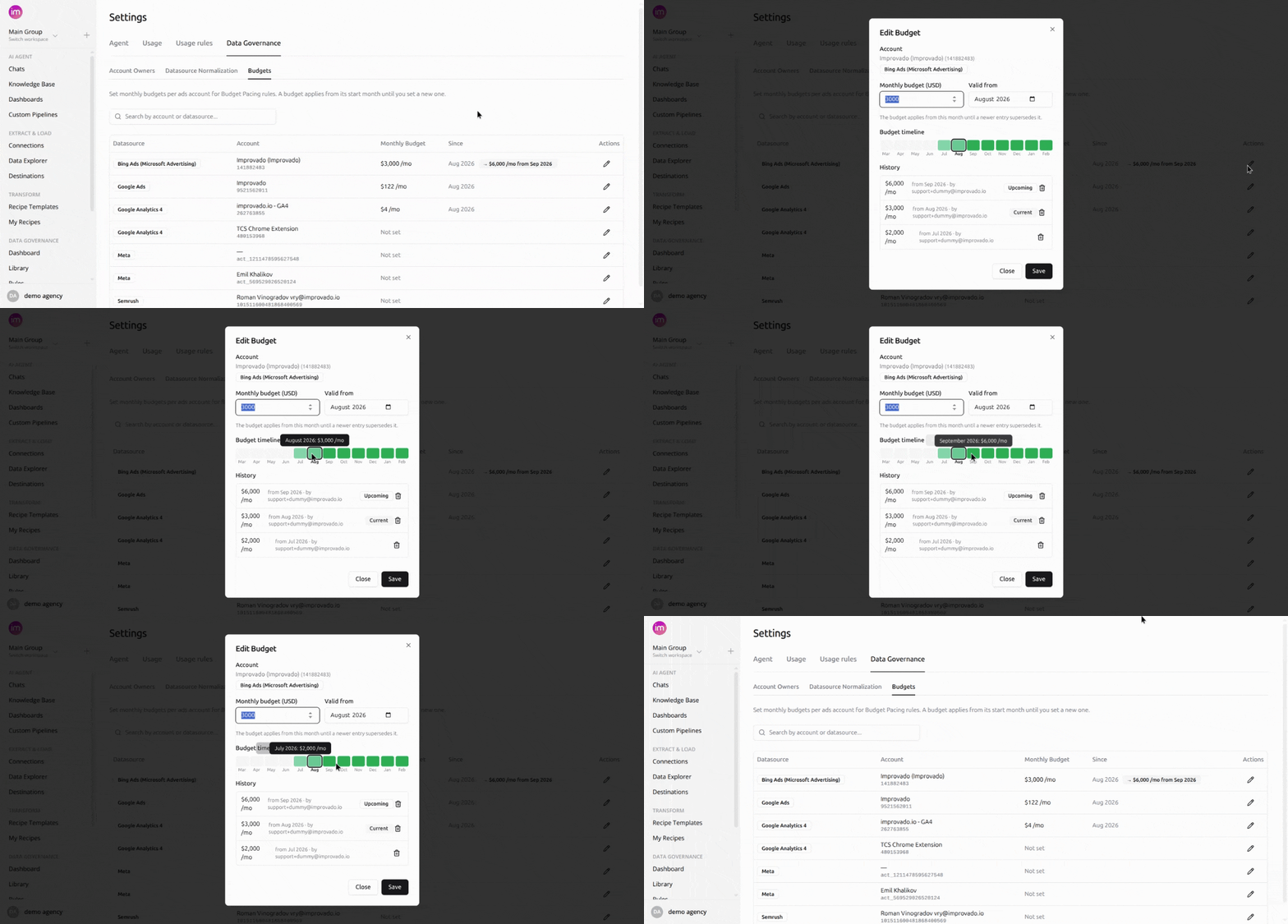
Each row is one ads account and shows:
| Column | Meaning |
|---|---|
| Datasource | The platform the account belongs to, exactly as your rules report it |
| Account | Account name and account ID |
| Monthly Budget | The budget in effect today, or "Not set" / "Not started" |
| Since | The month the current budget started, plus any scheduled future change |
"Not set" means no budget has ever been entered for that account. "Not started" means budgets exist, but all of them start in a future month.
Use the search box to filter by account name, account ID, or datasource.
Setting a budget
- Find the account and click the pencil (edit) icon.
- Enter the monthly budget in USD — it must be a positive amount.
- Pick the month the budget starts from (Valid from).
- Click Save.
Saving with a start month that already has an entry replaces that entry's amount. Saving with a different start month adds a new version, leaving the earlier one intact.
Scheduling a future change
Pick a start month in the future. The current budget keeps applying, and the table shows the upcoming amount and its start month as a badge next to Since.
Reviewing and removing history
The edit dialog shows a budget timeline and a full history list — every entry with its amount, start month, and the team member who set it. The entry in force today is marked Current; a scheduled one is marked Upcoming. Use the trash icon next to any entry to delete that version.
⚠️ Deleting a budget entry is immediate and permanent. Budgets cannot be restored once deleted.
Where Budgets Appear
Once budgets are in place, Budget Pacing rules use them on every run. Their results show up on the Budget Pacing tab of the Data Governance Dashboard alongside budget-versus-spend trends, and in Data Governance digest emails like any other rule.
Notes and Limits
- Accounts come from rule activity. The account list is built from accounts your Data Governance rules have already checked, so a newly connected account appears only after a rule has run against it.
- Datasource names are shown as your rules report them. If two rules label the same platform differently, the same platform can appear as two datasources with separate budgets.
- Budgets are account-level and monthly today. Campaign-level budgets and other budget periods beyond monthly are planned for a future release.
- Amounts are in USD, to the cent.
- Budgets are entered only through this screen, and cannot be restored if deleted — treat deletions as permanent.
Was this page helpful?
Thanks for the feedback!
Questions? The Improvado team is always happy to help. Send us an email, contact your Customer Success Manager, or raise a request in the Improvado Service Desk.