

How your creatives get tagged
Everything in Creative Analytics Intelligence rests on tags: every creative is turned into a set of them. The Overview breakdowns, the Attribute Explorer, the Combination Matrix, and the Ad Copy views all slice by these tags. This article explains the two tag layers, how to shape them, and how re-tagging keeps them current.
The two tag layers
Layer 1 — the AI taxonomy (automatic)
An AI classifier reads each creative — image or video — and assigns a universal set of attributes: archetype, visual style, hook type, setting, pacing, emotional tone, file type, color palette, characters, products shown, and more. It runs automatically once your account is onboarded. These attributes power every breakdown on the dashboard, so you can compare like with like across every account and brand.
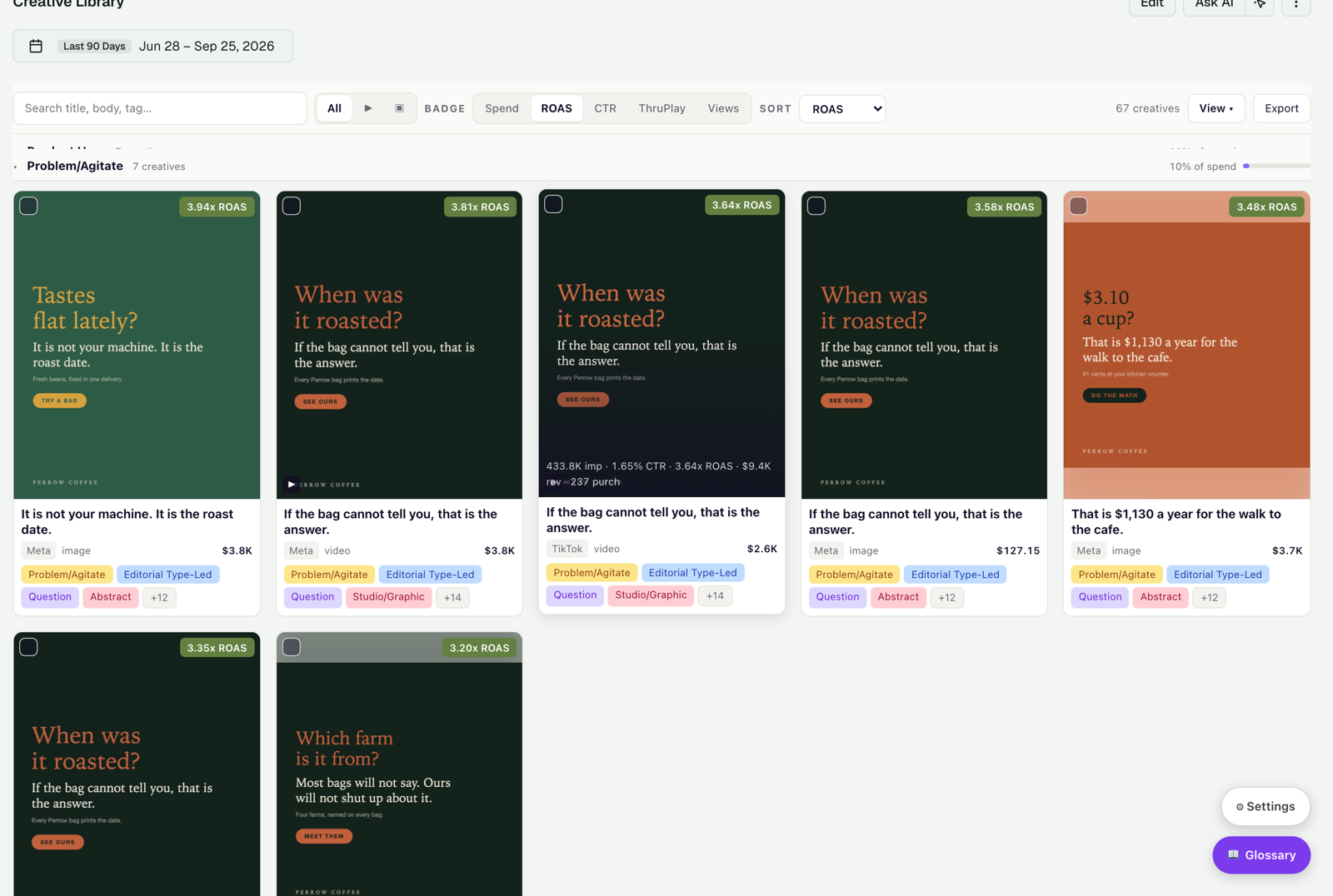
Layer 2 — custom tags (yours, now AI-assisted)
Custom tags add the brand-specific dimensions the universal taxonomy can't know: campaign theme, product line, persona, funnel stage, offer type, seasonality. You define the tag and its allowed values, then either fill them in by hand or give the tag an AI prompt — a plain-language question — so the pipeline classifies your creatives for you. For the full workflow, see Custom tags management.
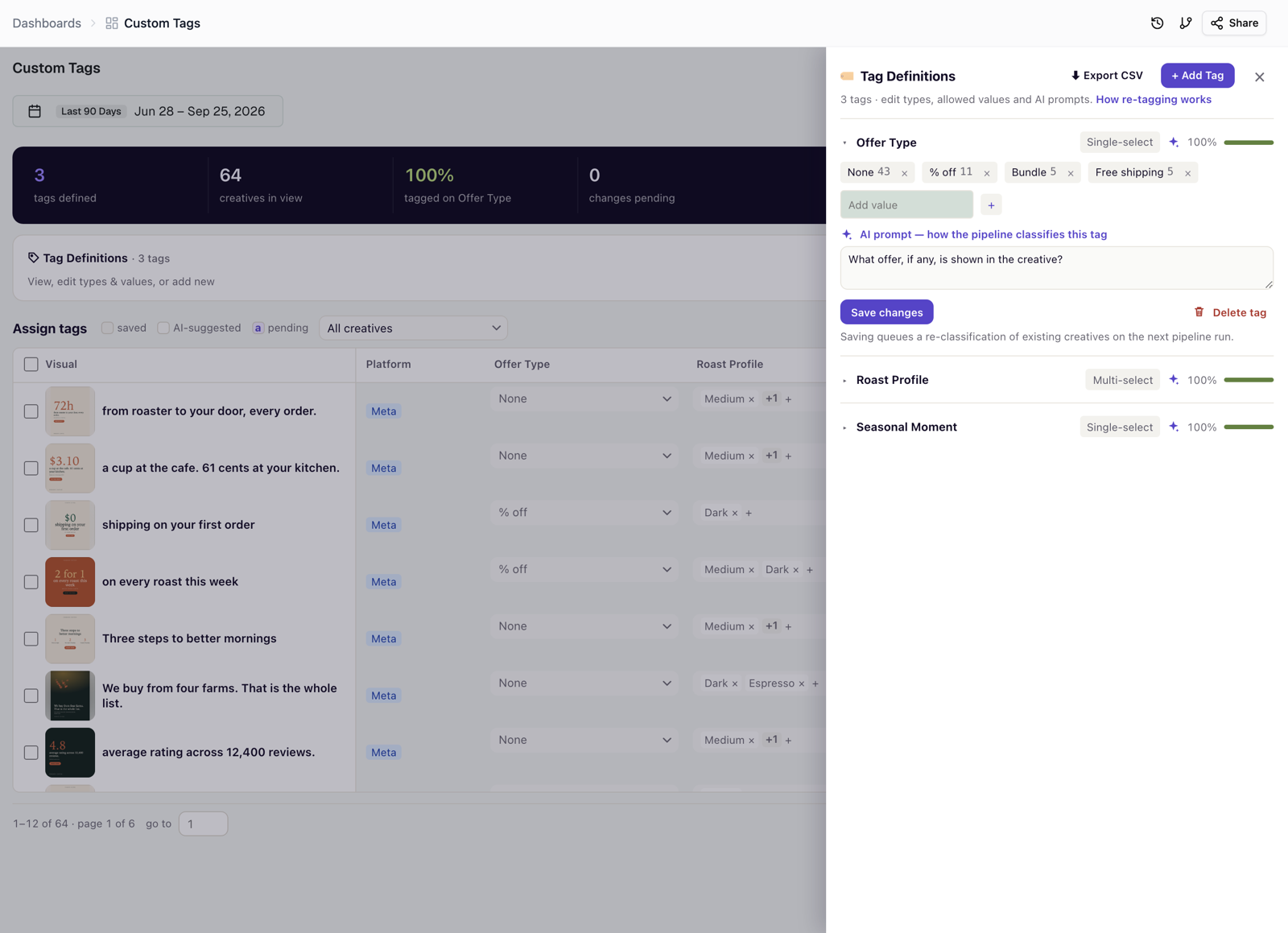
Keeping tags current: re-classification
New creatives are tagged automatically as they arrive. Existing creatives are updated by re-classification: whenever you add a custom tag, change its allowed values, or edit its AI prompt, the dashboard queues a re-classification, so your whole library stays consistent as your vocabulary changes.
Control the scope: Mode and Depth
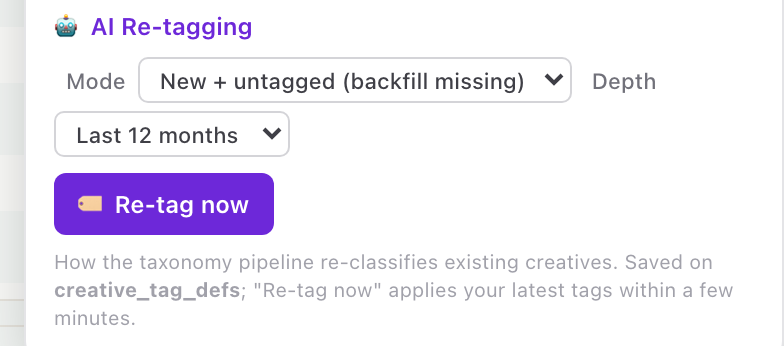
Open Settings in the bottom-right corner of the Custom Tags tab. The AI Re-tagging section has two dropdowns.
Mode — which creatives to update:
- New + untagged (backfill missing) — the default. Fills in only the attributes a creative is missing and never rewrites a value that is already there.
- All history (re-tag everything) — re-classifies every creative in scope and overwrites existing values. Use it after you change what a tag means.
- New only (forward, no backfill) — tags only creatives added from now on.
Depth — how far back to go: Last 6, 12, or 24 months, or All time. The default is Last 12 months. Depth counts from each creative's most recent activity date, so a re-tag stays fast and focused on the period you care about.
Re-tag now
Saved tag edits are picked up on the taxonomy pipeline's regular schedule. If you don't want to wait, click Re-tag now to start a run immediately with the Mode and Depth you selected. While a run is in progress, the button is disabled; if a run is already going, it tells you so instead of starting a second one. Existing tags stay on the dashboard the whole time, and new values apply when the run finishes.
Know it's working: the status
A status in the Tag Definitions row tells you in plain language whether the dashboard's data is current and whether a re-tag is running:
| Status | What it means |
|---|---|
| Data up to date · updated N ago | Tagging and the dashboard are in sync. No action needed. |
| Re-tagging · started N ago | A re-tag you queued is running. New tags apply to the dashboard when it finishes. |
| Re-tag is taking longer than usual | A queued re-tag hasn't finished yet. Existing tags stay on the dashboard until it completes. |
| Re-tag stalled | A run stopped reporting progress and likely hit an error. Run it again, or contact your Improvado team. |
| Data is stale · last updated N ago | The dashboard's data refresh is overdue or failed on its last run. |
Was this page helpful?
Thanks for the feedback!
Questions? The Improvado team is always happy to help. Send us an email, contact your Customer Success Manager, or raise a request in the Improvado Service Desk.