

Data Source Overview Page
Every data source in your workspace has its own page. It brings together everything about that source — its connections, accounts, extracts and extracted rows, what needs your attention, setup guides and upcoming changes to its API — so you do not have to collect it from several places.
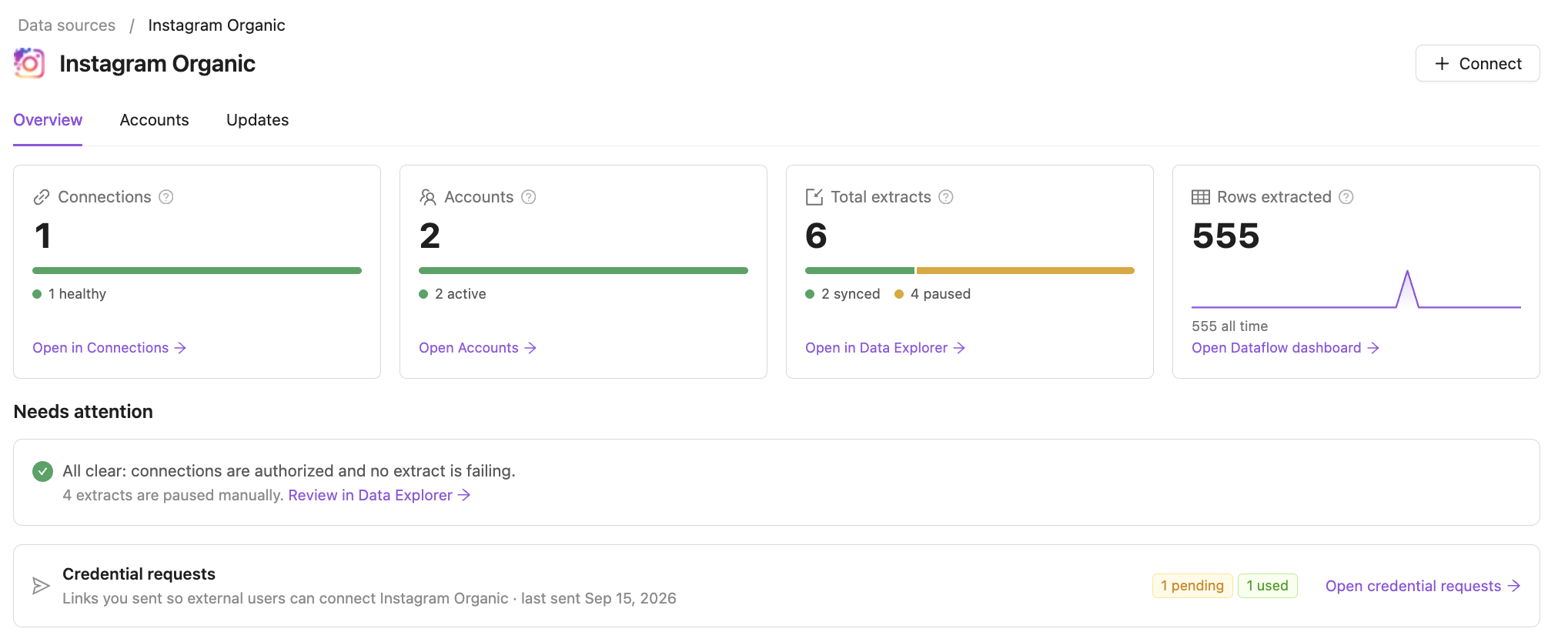
How to open it
- Connections — click the data source name in the Data source column. In the grouped view, click Open hub next to the data source.
- Data Explorer — click the data source name in the Data source column, or Open hub in the grouped view.
- A connection's page — click the data source name in the breadcrumbs at the top.
The page header has a Connect button to add a new connection to the data source.
Overview
The Overview tab starts with four cards. Each shows a total, how it splits by status, and a link to the full list, already filtered to this data source.
- Connections — connections to the data source, by status: healthy, with credentials expiring soon, with an authorization error, or with no accounts. Open in Connections opens them in the Connections list.
- Accounts — accounts of these connections, active and disabled. Open Accounts opens the Accounts tab.
- Total extracts — extracts of the data source by status: synced, syncing, queued, paused or failed. Open in Data Explorer opens them in Data Explorer.
- Rows extracted — rows loaded in the last 30 days, with a day-by-day line. Open Dataflow dashboard opens the detailed dashboard.
Needs attention
Below the cards, Needs attention lists what to fix first. Only the sections with something in them are shown; when there is nothing to fix, it says All clear.
- Reconnect — connections that failed to authorize, starting with those that hold up the most extracts. Click Re-authorize to sign in again.
- Credentials expiring — connections whose credentials run out soon, with the days left. Re-authorize them before the date so their extracts keep running.
- Failing extracts — extracts whose last run failed, grouped by error.
- Paused after failing — extracts stopped after repeated failures or an invalidated connection. They stay paused until you resume them.
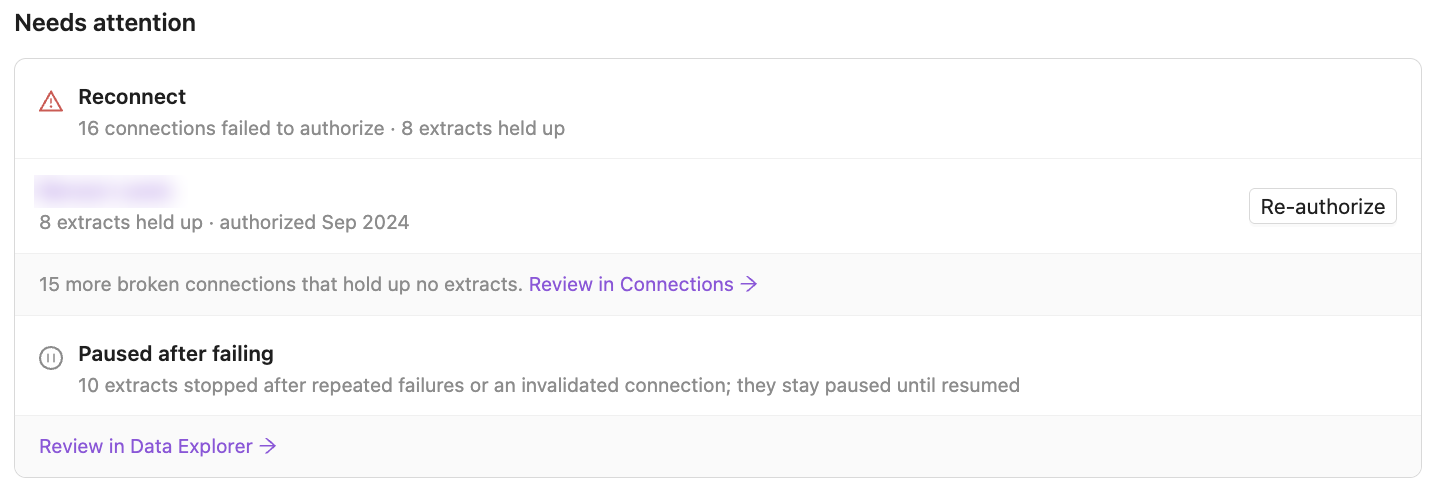
Extracts you paused yourself are not a problem, so they are not listed. When there are some, All clear mentions how many.
Credential requests
At the bottom, Credential requests shows the links you sent so external users can connect the data source for you, and their status. Open credential requests opens the full list for this data source. Read more in Request credentials from external users.
Accounts
The Accounts tab lists the data source's accounts. An account that comes through several connections is listed once, with all its connections.
- Search by account name or ID.
- Active only hides disabled accounts. Clear it to see them all.
- For each account you see its connections, status, number of extracts and when it was last updated.
Updates
The Updates tab keeps the data source's reference material in one place:
- Improvado's setup guide for the data source.
- The API guide in your Knowledge Graph, when the data source has one.
- Upcoming and past changes to the data source's API — deprecations, breaking changes, new report types — from Connector updates.
Ask the AI Agent
Click Ask AI Agent on the page to ask about this data source. The agent already knows which source you are looking at, and suggests questions to start with.
Was this article helpful?
Thanks for the feedback!
Questions? The Improvado team is always happy to help. Send us an email, contact your Customer Success Manager, or raise a request in the Improvado Service Desk.