

Google File Picker
Overview
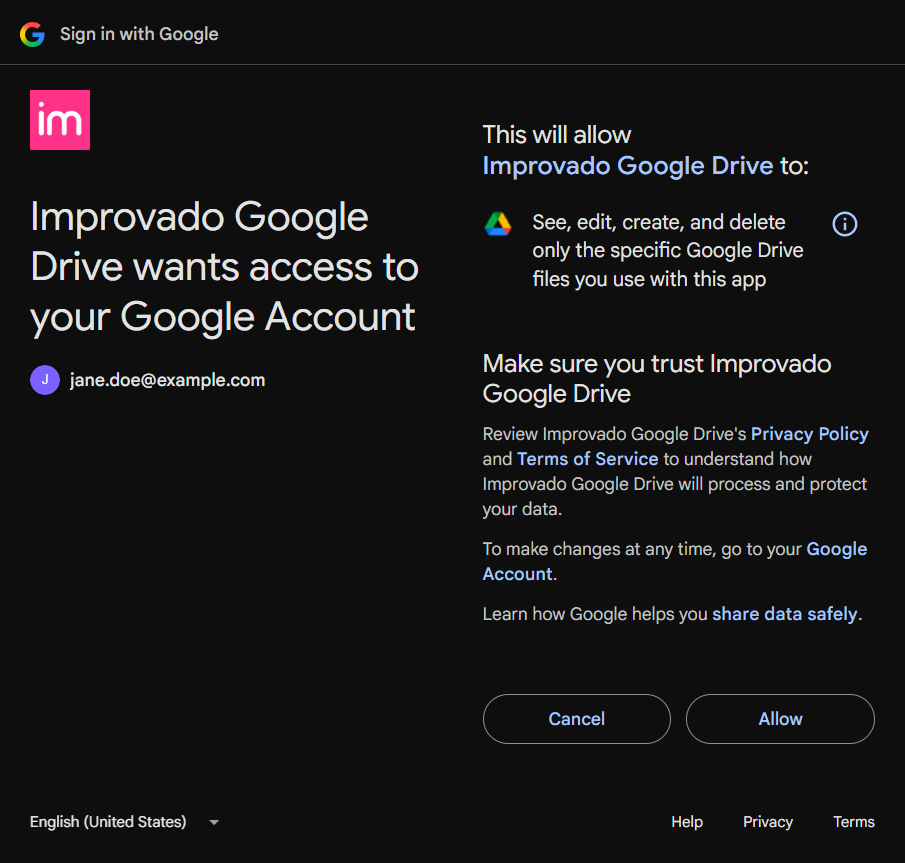
Google Docs, Google Slides, Google Forms and Google Drive connections made with Connect with Google read only the files you choose in the Google file picker, plus the files Improvado creates. The rest of your Google Drive stays closed to Improvado. Google calls this permission “See, edit, create, and delete only the specific Google Drive files you use with this app”.
The picker shows the file type of the data source: documents for Google Docs, presentations for Google Slides, forms for Google Forms, and any file for Google Drive.
Connect and choose files
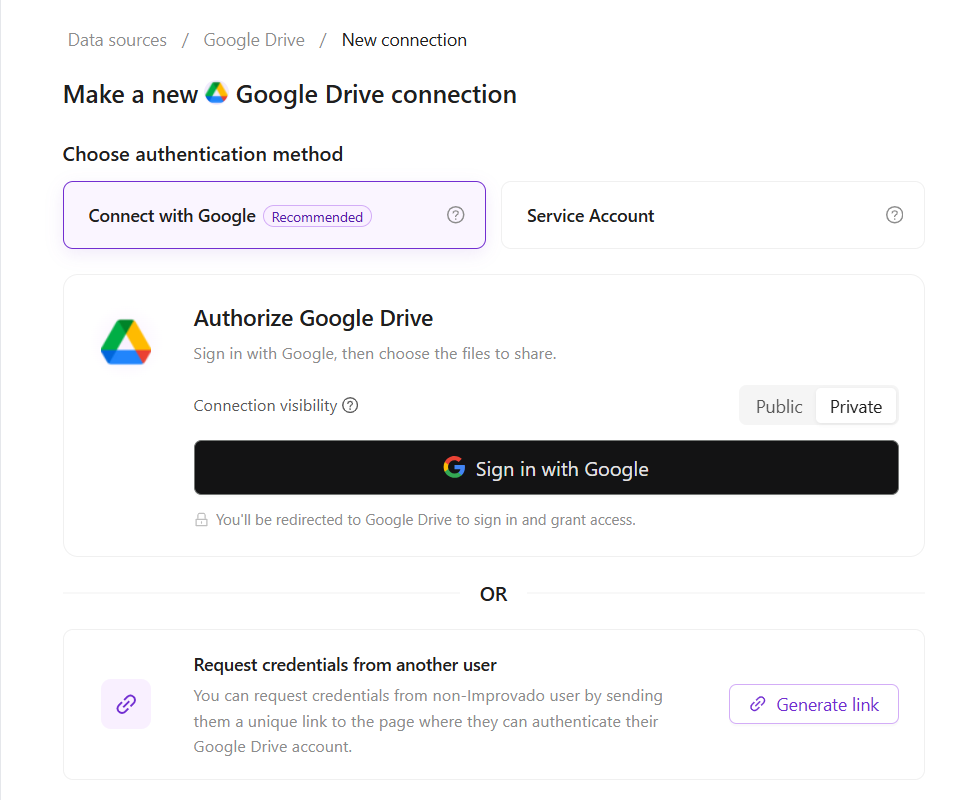
On the new connection page of the data source, select Connect with Google and click Sign in with Google.
Sign in with the Google account that can open your files and click Allow. The consent screen asks only for the files you use with Improvado.
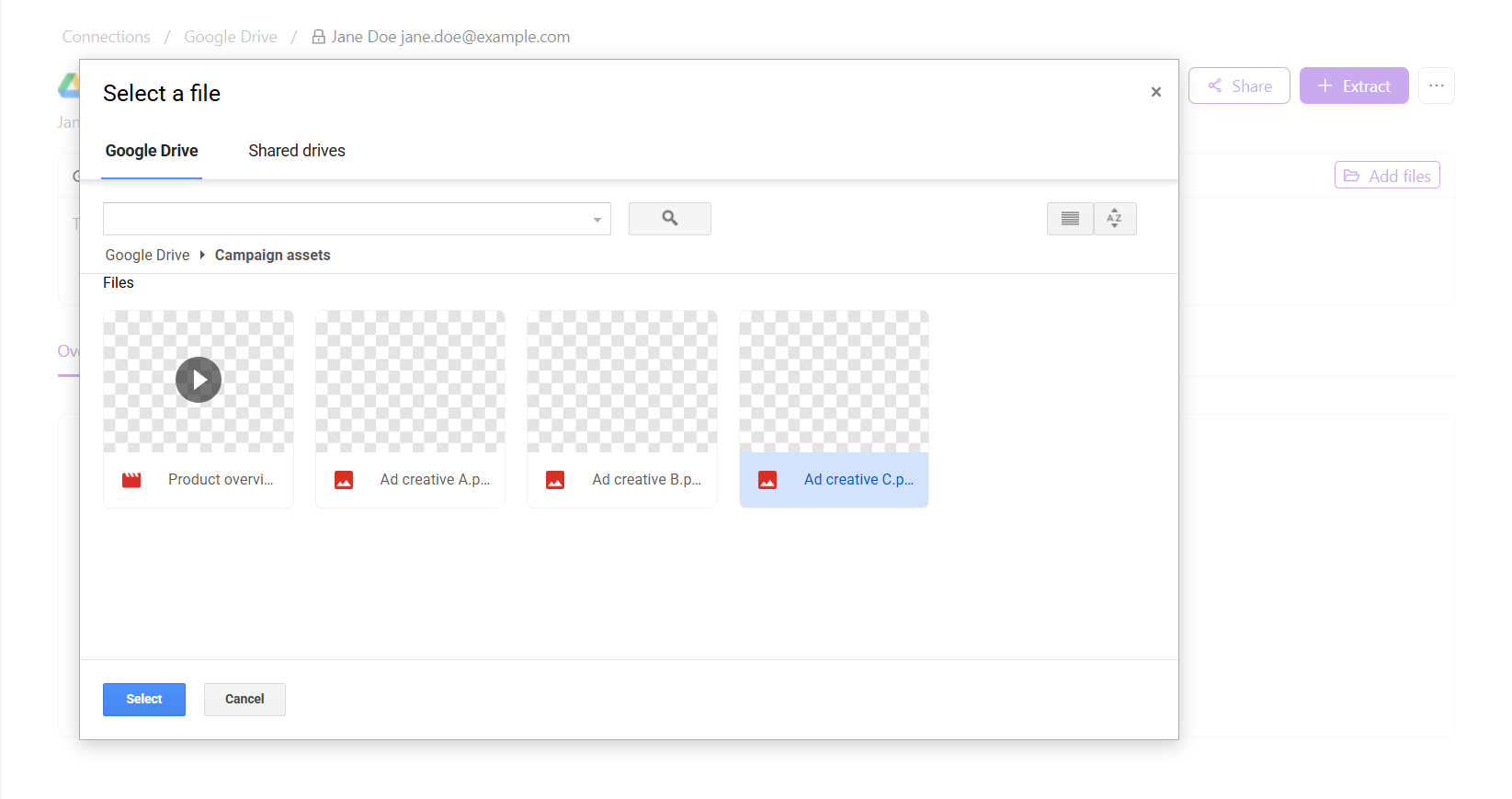
Google returns you to the connection page, and the file picker opens. Open folders to find your files, select one or more files, and click Select. Folders open but cannot be selected: choose the files inside them.
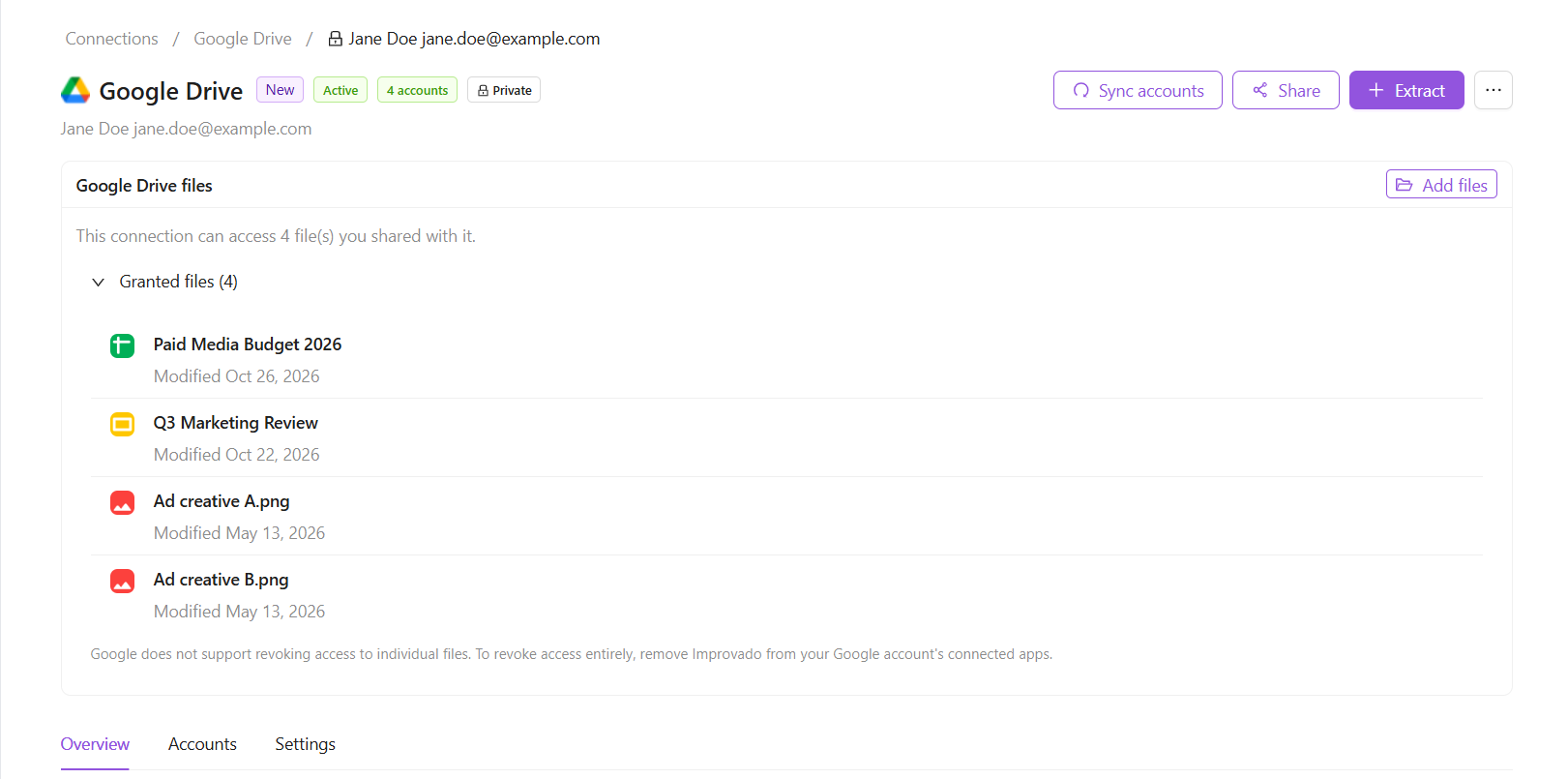
The Google Drive files section of the connection page lists the files the connection can read.
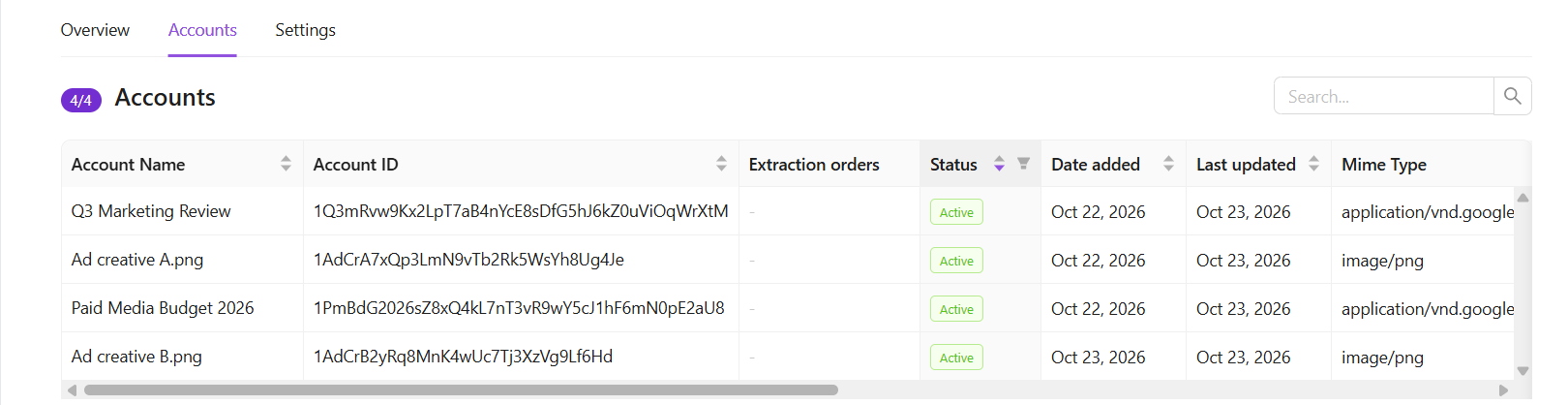
Each file is also an account of the connection, on the Accounts tab. Choose these accounts when you set up data extraction.
Add more files later
On the connection page, click Add files in the Google Drive files section, choose the files, and click Select. They appear in the list and on the Accounts tab in a few seconds.
Choose files from the AI Agent
When the AI Agent works with your Google files through Discovery API and needs a file that the connection cannot read, it opens the file picker of that connection in the side panel of the chat. Choose the file and click Select.
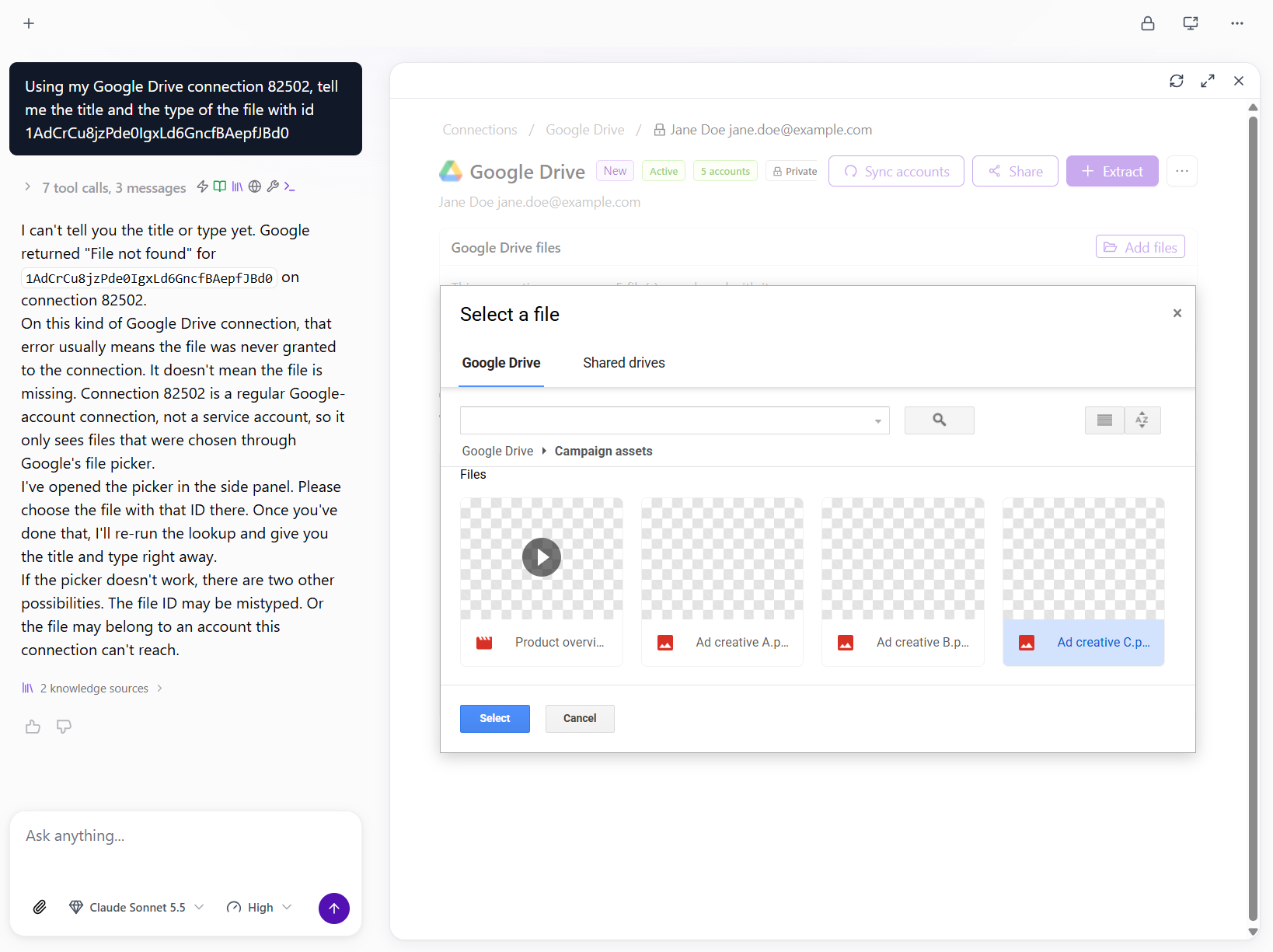
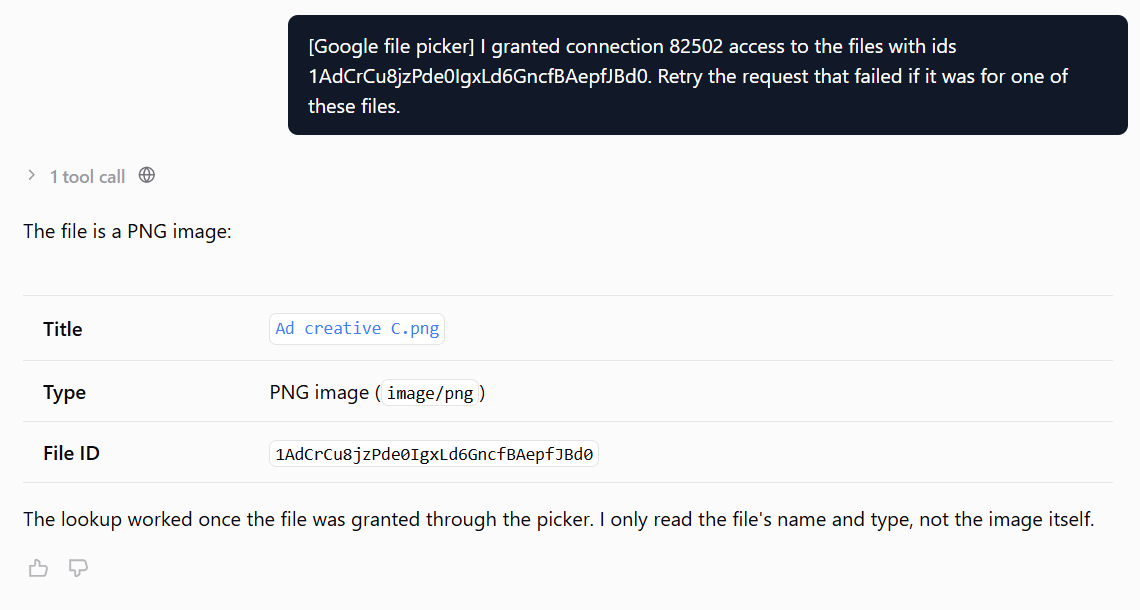
The side panel closes, and the chat tells the agent which files you chose. The agent repeats the request and continues.
The agent does not open the picker in two cases:
- In an automation or a scheduled chat, nobody is there to choose the files. Add them on the connection page with Add files before the run.
- A connection made with a service account has no file picker. Share the files with the service account email address in Google Drive.
Revoke access
Google does not support revoking access to a single file. To revoke access to all files, remove Improvado from Third-party apps & services in your Google account.
Troubleshooting
- The picker asks you to sign in or to allow cookies. The picker runs on docs.google.com and needs Google cookies on the Improvado page. Allow cookies for the site, or use Chrome or Safari. In Brave, click the Brave Shields icon in the address bar, set Cookies to Allow all, and open the picker again.
- The files you chose do not appear. Check that your browser is signed in to Google with the same account as the connection, then click Add files and choose the files again.
Was this article helpful?
Thanks for the feedback!
Questions? The Improvado team is always happy to help. Send us an email, contact your Customer Success Manager, or raise a request in the Improvado Service Desk.