

See which knowledge an answer used
Overview
When the AI Agent recalls, reads or saves knowledge from your Knowledge Graph, the chat shows it. You can see which files shaped an answer, open each one, and read why it was used.
An answer is only as trustworthy as what it is based on. If a report relies on your definition of a "qualified lead" or on a campaign guardrail, you can check that definition in one click — and spot it quickly when the knowledge behind the answer is out of date.
Knowledge sources under an answer
When an answer used the Knowledge Graph, a N knowledge sources chip appears under it. Click it to open the Knowledge used panel on the right.
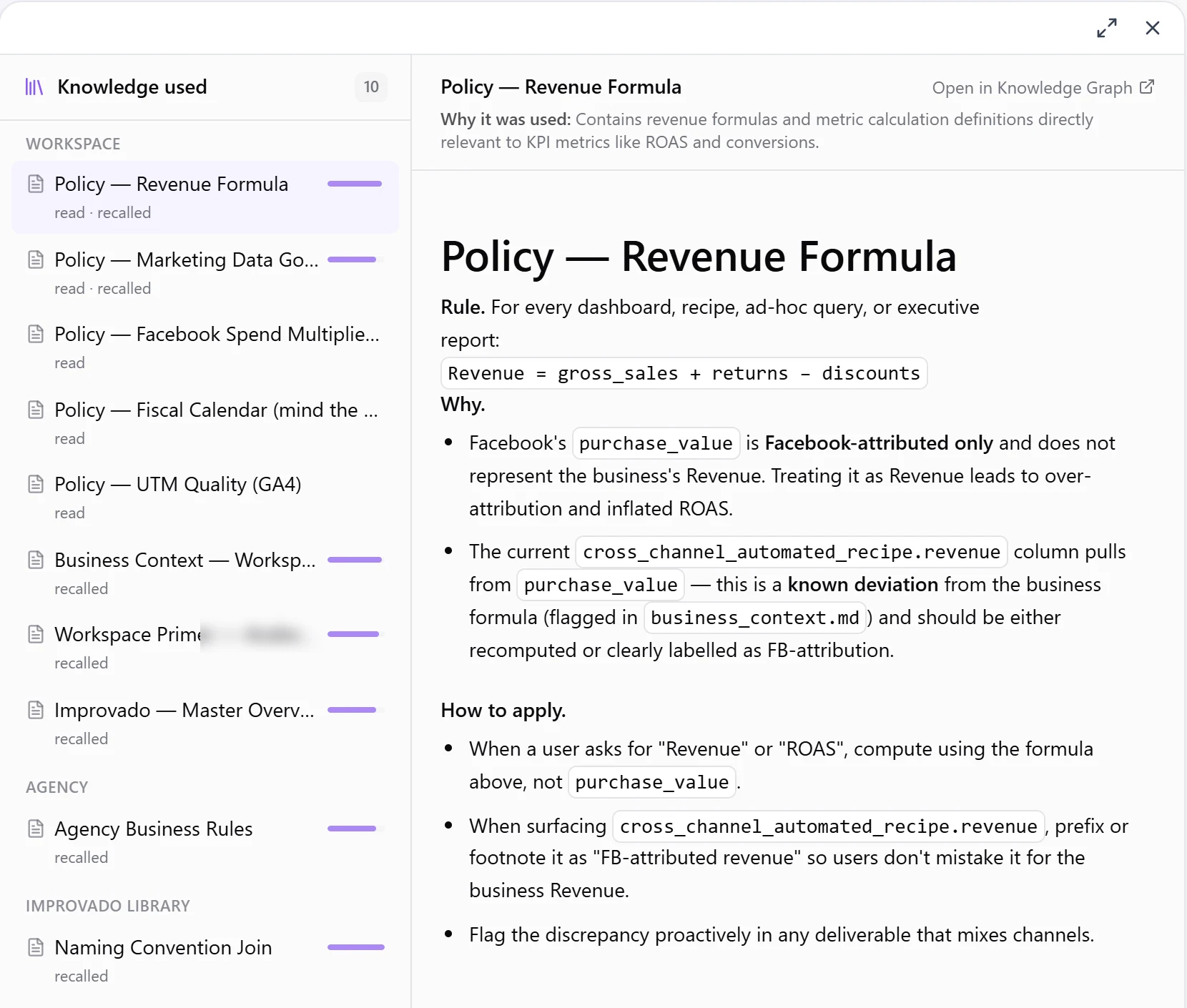
The panel lists only the files that answer used:
- Files the Agent saved come first, then the files it read, grouped by where they live: Workspace, Agency (shared across your account) and Improvado library (the general knowledge Improvado maintains).
- Files show their real titles.
- Select a file to see its full content and a short Why it was used note.
- Links between knowledge files are clickable, the same way they work in the Knowledge Graph browser.
- Open in Knowledge Graph takes you to the file in the explorer.
Knowledge steps while the Agent works
The Agent's knowledge steps appear in the chat as short, readable lines instead of raw commands — for example Recalled 7 entries, Searched knowledge for "facebook" or Read 5 files. Consecutive steps are grouped into one line, Consulted knowledge graph, with the number of steps and files. Expand it to see each step. If a step fails, the line says why.
Click a file in any of these lines to open it in the Knowledge used panel.
When the Agent saves knowledge
When the Agent adds a file to the Knowledge Graph or updates one, a compact Saved to knowledge or Updated in knowledge row appears under the answer, with the file's title and a short preview. Click it to open the full file in the panel. If the save did not go through, the row says Couldn't save.
Knowledge across the whole chat
The Chat activity side panel lists all the knowledge used in the chat, with a label for each file: read, recalled, saved or updated. Use it to review everything a long conversation relied on.
Fix what's out of date
If an answer was based on a file that is wrong or outdated, open it with Open in Knowledge Graph and correct it there. Every later answer will use the updated version. See Fill your Knowledge Graph for how to write and edit files.
Was this article helpful?
Thanks for the feedback!
Questions? The Improvado team is always happy to help. Send us an email, contact your Customer Success Manager, or raise a request in the Improvado Service Desk.