

Fill your Knowledge Graph
Overview
The Knowledge Graph fills two ways: the Knowledge Graph Builder interviews you and proposes files for you to approve, or you write them yourself. Start with the guided route — it knows which kinds of knowledge are missing and asks the questions that fill them.
If you have not met the Knowledge Graph yet, read Knowledge Graph first — it explains what belongs in it and how the Agent picks files.
Open the Knowledge Graph
In the left sidebar, under AI Agent, select Knowledge Graph. Check the workspace selector at the top of the sidebar before you start — the graph you are looking at belongs to the workspace shown there.
The screen has two halves: the graph tree on the left, and a pane on the right that previews whichever node you select. With nothing selected, that pane shows an overview of what your graph covers and offers to extend it.
Build it through a conversation
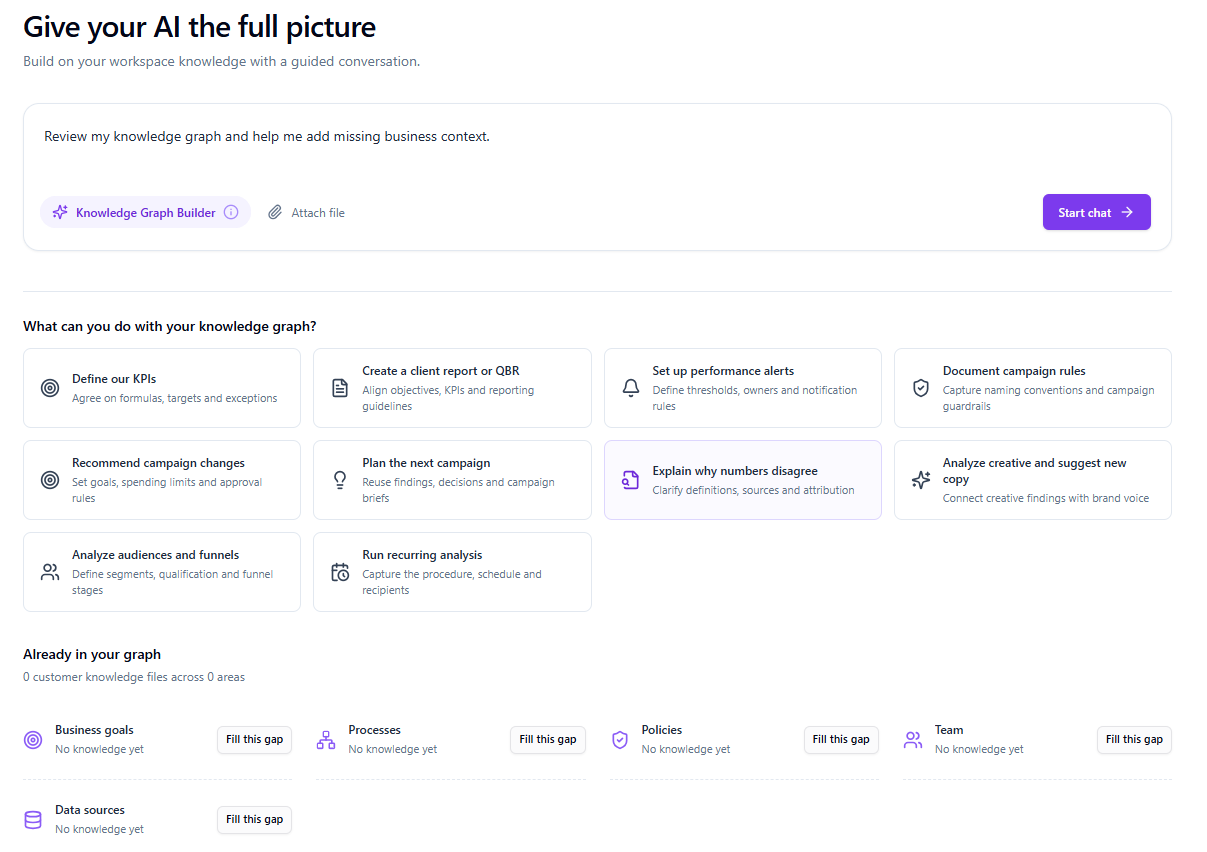
The overview opens on a prompt — "Review my knowledge graph and help me add missing business context" — already aimed at the Knowledge Graph Builder. Start the chat and it reads what you have, works out what is missing, and asks you for it in plain language. You can edit the prompt first, or attach a file for it to work from.
Below it, a set of starting points covers the jobs people most often need the Agent to do well:
- Define our KPIs — agree on formulas, targets and exceptions
- Document campaign rules — capture naming conventions and campaign guardrails
- Create a client report or QBR — align objectives, KPIs and reporting guidelines
- Set up performance alerts — define thresholds, owners and notification rules
- Explain why numbers disagree — clarify definitions, sources and attribution
- Plan the next campaign — reuse findings, decisions and campaign briefs
- Analyze audiences and funnels — define segments, qualification and funnel stages
- Analyze creative and suggest new copy — connect creative findings with brand voice
- Recommend campaign changes — set goals, spending limits and approval rules
- Run recurring analysis — capture the procedure, schedule and recipients
Each one starts the same kind of conversation, scoped to that topic. Pick whichever matches a question your team keeps re-answering by hand.
Fill the gaps it finds
Under Already in your graph the overview counts how many of your own knowledge files exist and across how many areas — separately from the built-in Improvado content, so a workspace that has never been filled in honestly reads as zero, however many files the Agent has stored there.
It tracks five areas: business goals, processes, policies, team and data sources. Any area with nothing in it is marked as a gap, with Fill this gap next to it to start a conversation scoped to that area. Working down that list is the most direct way to get from an empty graph to a useful one.
Approve what it proposes
The Builder does not write to your graph on its own. It reads what is there, reports back in the chat, and then hands you its conclusions to approve.
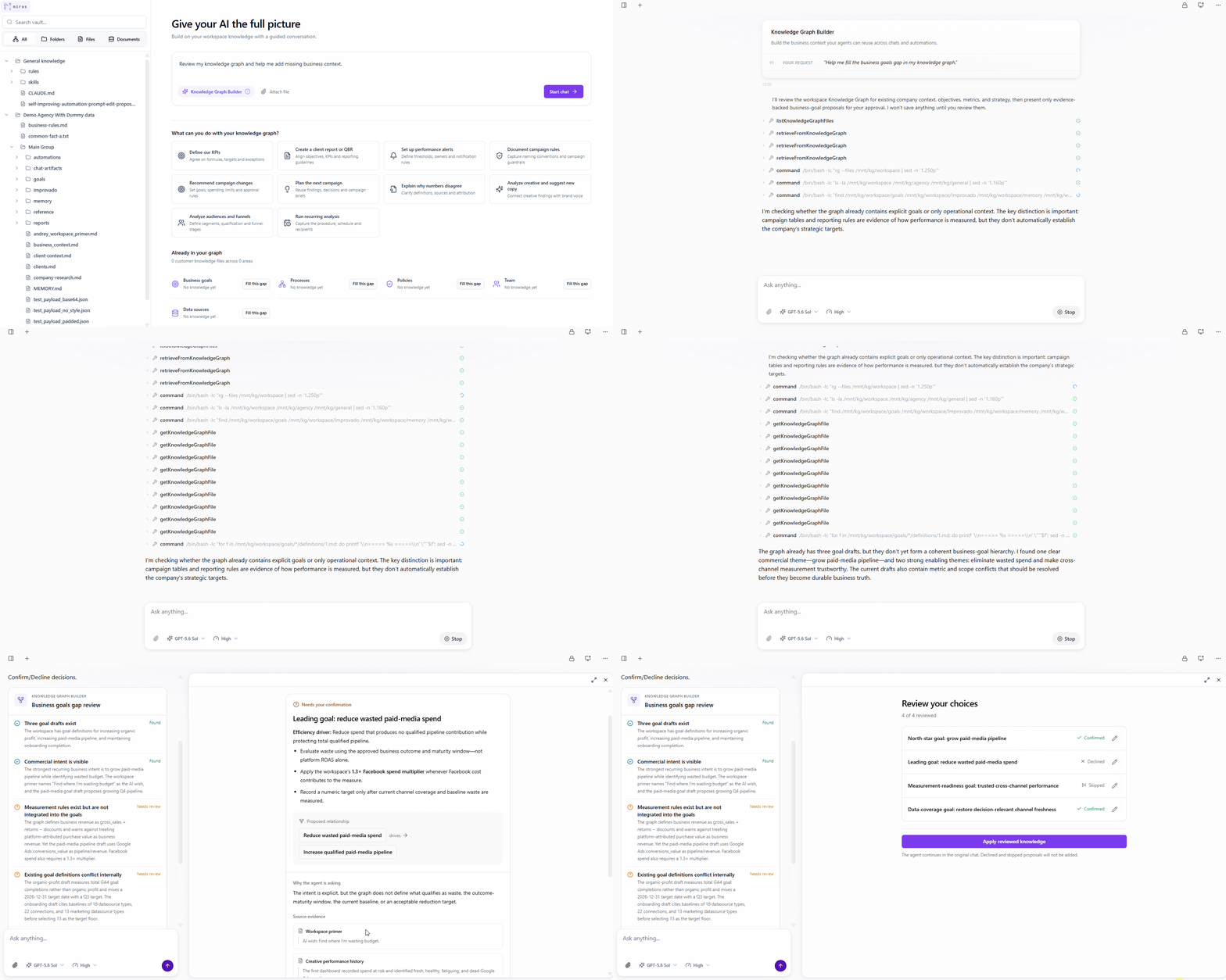
Its findings arrive first, as a card titled after the area it looked at — Business goals gap review — with each finding marked Found where the graph already answers something, or Needs review where it contradicts itself or leaves a hole. Reading those is worthwhile on its own: "measurement rules exist but are not integrated into the goals" is a useful thing to learn about your own workspace, whatever you do next.
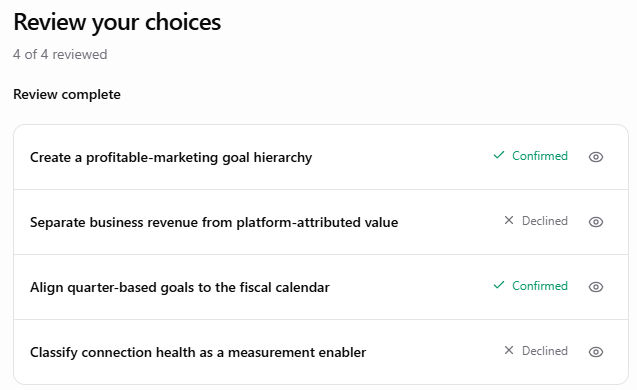
Then the proposals open in a review panel, one row each:
Open one and it argues its case rather than just asking: Why the agent is asking explains what it inferred and what it could not settle on its own, and Source evidence lists the files it read to get there. Then three buttons — Decline, Confirm, Skip.
There is a fourth option worth knowing about, because it is the one people miss. Under every proposal is a Correction or context box. If the Agent has inferred something almost right — say it has read your goals as quarter-based when they run annually — type that in rather than declining. The button changes to Suggest a correction instead, and the proposal is rewritten around your wording, not its guess. Declining throws the whole idea away; correcting keeps the idea and fixes the fact.
- Confirmed — this one will be written.
- Declined and Skipped — this one will not. The panel restates that under the button, so there is no ambiguity about what you are committing.
Nothing is written until you press Apply reviewed knowledge. The counter above the rows — 4 of 4 reviewed, then Review complete — tells you whether you have been through all of them.
When it does write, it reports back with the file it wrote, linked so you can open it, and what went in. It also states what it left out: the proposals you declined, and anything it refused to invent rather than guess. If you corrected a proposal, the correction is what landed — annual goal periods, not the quarterly ones it first inferred.
A review you have not finished survives leaving the chat. Come back to it from the chat itself or from Suggestions, decide there, and your decisions apply in the original conversation — you do not have to navigate back and redo them. If a write fails, your decisions are kept and you can retry rather than reviewing everything again.
This is what makes the guided route safe to point at a real workspace: nothing lands in the graph that you have not read and agreed to.
Browse the graph yourself
The left panel is a browser over the same content, headed by your vault's name — select that heading for an overview of the vault. Use the panel when you already know what you are looking for, or to see what the Agent has been storing.
- Search vault finds files and folders by name or path across the whole graph, however large it is. It searches names, not what is inside the files. Results load in pages as you scroll.
- All / Folders / Files narrows what the tree shows. Documents is not a fourth filter — it opens the separate Documents page.
- The tree nests three levels: General knowledge (Improvado's, read-only) and your account, with each workspace inside its account. Folders carry a count of what is in them, files the date they were last updated. A large folder shows its first 200 items and loads the rest as you scroll.
Expect the workspace area to contain folders you did not create — chat-artifacts, experiment-monitoring, memory, notes, runbooks. That is the Agent's own working memory, and it is the bulk of the graph: a workspace that has been in use for a while holds tens of thousands of nodes, almost none of them hand-written. Leave them alone unless something in one is wrong.
Read a node
Selecting anything in the tree opens it in the main pane, with the path you drilled through shown above it. From there:
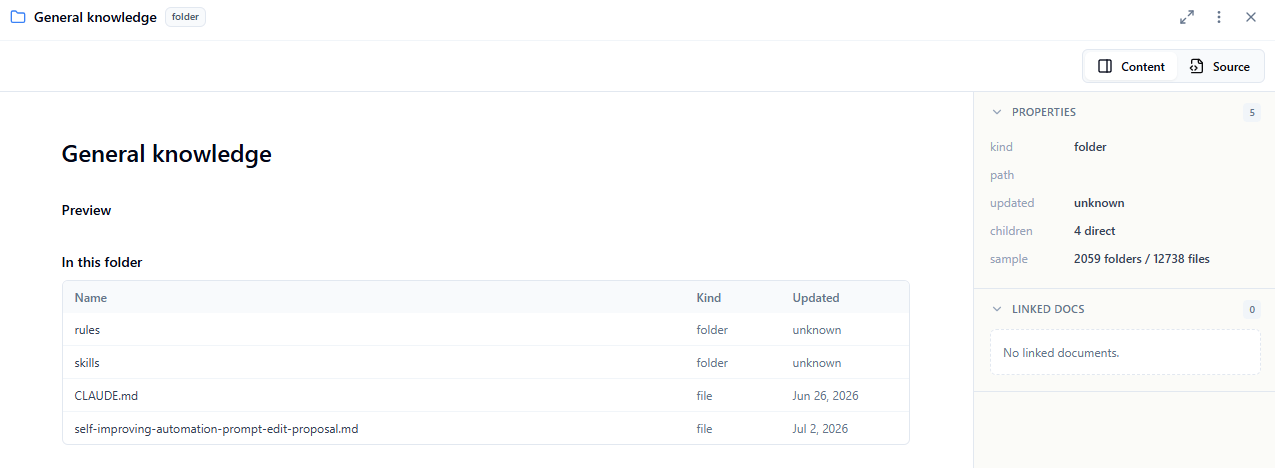
- Content and Source switch between the rendered file and its raw text.
- In this folder lists the children by name, kind and last update, so you can keep browsing without going back to the tree.
- Properties, on the right, gives the exact path, kind, update date and how many folders and files sit underneath — and below that, the document's own metadata. On something the Agent generated, that is where you find which automation and run produced it, and when.
- Linked Docs shows other nodes this one is connected to.
- The ⋮ menu holds Copy path — the quickest way to point the Agent at one specific file in a prompt — and Download, which saves the complete raw source including its frontmatter, so you can keep working on it outside Improvado. On a folder it greys out and says why; the same happens while only a truncated preview has loaded, rather than handing you an incomplete file.
Write and edit files yourself
Edit opens a file for changes in place, with Save and Cancel replacing the usual actions until you are done.
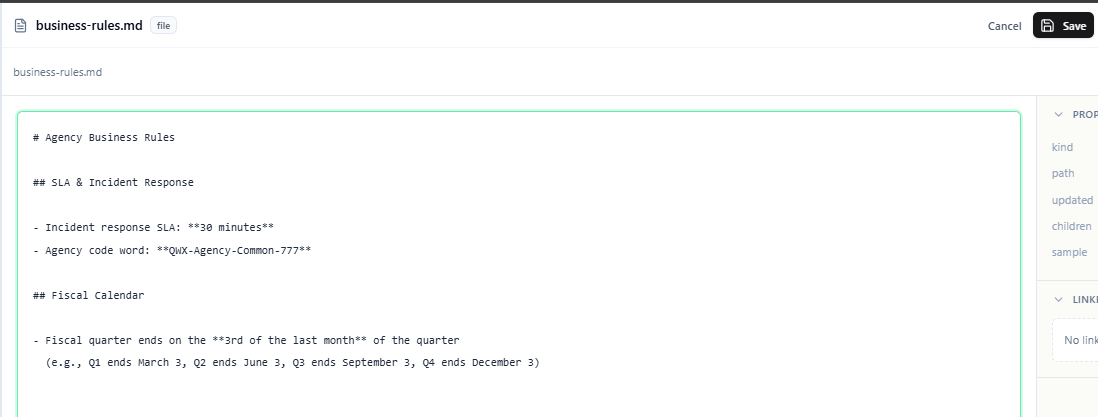
It appears only on files you own. Open something under General knowledge and there is no Edit button at all — that layer is Improvado's. To override something the Agent does by default, write your own file at the account or workspace level saying what you want followed instead.
To create a file rather than edit one, use Documents in the filter row. That page owns creating, renaming, tagging and deleting; the graph view is for reading, editing and approving. Supported formats are .md, .txt, .json, .yaml, .yml, .csv and .html — PDF, DOCX, XLSX and images are not read, so convert them to Markdown first.
Check that it worked
Ask the Agent something that can only be answered from what you just added — for example, after agreeing a naming convention: "Using our campaign naming convention, break down last month's paid search spend by market." Under the answer, N knowledge sources shows which files it used — see See which knowledge an answer used. If the answer ignores your rules, the usual causes are:
- The file is too long. Only part of a long file is read. Split it at its headings into focused files.
- The name gives nothing away. Rename it after what it contains.
- It has no summary. Open with a title line and one sentence saying what the file covers and when it applies.
- It is in the wrong workspace. Check the workspace selector, or move the file to the account level so every workspace sees it.
- The proposal was never confirmed. A declined or unfinished review writes nothing — check Suggestions for a review still waiting on you.
- You asked too soon. Give it a few minutes and ask again.
Good practice
- One topic per file. Several focused files retrieve better than one long handbook.
- Date your facts. Budgets, targets and org details go stale, and nothing in the file tells the Agent that unless you do.
- Review what is there before adding. A stale file keeps being retrieved until someone fixes or removes it.
- No secrets. Everyone with access to the workspace — and the Agent — can read these files. Credentials, API keys and personal data do not belong here.
Was this article helpful?
Thanks for the feedback!
Questions? The Improvado team is always happy to help. Send us an email, contact your Customer Success Manager, or raise a request in the Improvado Service Desk.