

Data Dictionary in your workspace
Use the Data Dictionary to find a field before setting up an extract or to see where an existing field is used. The catalog reflects the workspace selected in Improvado.
Open the Data Dictionary
- Go to Data Sources and open a data source.
- Select Fields to see the report types and fields for that source.
- Select Open full catalog to browse all data sources in the same workspace in a new tab.
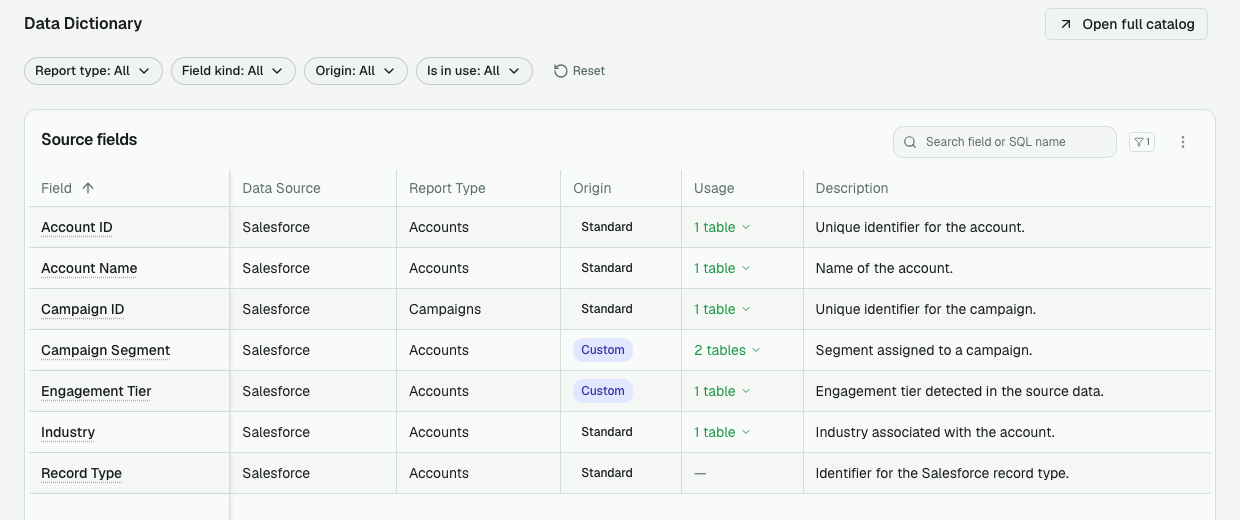
Find and inspect a field
Search by the display name or SQL name. Use Report type, Field kind, and Origin to narrow the list. The full catalog also has a Data source filter.
- Standard fields come with the connector's report type.
- Custom fields are specific to your source data. They can be available in the field picker or detected in a Data Table.
Use Is in use to distinguish fields marked for extraction from unused fields. All shows both. Hover over a field name or focus it with the keyboard to see its SQL name, API request and response names, kind, data type, and whether it is required, where available.
See where a field is used
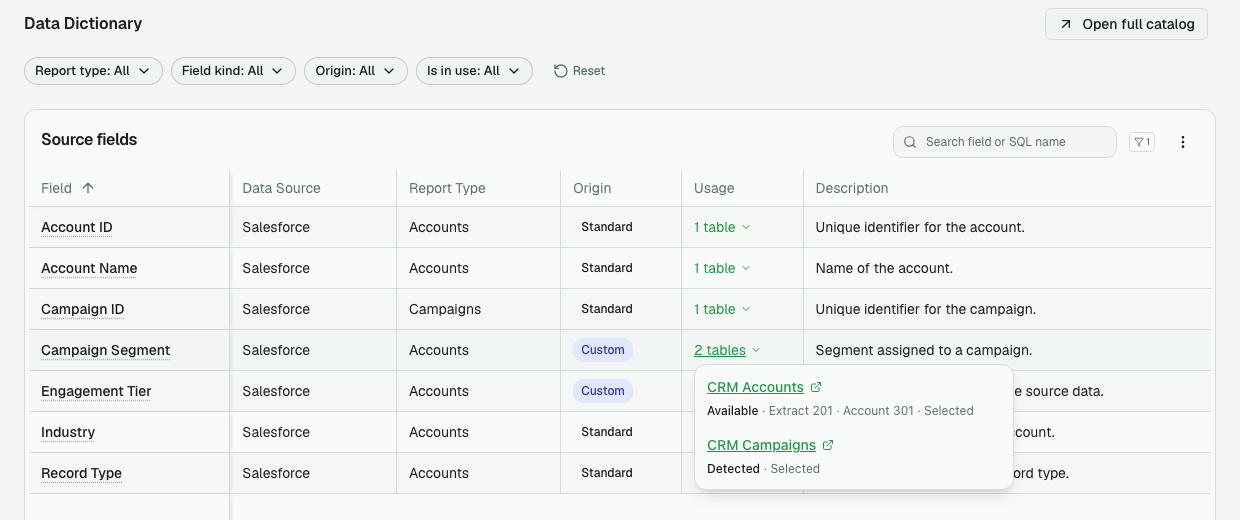
Click the number of tables in Usage to open the list of Data Tables that contain the field. Select a table name to open it. Depending on the field, the list can also show extract and account details, availability, and whether the field is selected.
Use the public Data Dictionary for a reference of standard fields and report types.
Was this article helpful?
Thanks for the feedback!
Questions? The Improvado team is always happy to help. Send us an email, contact your Customer Success Manager, or raise a request in the Improvado Service Desk.