

Microsoft Teams
Description
Microsoft Teams is a collaboration platform that is part of the Microsoft 365 suite. It brings together chat, video meetings, file sharing, and app integrations in a single workspace. Teams is used by organizations worldwide for internal communication, project management, and cross-functional collaboration.
Setup guide
Follow our setup guide to connect Microsoft Teams to Improvado.
Step 1. Click the Connections in the left navigation bar.
Categories on the Data sources page group all available platforms. Use a search to find the required one.
Step 2. Click on the Microsoft Teams tile.
Step 3. Click Sign in with Microsoft to authorize your Microsoft 365 account.
Access level. The connect form asks you to choose one. Read Only is the default and covers every report Improvado extracts. Read & Write additionally allows creating teams, channels and chats, sending messages and managing members, and is only worth granting if you need it. Custom lets you pick individual scopes. An authorization keeps the access it was granted with, so widening it later means reconnecting.
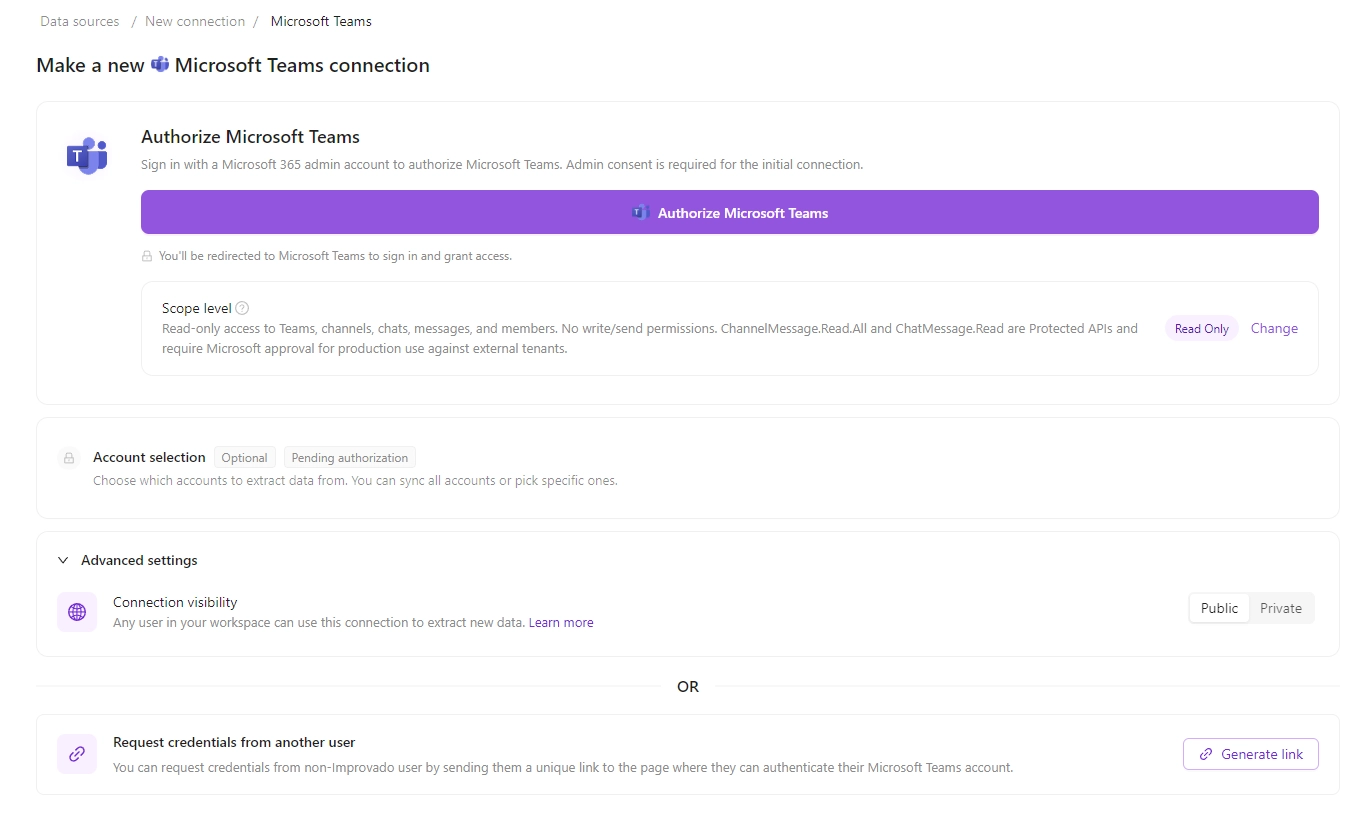
Important: The initial connection must be performed by a Microsoft 365 Global Admin or Teams Admin. Admin consent is required for the following permissions:
- Team.ReadBasic.All
- Channel.ReadBasic.All
- ChannelMessage.Read.All
- TeamMember.Read.All.
For detailed guidance on granting admin consent, refer to the official Microsoft documentation.
Step 4. On the Microsoft login page, sign in with your admin account and review the requested permissions. Click Accept to grant consent.
Step 5. After the connection process is completed successfully, the Microsoft Teams connection will appear in your Connected sources list.

Step 6. When the connection status is Active, and the account status column shows a number of accounts (teams), you can move on to data extraction.
Step 7. To extract data from the connected sources, check the instruction on how to set up data extraction.
Schema information
The schema information shows all report types you can use to extract data from Microsoft Teams.
Release notes
You can find information about the latest API changes in the Microsoft Graph changelog.
Was this article helpful?
Thanks for the feedback!
Questions? The Improvado team is always happy to help. Send us an email, contact your Customer Success Manager, or raise a request in the Improvado Service Desk.