

Custom Connector Builder
Overview
Custom Connector Builder allows you to create and connect to any API-based data source directly from the AI Agent chat interface. No separate forms or pages required — just describe what you need, fill in the details, and the AI Agent handles implementation, testing, and deployment automatically.
How to Create a Custom Connector
Step 1. Ask the AI Agent
Open the AI Agent chat and describe what integration you want to build. For example:
- "I want to build a custom connector for Coda"
- "Create a custom integration for [platform name]"
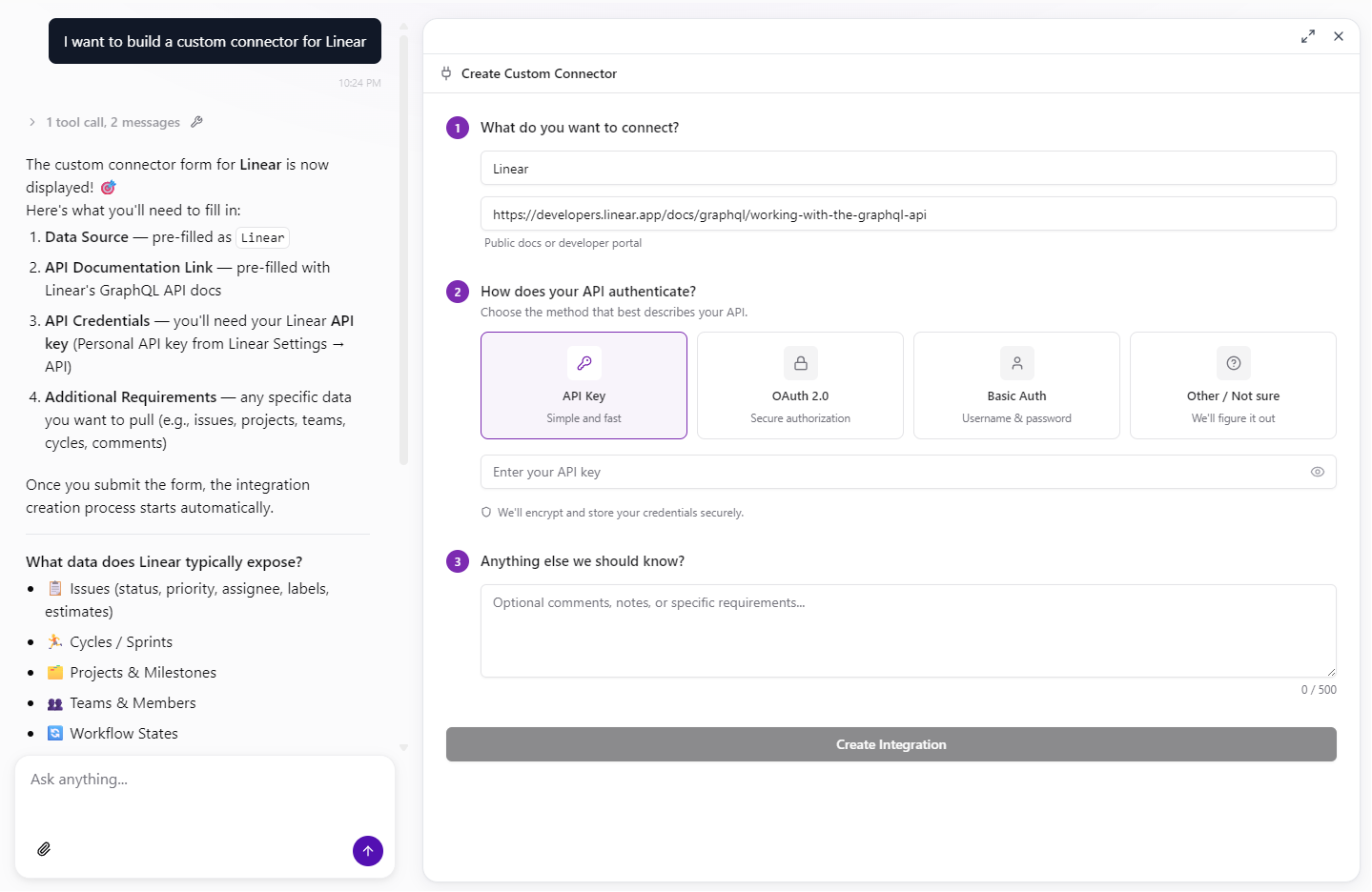
The AI Agent will open the Create Custom Connector form directly in the chat panel:
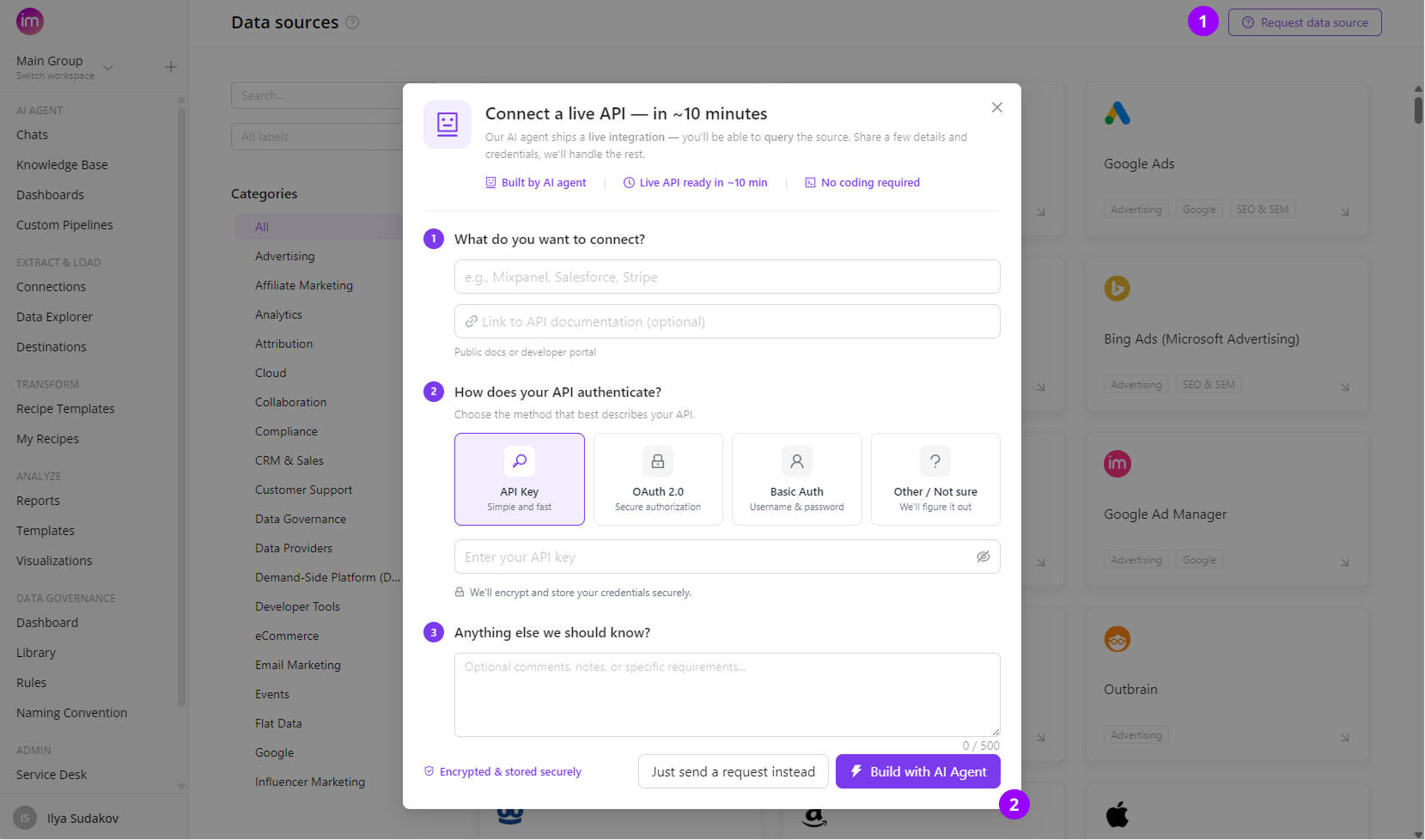
OR provide credentials for connector via the Request data source form:
Step 2. Fill in the required fields
The form includes the following fields:
- Data Source Name (required) — Name of the data source you want to integrate (e.g. "Coda")
- Link to Vendor Documentation (optional) — URL to the vendor's API documentation. Including documentation links is strongly recommended — it helps the AI Agent build a more accurate integration.
- Authentication Credentials (required) — Provide at least one authentication method: Login/Username + Password, Client ID + Client Secret, or API Key.
- Additional Comments (optional) — Any additional context or integration-specific requirements, such as specific data you want to extract (e.g. documents, tables, pages).
Step 3. Build the integration
Click Create Integration. The AI Agent will:
- Set up an isolated sandbox environment
- Read the API documentation and generate the integration configuration
- Create integration files
- Upload the integration to Improvado
- Add the integration to your agency
- Create a connection
You'll see real-time progress updates directly in the chat. The sandbox securely runs your credentials and protects your data throughout the process.
Once complete, you'll see a confirmation: Integration Created! with a link to open the connection.
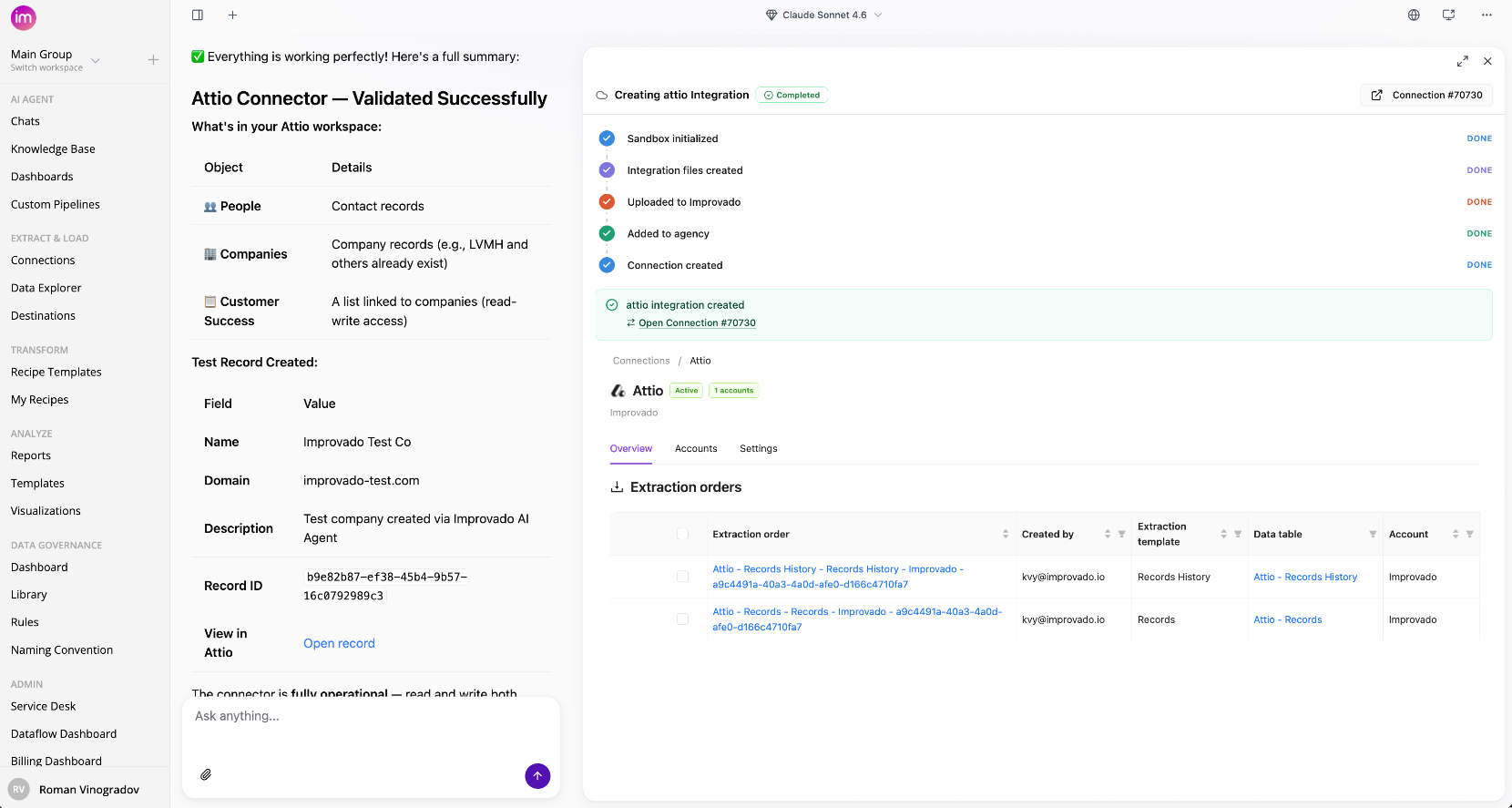
After the integration is built, the new connection will appear in your Connected sources list under Connections in the sidebar.
Step 4. Explore your data
With your custom integration active, you can explore available data directly in the AI Agent chat using API Discovery:
- Ask the Agent to show available data — e.g. "Show available data for Coda connection via Discovery API"
- The Agent will find active connectors and query available endpoints
- Review discovered endpoints, data fields, and sample responses
- Ask follow-up questions about specific endpoints or request test API calls
Key Benefits
- Chat-first experience — Everything happens inside the AI Agent chat, no need to navigate to separate pages
- No coding required — Create integrations without technical knowledge or API expertise
- Rapid implementation — Connect to new data sources in minutes rather than days or weeks
- Secure environment — All implementation occurs in isolated sandboxes with credential protection
- Built-in API Discovery — Explore API capabilities and run test queries through natural conversation
- Automatic documentation — The Agent generates documentation for all discovered endpoints
Use Cases
- Connecting to proprietary internal APIs
- Integrating with niche marketing platforms without official connectors
- Testing new APIs before requesting full integration development
- Building temporary connections for specific campaign data needs
- Creating custom reporting solutions for specialized business needs
Best Practices
- Include API documentation links — Providing vendor documentation URLs significantly improves integration quality
- Test with non-production credentials — When possible, use test environment credentials first
- Provide context in additional comments — Describe what specific data you want to extract for better results
- Use Discovery API after building — Explore available data through chat before setting up extracts
Was this article helpful?
Thanks for the feedback!
Questions? The Improvado team is always happy to help. Send us an email, contact your Customer Success Manager, or raise a request in the Improvado Service Desk.