

Who Can See a Recipe or Dashboard
Access to a Recipe or a Dashboard is controlled by two independent layers:
- Role permissions decide which features a user can use.
- Share settings decide which specific objects a user can see.
Both layers have to line up. Giving someone a role that contains every permission in the product does not make existing recipes or dashboards appear for them. This is the most common source of confusion around access, and it is working as designed.
If a user can open the Recipes section but the list is empty, the problem is almost never their role. It is that no recipe has been shared with them.
What a role permission actually grants
A role permission grants access to a product area — the ability to open a section, and to create, edit, or delete objects that the user can already see.
A role permission does not grant visibility into objects that already exist.
For recipes this is absolute: role permissions are not consulted at all when deciding whether a user can see a recipe. The only role that changes recipe visibility is Workspace Admin. Separately, whoever created a recipe can always see it — but that is ownership of the object, not a role.
For dashboards the two layers do interact — a workspace-visible dashboard still requires the user's role to carry the dashboard view permission. See Who can see a Dashboard below.
For what each role contains, see Available User Roles and Custom Roles & Permissions.
The Share permission listed in the role permission tables refers to sharing an AI Agent chat. It does not control Recipe or Dashboard sharing, which is set on each object individually.
Recipe sharing
Open a Recipe and select Share.
A recipe's access is made up of two kinds of entry:
- Workspace access — a single entry covering everyone in the workspace. In the dialog this row is labelled with your workspace's name, for example Main Group.
- Individual users — any number of per-person entries.
Available permissions
| Permission | Effect |
|---|---|
| Restricted | No access from this entry |
| Read | Can open and view the recipe |
| Edit | Can view, modify, and change the recipe's Share settings |
There is no option to share a recipe with a team. Sharing targets are individual users or the whole workspace. The row named after your workspace is workspace-wide access — it is not a team.
Default when a recipe is created
A recipe created from a template on the Recipes page is shared with the workspace with Edit. This includes Blank Template, which you use to build a recipe from scratch. Everyone in the workspace can open and change it from the moment it is created. To keep a recipe private, open Share and set workspace access to Restricted — and keep it out of shared folders, see below.
Recipes created from Blank Template before this change were not shared automatically and are still Restricted. If your team cannot see one of them, share it or move it into a shared folder.
Who can change a recipe's Share settings
Anyone with Edit access to the recipe: its owner, a Workspace Admin, anyone granted Edit directly or through workspace access, or anyone with Edit on a folder that contains it. You cannot change your own permission on a recipe.
Access through folders
A recipe can also become visible through the folder it sits in. If a folder, or any folder above it, is shared with Read or Edit, that access flows through to the recipes inside it. The recipe then appears in the Recipes list and the folder tree for everyone the folder is shared with. If someone can see a recipe you never shared with them directly, check the folder.
Access only adds up — nothing takes it away. A recipe set to Restricted is still visible to everyone who has access to its folder.
A folder that holds a recipe you can see also shows up in your folder tree, even when the folder itself is not shared with you. You can open the recipe from there, but you cannot rename, move or share that folder.
Folders are shared with the workspace
Folders are shared with the whole workspace with Edit. A new folder gets this when it is created. As a result:
- Every recipe and AI Agent chat you put in a folder can be opened and edited by everyone in the workspace, whatever the recipe's own Share settings say.
- Any workspace member can rename or move the folder, add subfolders, move recipes into it, and change its sharing. The folder's author, and anyone the folder is shared with personally with Edit, can do the same.
To keep a folder's contents private, open the folder's sharing and set workspace access to Restricted.
Folder access is inherited down the tree. Restricting a subfolder has no effect while a folder above it is still shared with the workspace. To make a subfolder private, restrict the top-level folder it sits in — or keep private recipes in a separate top-level folder.
Dashboard sharing
Open a Dashboard and select Share in the upper-right corner.
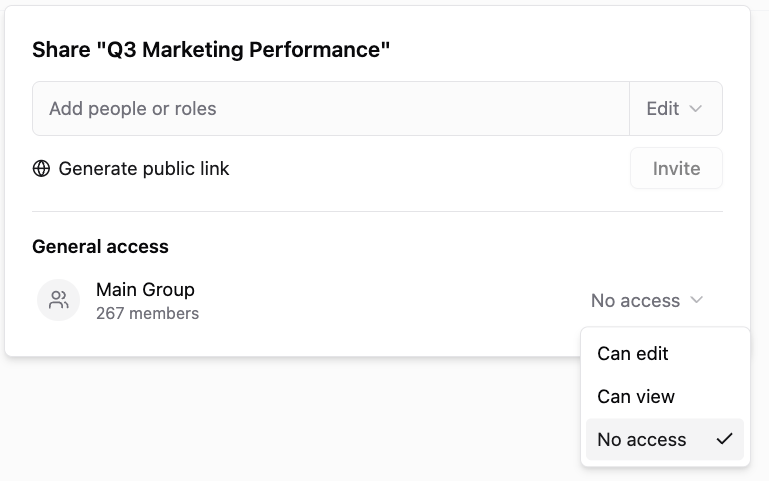
A dashboard has one General access level for the whole workspace, plus a list of invited people and roles.
General access
| Level | Effect |
|---|---|
| Can edit | Everyone in the workspace whose role carries the dashboard view permission can open it; those whose role also carries the dashboard edit permission can edit it |
| Can view | Everyone in the workspace whose role carries the dashboard view permission can open it, read-only — even if their role could otherwise edit dashboards |
| No access | Only the owner and invited people or roles can open it |
As with recipes, the General access row is labelled with your workspace's name, for example Main Group, and represents workspace-wide access rather than a team. Under the name you see how many members the workspace has.
Invited people and roles
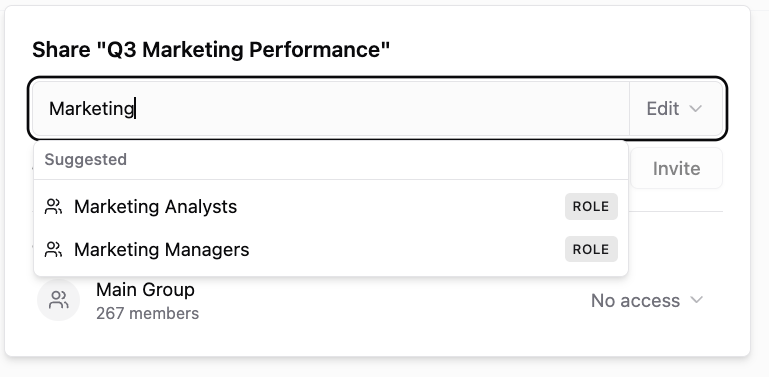
Start typing in the field at the top of the Share dialog: people and workspace roles appear in the same list, with roles marked Role. Pick any mix of them, choose a level, and select Invite. Sharing with a role gives the dashboard to everyone who holds that role in the workspace — including people who get the role later — and works with custom roles too.
| Level | What the person or role can do |
|---|---|
| View | Open and view the dashboard |
| Edit | View and modify the dashboard |
| Edit & Share | View and modify the dashboard, invite other people and roles, and enable or disable the public link |
Invited people receive an email; a role does not notify its members. Every level only adds access: when someone gets access in more than one way — General access, a personal invite, or a role — the strongest one applies.
If a custom role is deleted, its members lose the access it gave, and the Share dialog lists the entry as Deleted role so you can remove it.
The dashboard's owner is shown as Owner. It starts out as whoever created the dashboard, and it is not a level you grant like the ones above — but the owner can hand the dashboard to someone else through Make owner in that person's permission dropdown. The previous owner keeps Edit & Share and cannot take ownership back.
Default when a dashboard is created
A new dashboard is Can edit. It is visible to the workspace from the moment it is created.
Who can change dashboard sharing
- General access level — the owner only. Edit & Share users cannot change it.
- Ownership — the owner only, through Make owner. The new owner must be an active member of your agency.
- Invites, roles and the public link — the owner and Edit & Share users. A role permission alone does not grant this, at any General access level.
Public link
A dashboard can also be published as a public link, which grants view-only access without an Improvado account. Each link is scoped to a single dashboard. The public link is independent of General access — a dashboard set to No access can still have one. See AI Dashboards for the full public-link behaviour.
Defaults at a glance
| Object | Default when created |
|---|---|
| New recipe created from a template, including Blank Template | Edit for the workspace — visible to the workspace immediately |
| New folder | Edit for the workspace — everything inside it is visible to the workspace |
| New dashboard | Can edit — visible to the workspace immediately |
If a recipe is still hidden from your team, it is usually an older recipe that was created Restricted, or its workspace access was set to Restricted by hand. Open it and check Share.
Who can see a Recipe
| Viewer | Workspace access = Restricted | Workspace access = Read or Edit |
|---|---|---|
| Owner | Visible | Visible |
| Workspace Admin | Visible — bypasses sharing | Visible |
| Any other role, including a custom role with every permission | Not visible | Visible |
| A user shared on the recipe directly | Visible | Visible |
| A user with access to the recipe's folder | Visible | Visible |
Workspace Admins see every recipe in the workspace regardless of its Share settings. This bypass is tied specifically to the Workspace Admin role — no other role has it, no matter how many permissions it carries. The Owner row above refers to the person who created the recipe, which is a property of the recipe rather than a role.
Who can see a Dashboard
| Viewer | General access = No access | General access = Can view | General access = Can edit |
|---|---|---|---|
| Owner | Can edit | Can edit | Can edit |
| Invited, personally or through a role | The invited level | The invited level | The invited level, or what the role permission gives if that is stronger |
| Workspace Admin who is not the owner and not invited | Not visible | View, if their role carries the dashboard view permission | View or Edit, following their role's dashboard permissions |
| Any other role, not invited | Not visible | View, if their role carries the dashboard view permission | View or Edit, following their role's dashboard permissions |
| Someone holding the public link | View-only | View-only | View-only |
An invite grants its level regardless of the invited person's role permissions — only the workspace-wide access under Can view and Can edit depends on them.
Dashboards behave differently from recipes in two ways. Workspace Admins do not automatically see dashboards set to No access. And under Can view or Can edit the user's role permission is still required — this is the one place where the two layers combine.
Common pitfall
A workspace invites several new users and gives them the Editor role. They can open the Recipes section, but the list is empty. The team tries a custom role with every permission except user management. Still empty. Granting Workspace Admin makes the recipes appear, so the team leaves those users as Workspace Admins.
What actually happened. The recipes were Restricted — older recipes created before workspace sharing became the default, or recipes someone restricted by hand. No role change could have fixed that, because recipe visibility does not consult role permissions. Workspace Admin worked only because it is the one role that bypasses sharing — which also handed those users control over billing, workspace members, and every connection in the workspace.
The correct fix. Open each recipe's Share dialog and either set workspace access to Read or Edit, or add the specific users. Then return the over-granted users to their intended role. If the recipes are organised in folders, sharing the folder with the workspace covers everything inside it in one step — check that the folder, and the folders above it, are not set to Restricted.
Checking what a resource is currently shared with
Sharing status is not shown in either list view:
- The Recipes list shows Name, Data Table, Status, and Updated At.
- The Dashboards list shows Name, Created by, Tags, and Date.
Neither list shows whether an item is Restricted, workspace-visible, or public. To check, open the item and select Share.
Was this article helpful?
Thanks for the feedback!
Questions? The Improvado team is always happy to help. Send us an email, contact your Customer Success Manager, or raise a request in the Improvado Service Desk.