

Approve config changes in Flat Data
Sometimes a file does not match the extraction it arrives in: it has a new column, a configured column comes empty, or a header has changed. Improvado can handle such a file in one of two ways, and you choose which one.
Two ways to handle a file that does not match
- Automatic (default). The file is loaded right away. The run decides on its own what to do with each difference, for example it loads the configured columns and leaves a new one out. Each decision is recorded as a card that is already closed, so nothing waits for you.
- With approval. A file that would change the extraction's columns or how the file is read is held. Nothing from it is loaded until someone decides. Each difference becomes an open card in Suggestions, and the file waits with the Awaiting approval status. Files that match the extraction load as usual.
Automatic: see what the run decided
Every run reads your file and settles the details it finds there — a column the configuration did not mention, a configured column that arrives empty, a header that does not match the one you configured, a date format that has to be inferred. Each decision is reported back as a card, so a value in the resulting data table can be traced to what the run did with the column it came from.
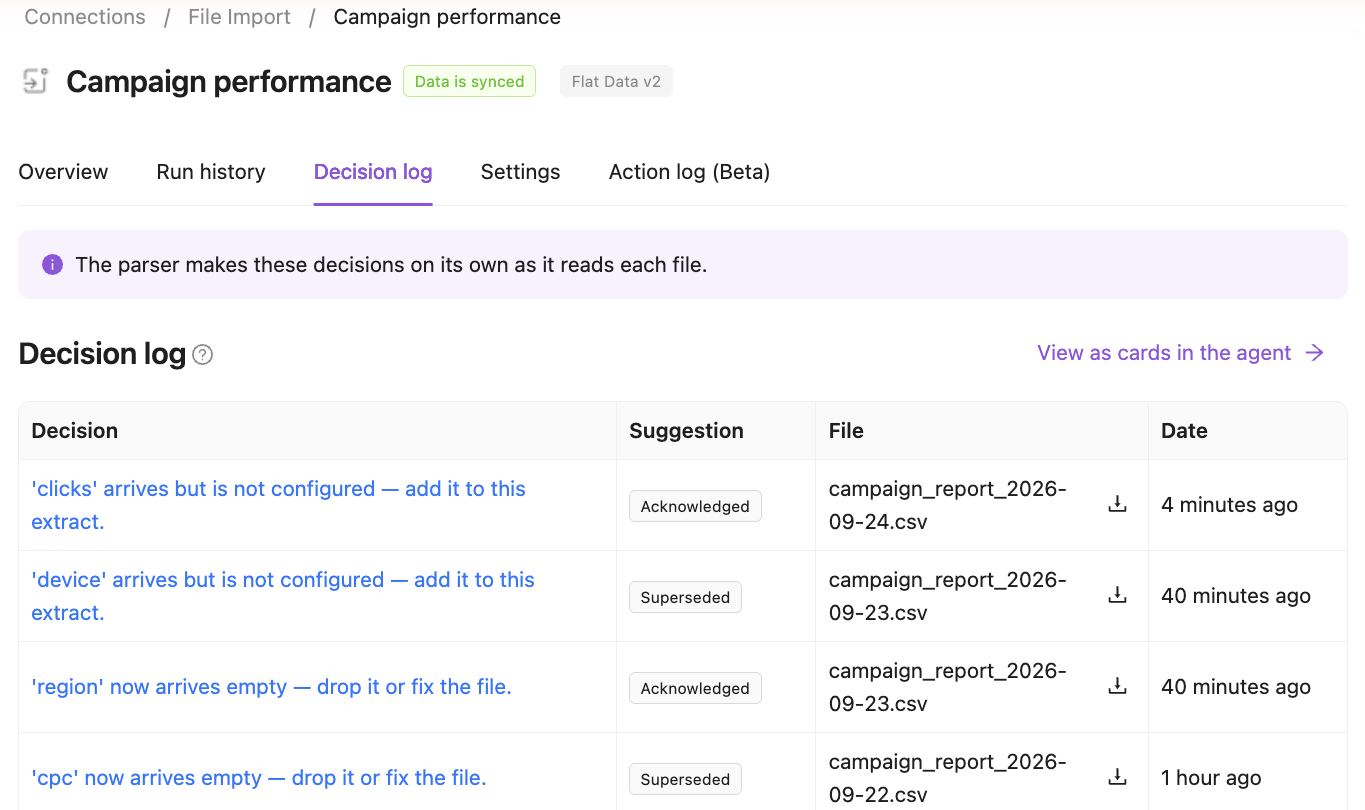
Open the extraction and go to the Decision log tab. Each row is one decision, with the file it applies to and the status of its card. Click a decision, or View as cards in the agent, to open the cards in Suggestions.
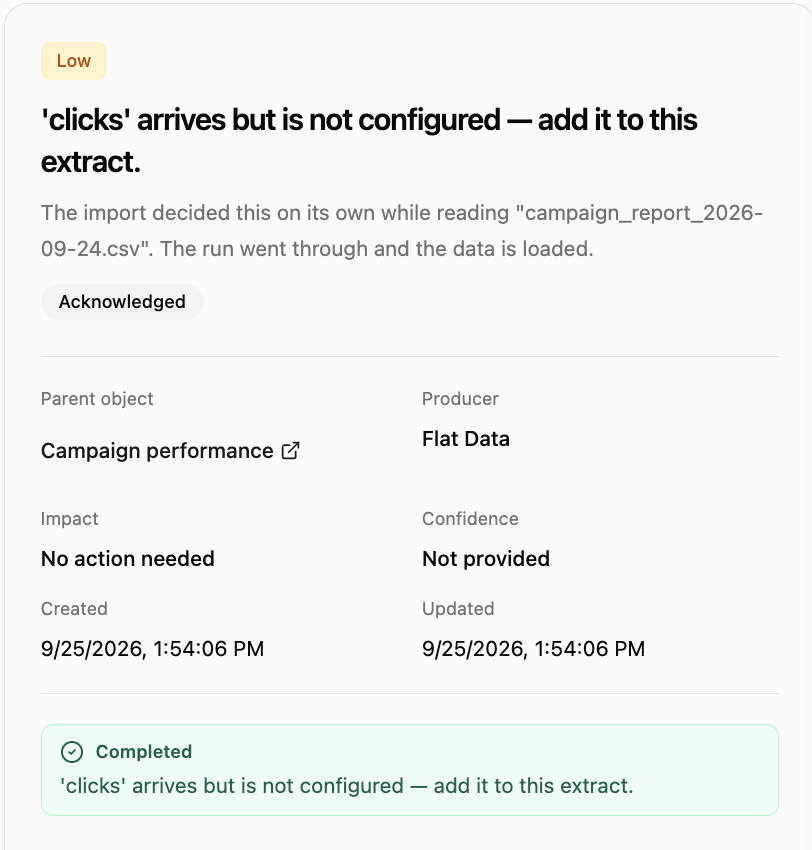
Automatic decisions are on the History tab of Suggestions. Select a card to open it. Each one names:
- The decision — the headline, plus the file it applies to, for example “‘clicks’ arrives but is not configured — add it to this extract.”
- Impact — what the decision means for your data.
- Parent object — the extraction the run belongs to, as a link.
- Producer — the part of Improvado that made the decision. For file ingestion this is Flat Data.
- Confidence — how certain the producer is about the decision.
- Created and Updated — when it was recorded.
The decisions you will see most often:
- A column the configuration did not mention — the file contains a column that is not in the extraction's field list. It is left out of the data.
- A configured column that arrives empty — the file no longer has a column the extraction reads, or has it without values.
- A renamed column mapped back — a header in the file was read as one of the fields you configured, for example “Spend Amount” read as spend.
- A parsing setting chosen from the file — a setting the run inferred by reading the file rather than from the configuration.
- A value that could not be parsed — a value that did not fit the type its column is set to.
When there is a lot to read, use the filters above the list: Priority, Result, Audience, Parent type, Producer and Parent ID. Filter Producer to flat_data to see file ingestion alone.
When a source starts exposing a field it had stopped returning, that field is selected again automatically, and data resumes without anyone having to act on it.
With approval: turn it on
Go to Organization and turn on Approve Flat Data config changes. This is the default for every Flat Data extraction in the organization.
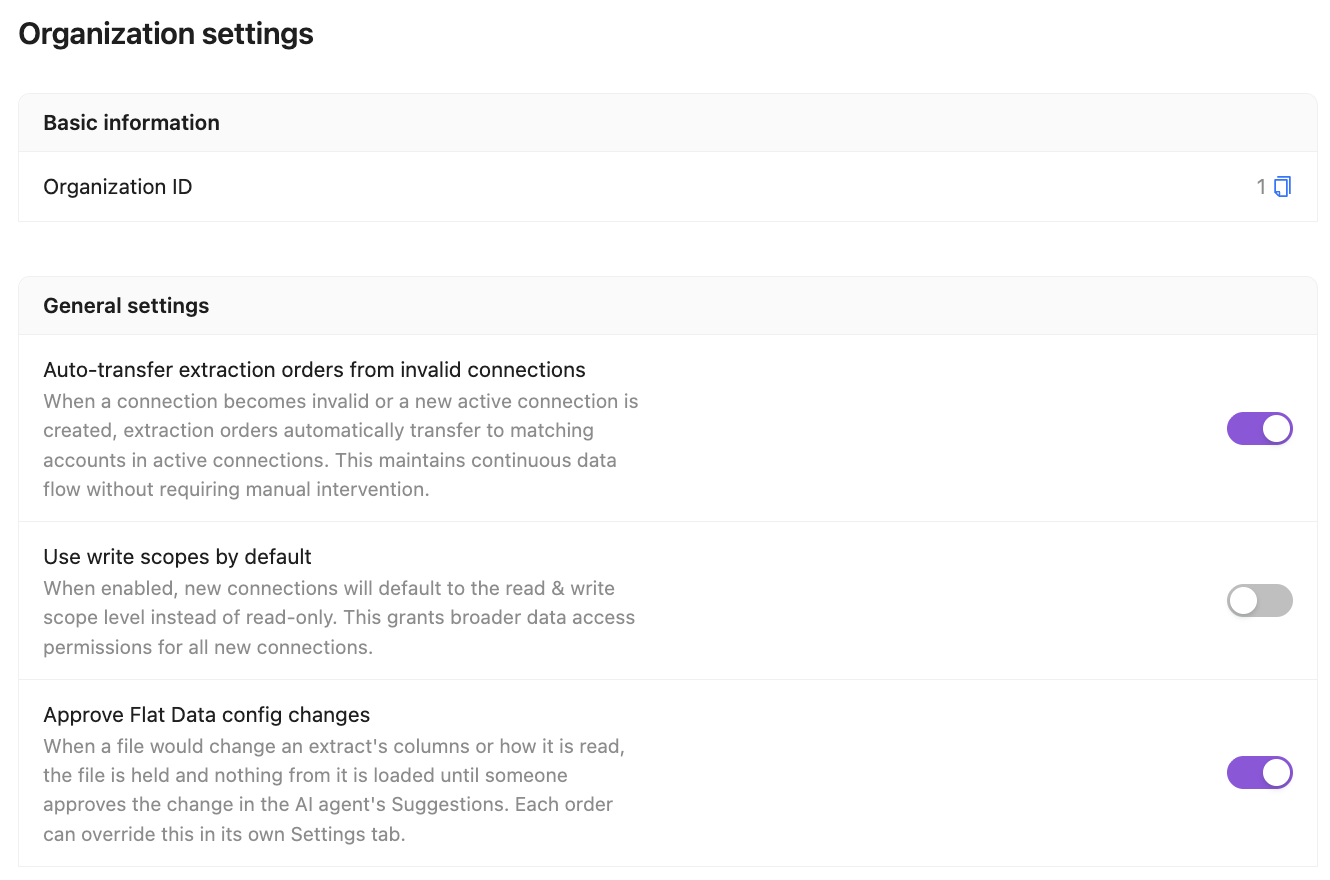
To set a different rule for one extraction, open it, go to the Settings tab and pick a value in Approve config changes:
- Organization default — follows the organization switch. The current value is shown in brackets, for example Organization default (On).
- On — this extraction always waits for approval.
- Off — this extraction always loads automatically, even when the organization switch is on.
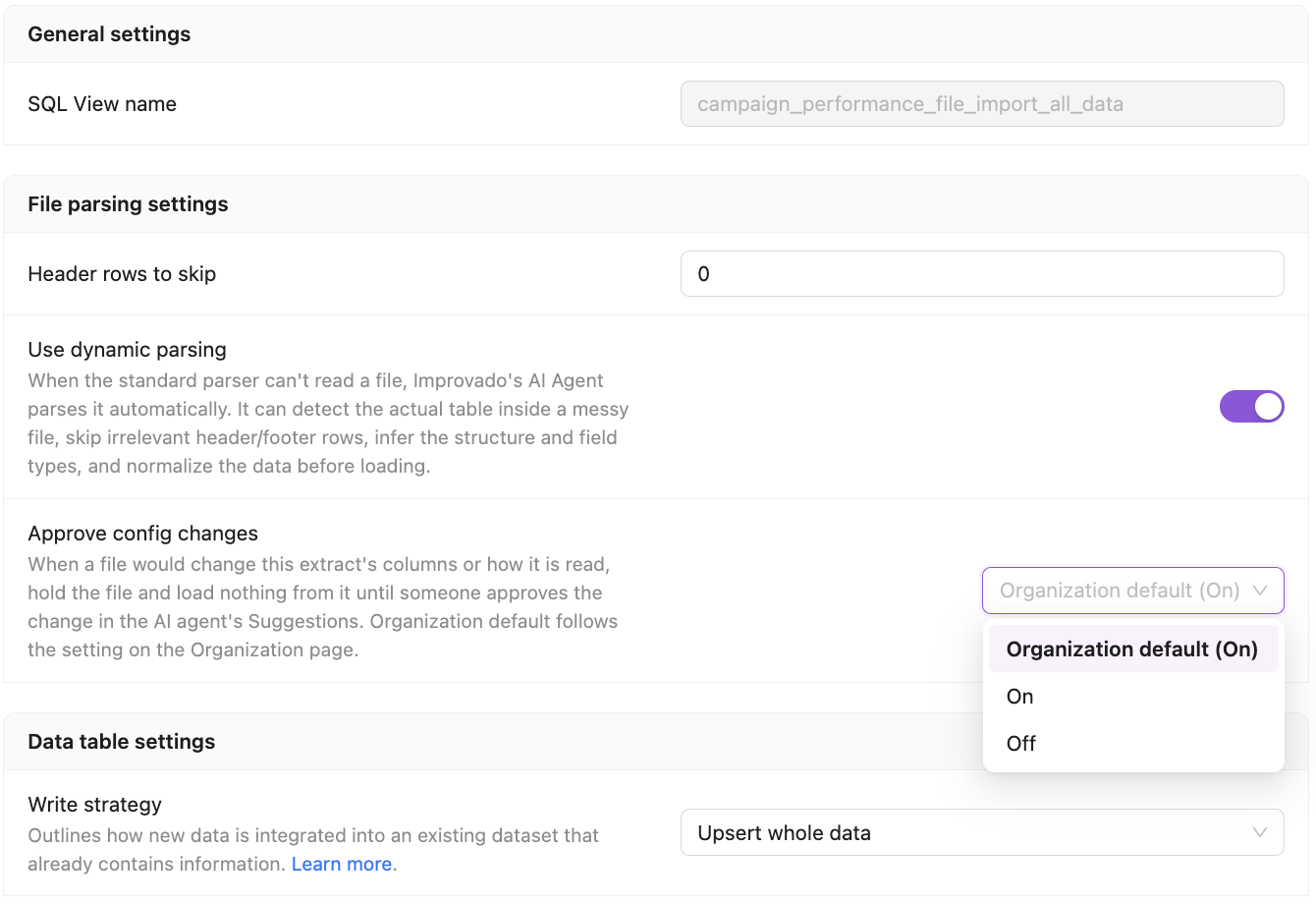
Click Update.
When a file is held
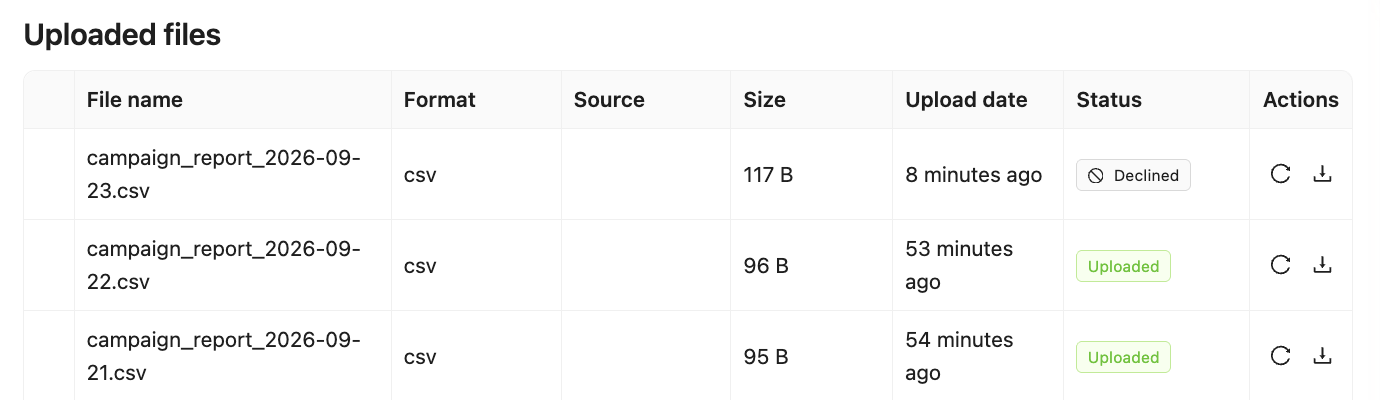
The file shows Awaiting approval in the extraction's uploaded files. Within a few minutes a card appears in Suggestions on the Actionable tab, one for each difference the run found. The View as cards in the agent button in the extraction's Decision log opens the cards for that extraction.
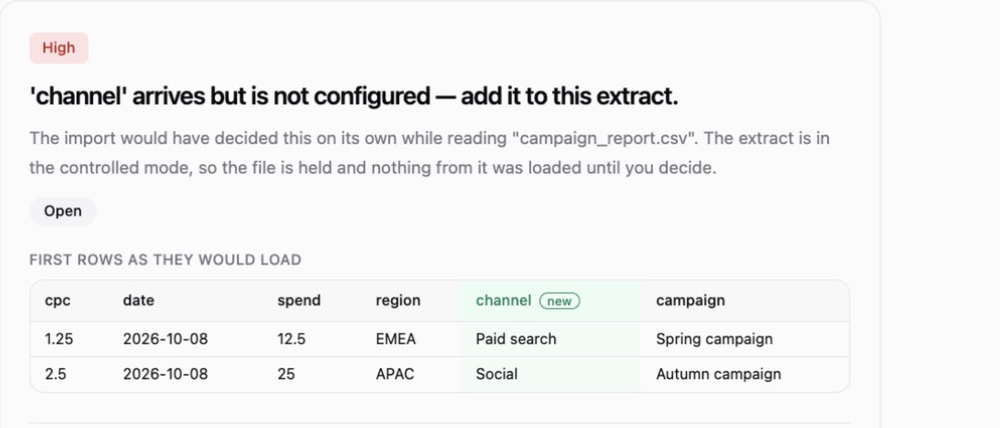
The card previews the first rows as they would load and highlights new columns. Open is the suggestion’s status. Below the preview, the File field links to the file in its extraction; this field is outside the screenshot above. Hover over a button, or focus it with the keyboard, to see what happens to settings, data and the next file before choosing.
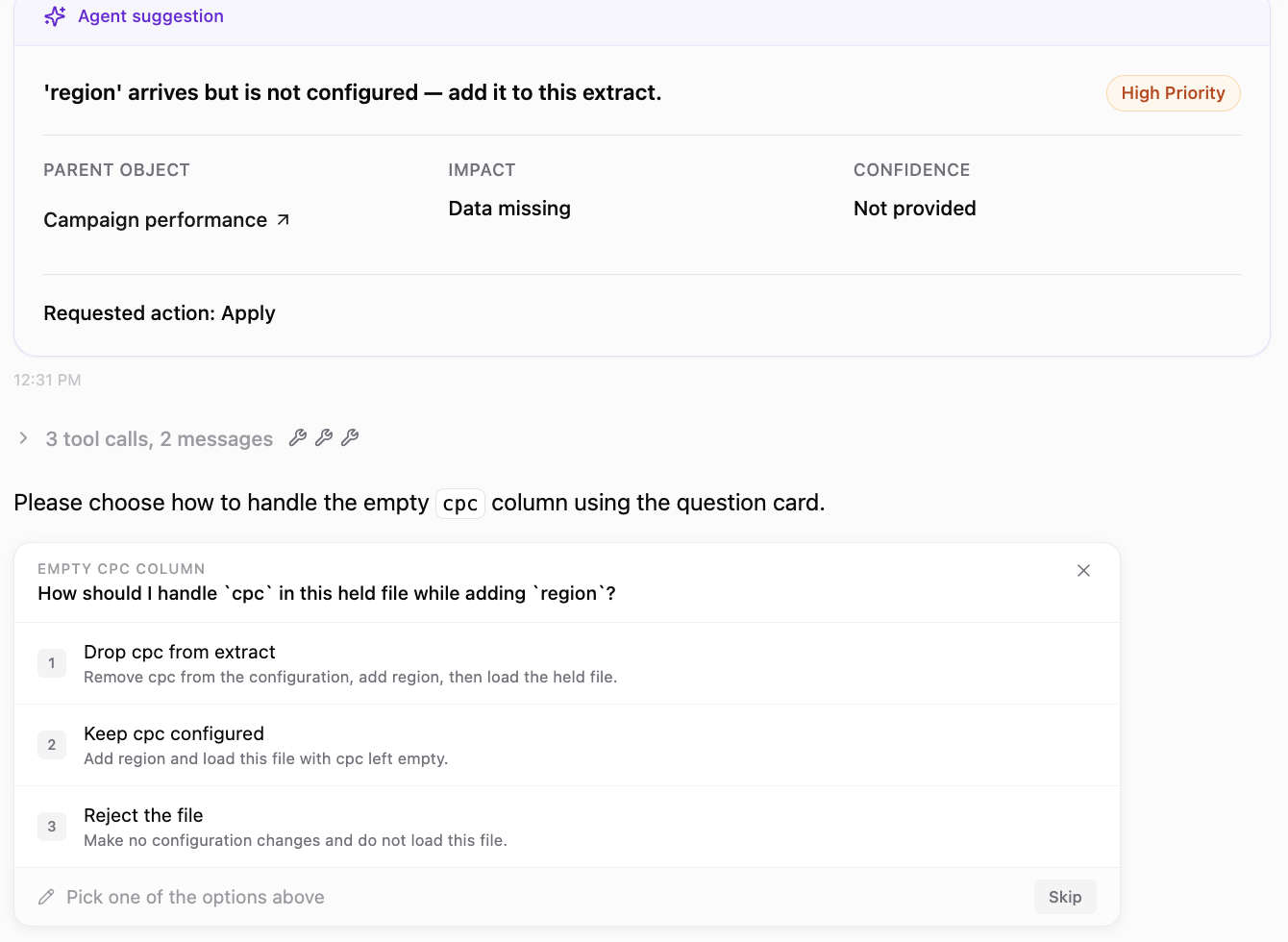
Each card has three buttons. Every button opens a chat with the AI Agent, which carries out the choice:
- Update settings & load — update the extraction to match the file, then load it. The agent shows what it will change and asks when there is more than one way to do it, for example whether to add a new column or ignore it.
- Load once, keep settings — keep the extraction as it is and load the file anyway. Columns the extraction does not have are left out.
- Don't load file — load nothing from this file and leave the extraction unchanged. The file gets the Declined status.
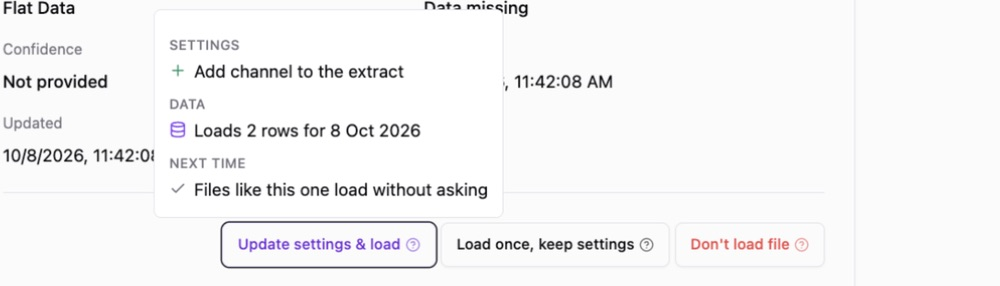
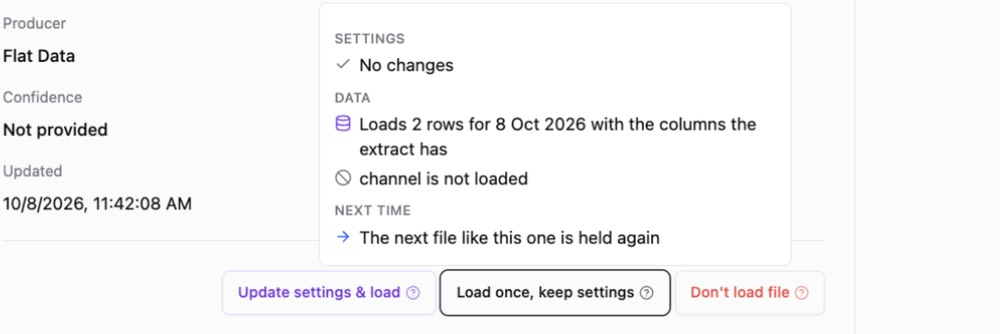
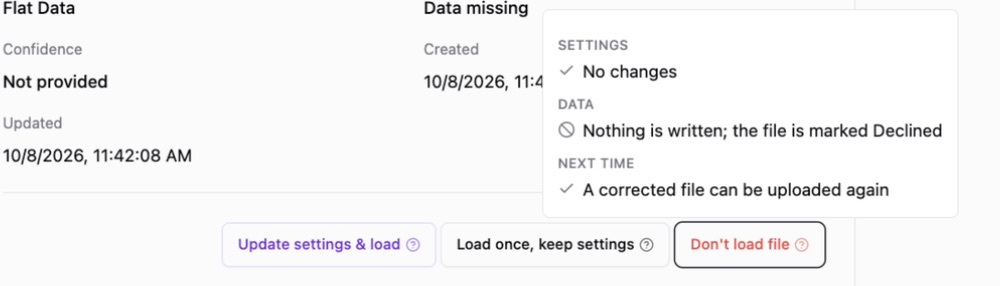
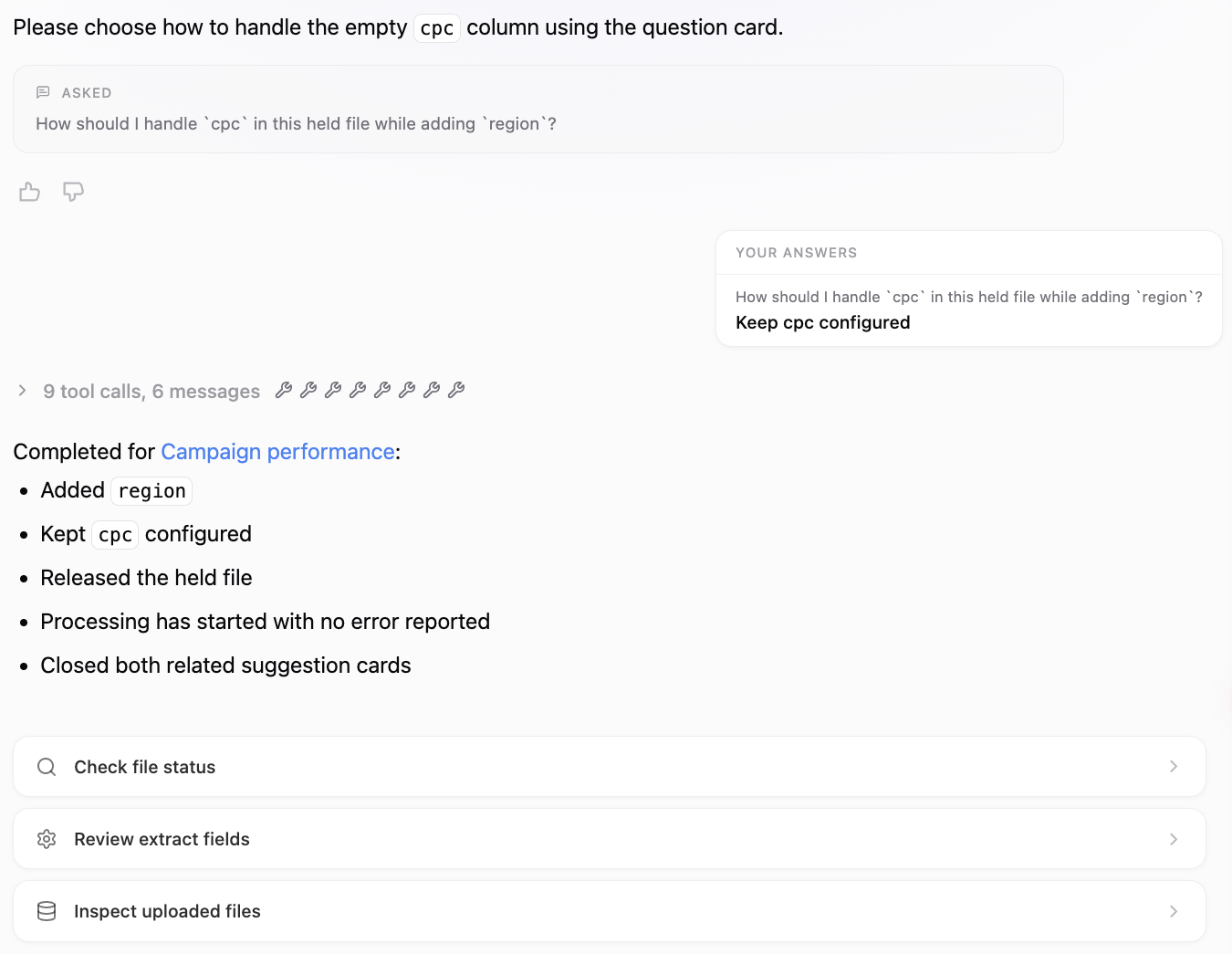
With Update settings & load, the agent asks about anything it cannot decide for you, then reports what it changed:
One decision for the whole file
A file with several differences gets several cards. You only need to click one of them: the choice applies to the whole file, and the agent closes the other cards for it. If several files are held with the same difference, one card covers them all, and one click releases them together.
After you decide
- The file moves from Awaiting approval to Uploaded, or to Declined if you rejected it.
- The cards move to the History tab of Suggestions.
- A file you rejected is not blocked for good. If you upload it again, it is checked again and held again while it still does not match.
For the extraction settings the cards refer to — the field list, types and write strategy — see File Import.
Was this article helpful?
Thanks for the feedback!
Questions? The Improvado team is always happy to help. Send us an email, contact your Customer Success Manager, or raise a request in the Improvado Service Desk.