

Organizing Dashboards with Folders & Tags
Overview
As your workspace fills up with dashboards, folders keep everything findable. Group dashboards by team, client, campaign, or however you work — then browse them as a tree, search across all of them, and share a link straight to the right folder.
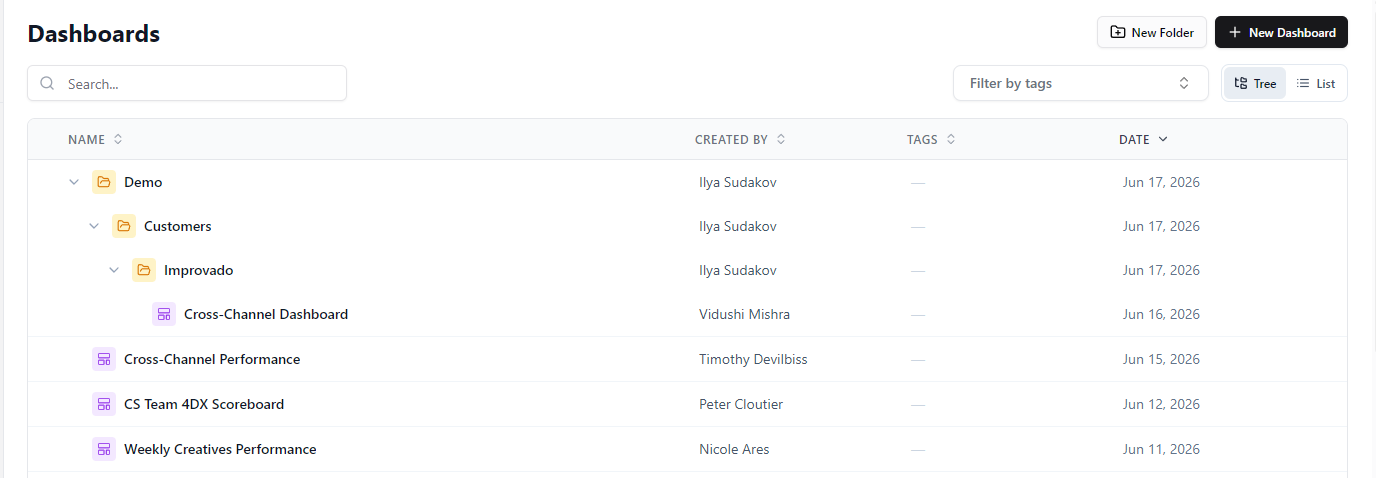
Browse as a Tree or a List
Switch between two views from the toggle in the Dashboards header — your choice is remembered next time.
- Tree — folders and their dashboards in a nested, expandable hierarchy. Best for navigating a structured workspace.
- List — a flat table of every dashboard with a Folder column. Best for scanning or sorting everything at once.
Either view sorts by name, owner, tags, or date — newest first by default.
Create Folders and File Dashboards
Click New Folder in the header to add one, and use the + on a folder to nest another inside it. To file a dashboard, drag it onto a folder in the tree, or open its ⋯ menu and choose Move to folder. That option also shows up in the list and in search results, so you can organize a dashboard the moment you find it.
Keep Things Tidy
Reorganize anytime by dragging folders to nest them under one another. Deleting a folder never deletes your work — its dashboards and subfolders simply move up to the parent, and the confirmation shows exactly what will move before you commit.
Tag dashboards
Tags are a lightweight, cross-folder way to label dashboards. A dashboard lives in a single folder but can carry as many tags as you like — so you can group by client with folders and, at the same time, tag by channel, campaign, quarter, or status.
To tag a dashboard, open its ⋯ menu in either the Tree or the List view and choose Edit tags. In the dialog, click an existing tag to apply it, or type a new name to create one on the fly, then click Save — the tags appear on the dashboard right away. Tagging is add-only for now: you can apply and create tags, but removing a tag isn't available yet, and editing tags requires the dashboard edit permission.
Once your dashboards are tagged, use the Tags filter above the list to narrow to the ones you need — combine it with search to zero in across every folder.
Find and Share
Use search or the tag filter to jump to a dashboard in any folder. Opening a folder updates the page URL, so you can copy that link and send a teammate straight to it.
Note: Folders are currently visible to everyone in the workspace — there is no per-folder access control yet. Folder-level sharing (similar to dashboard sharing) is planned for a future release.
Let the AI Agent Organize for You
Prefer to delegate? Ask the AI Agent to list your folders, create a new one, or move dashboards into a folder — it takes care of the housekeeping right in the chat.
Was this article helpful?
Thanks for the feedback!
Questions? The Improvado team is always happy to help. Send us an email, contact your Customer Success Manager, or raise a request in the Improvado Service Desk.