

Edit Dimensions for Existing Extractions (Wide Reports)
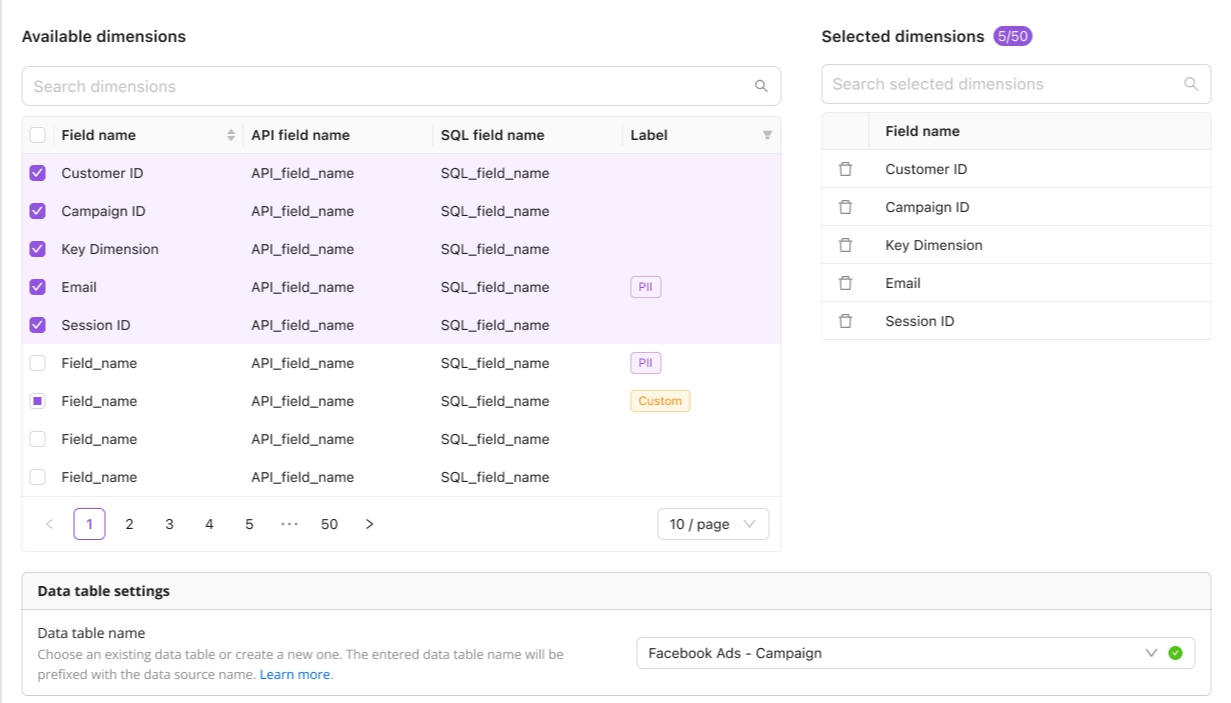
You can now add or remove dimensions on an existing Wide Report extraction — without recreating it from scratch. Instead of modifying your current setup in place, Improvado creates a new extraction order with the updated schema and routes it to a new data table. Your original order is paused and your historical data remains fully intact.
This feature is available for Wide Reports only, across the platform UI, the AI Agent, and the API.
How It Works
When you change the dimension set of a Wide Report, Improvado validates your updated schema, then creates a new extraction order that writes to a new data table. The original order is paused and stays linked to your original data table — so your historical data is always accessible.
Future extractions run through the new order with the updated schema. Both orders are linked through version history, so you can always trace what changed and when.
How to Edit Dimensions
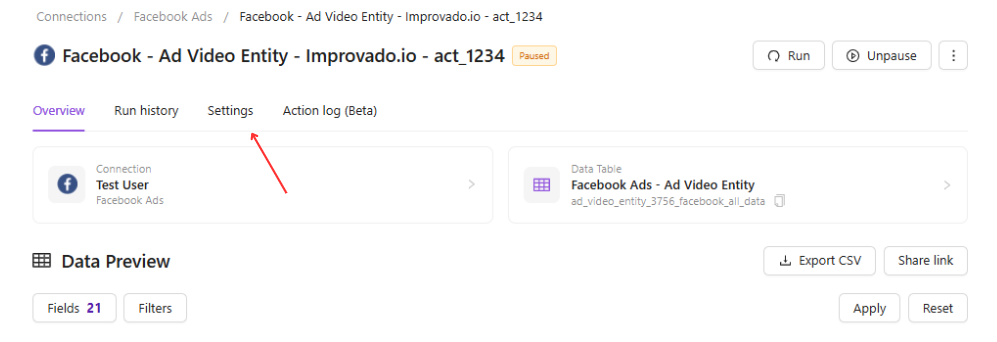
Open your existing Wide Report extraction settings.
Add or remove the dimensions you need.
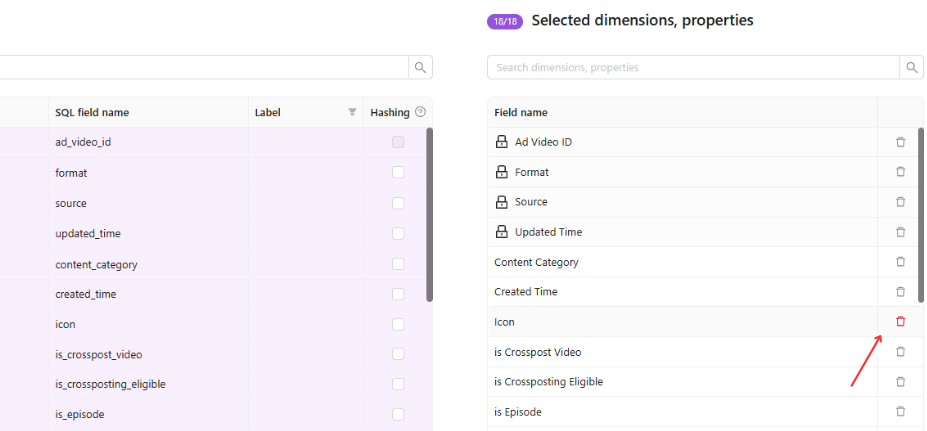
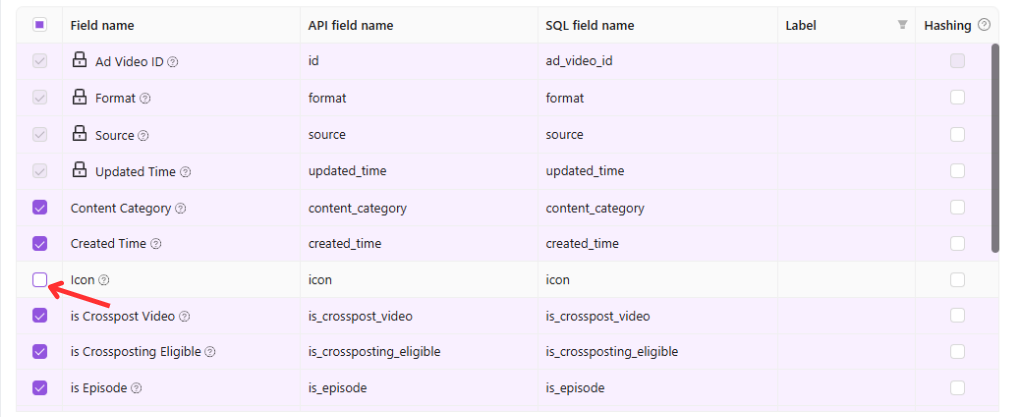
Improvado validates the updated schema. If there are any issues, you'll see a warning before proceeding.
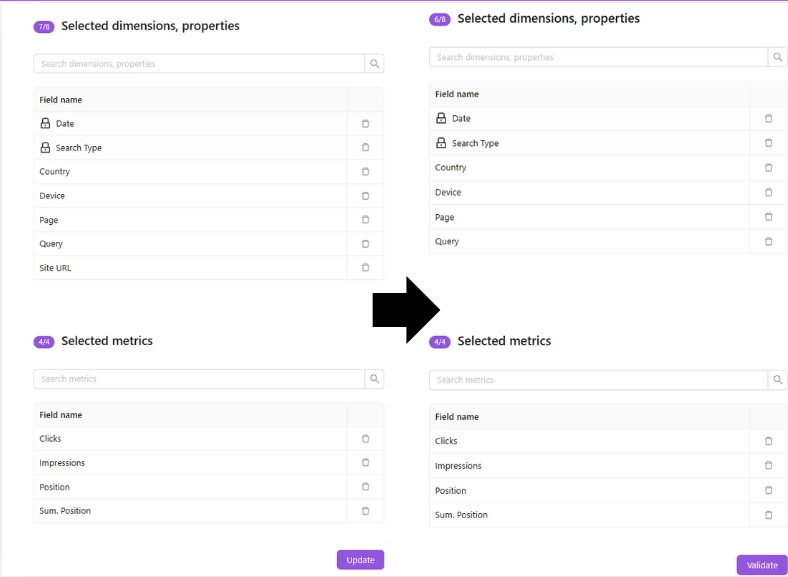
Choose whether to route the new extraction to an existing compatible data table or create a new one.

Before applying, review the confirmation summary. It shows that a new extraction order and data table will be created, your current order will be paused, and any downstream consumers (dashboards, destinations, recipes) referencing the original table may need to be updated.
Confirm the changes. Your new extraction order starts running with the updated schema.

What Happens to Your Data
Your original data stays in the original table, owned by the paused order. Deleting the original order removes only that table and its data. Deleting the new order affects only the new table — the two are independent.
If you need to make additional dimension changes later, the same flow applies. Each change creates a new versioned order to keep your data history clean and traceable.
Important: After updating, check any dashboards, destinations, or recipes that reference the original data table — they may need to point to the new table.
Was this article helpful?
Thanks for the feedback!
Questions? The Improvado team is always happy to help. Send us an email, contact your Customer Success Manager, or raise a request in the Improvado Service Desk.