

Scope Level Selection
Scope level determines what kind of data access the connection will have. A broader scope grants more permissions but may require additional approval from your admin. This feature allows users to control the scope of permissions at the connection level, ensuring that each connection only has access to the data it needs.
Setup guide
Navigate to Connections and click Create New Connection. Select the data source you need.
If the Permissions Scope Level feature is available for the selected data source, a Select Scope Level field will appear in the connection setup form.
By default, this field is set according to your organization's default settings. Adjust the scope level as needed before completing the connection setup.
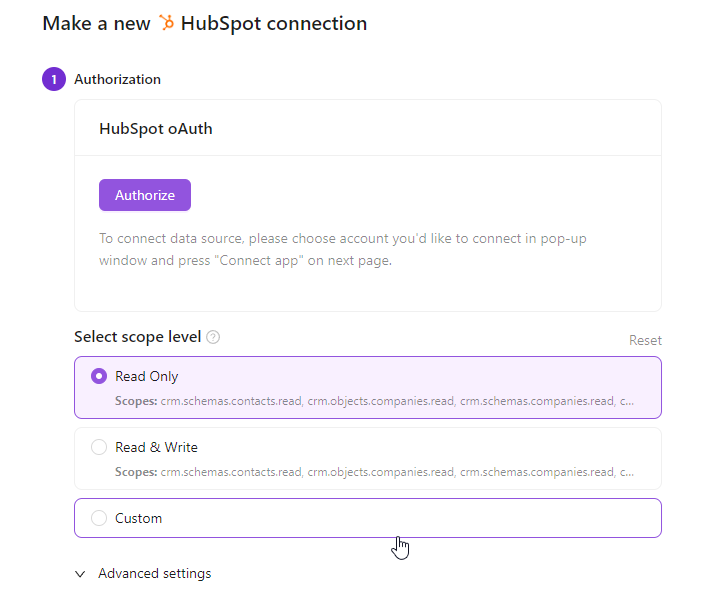
The Select Scope Level field will only be displayed for supported data sources. If the field is not visible, the feature is not yet available for the selected source.
Changing Default Scope Level Settings
To modify the default scope level applied to all new connections:
Navigate to Organizational Settings.
Locate the Use write scopes by default toggle.
Enable the toggle to set the default scope level for new connections to read & write instead of read-only.
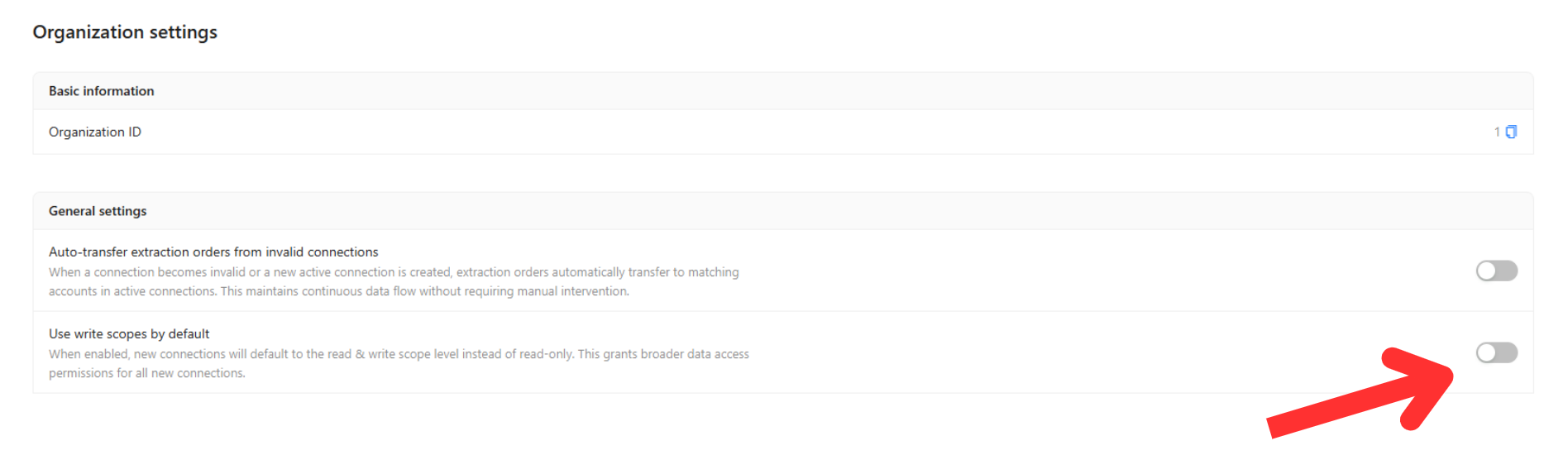
Changing the default setting applies only to new connections. Existing connections will retain their current scope level.
Was this article helpful?
Thanks for the feedback!
Questions? The Improvado team is always happy to help. Send us an email, contact your Customer Success Manager, or raise a request in the Improvado Service Desk.