
Google Search Ads 360 - Migration Guide
Overview
The new Google Search Ads 360 data source has been designed using Kimball data modeling principles.
Below you can find the ERD diagram which allows you to get a high-level view of the data source capabilities: Google Search Ads 360 ERD.pdf
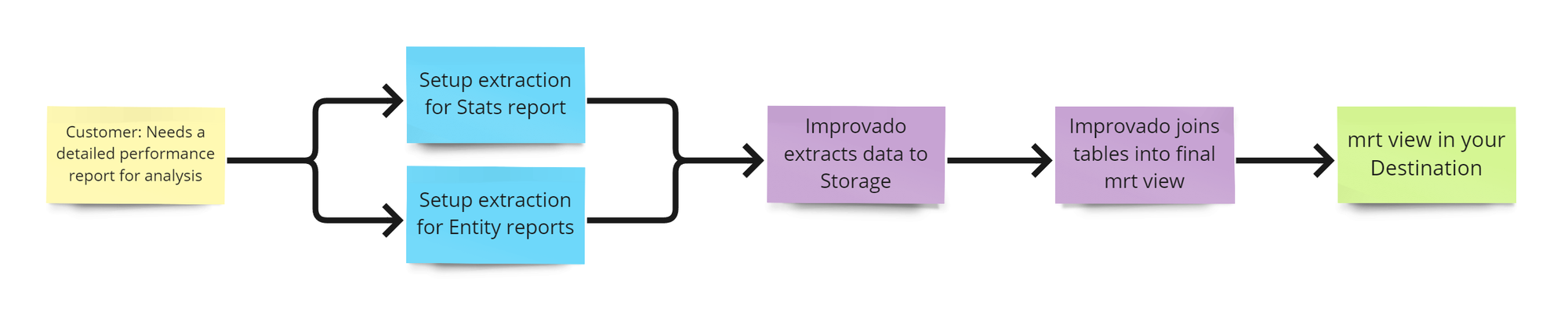
Consequently, statistics and entities will be extracted as separate report types.
- Entity Reports: These reports describe specific objects within an account hierarchy, such as ads and campaigns. They contain detailed descriptive data and unique identifiers that link them to other entities, serving as a catalog of objects within the account hierarchy.
- Statistics Reports: These reports include all metrics-related data for a specific date range. They provide primary keys that link them to entities and offer a comprehensive overview of performance metrics for in-depth analysis.
Please note that the Statistics Report types support Custom configuration flow, allowing you to tailor reports according to your specific requirements.
Additionally, enriched views with prefix mrt_ will be created in our CH storage with a full list of properties related to the dimension (customer_id, campaign_id, adgroup_id, etc.) you’ve selected for the statistics report.
For a better understanding of how to re-create the previously available prebuilt reports through the old Google Search Ads 360 (sunset on June 30th, 2024) in the new Google Search Ads 360 you can refer to the Mapping Fields correspondence table.
Prerequisites
- Find the necessary report type in Fields mapping between old SA360 vs new SA360 if you want to replicate the old report types, otherwise if you want to build from scratch start from point 2
- Have a valid connection for the new Google Search Ads 360
- Select the necessary account on the 1-st step of the Extraction Flow - “Select accounts”
How to work with the new Google Search Ads 360
Let’s imagine that I want to replicate the ads_activities_by_device report type from the old Google Search Ads 360 (sunset on June 30th, 2024) to get performance data for ad-level data granularity segmented by conversions and devices which includes the following fields (dimension/properties/metrics):
- Date (sql_name:
date) which is available in the reportad_group_ad - Name (sql_name:
name) which is available in the reportad_group_ad_entity - Ad ID (sql_name:
ad_id) which is available in the reportad_group_ad - Name (sql_name:
name) which is available in the reportcampaign_entity - Campaign ID (sql_name:
campaign_id) which is available in the reportad_group_ad - Name (sql_name:
name) which is available in the reportad_group_entity - Ad Group ID (sql_name:
ad_group_id) which is available in the reportad_group_ad - Labels (sql_name:
labels) which is available in the reportad_group_ad_entity - Descriptive Name (sql_name:
descriptive_name) which is available in the reportcustomer_entity - Account Type (sql_name:
account_type) which is available in the reportcustomer_entity - Conversion Action Name (sql_name:
conversion_action_name) which is available in the reportad_group_ad - Device (sql_name:
device) which is available in the reportad_group_ad - All Conversions (sql_name:
all_conversions) which is available in the reportad_group_ad - All Conversions Value (sql_name:
all_conversions_value) which is available in the reportad_group_ad - All Conversions (sql_name:
all_conversions) which is available in the reportad_group_ad - Cross Device Conversions (sql_name:
cross_device_conversions) which is available in the reportad_group_ad - Cross Device Conversions Value (sql_name:
cross_device_conversions_value) which is available in the reportad_group_ad - Currency Code (sql_name:
currency_code) which is available in the reportcustomer_entity
Some previously direct available metrics in API became the calculated fields now, so you’ll need to select all basic metrics to make calculations further on your side, see details below:
- dfa_actions → metrics.all_conversions - metrics.cross_device_conversions
- dfa_revenue → metrics.all_conversions_value - metrics.cross_device_conversions_value
- dfa_transactions → metrics.all_conversions - metrics.cross_device_conversions
To get the proper final mrt_ view with the required list of fields, follow our guide below or watch a short video guide.
Step 1. Setup extraction for Stats & Entity reports
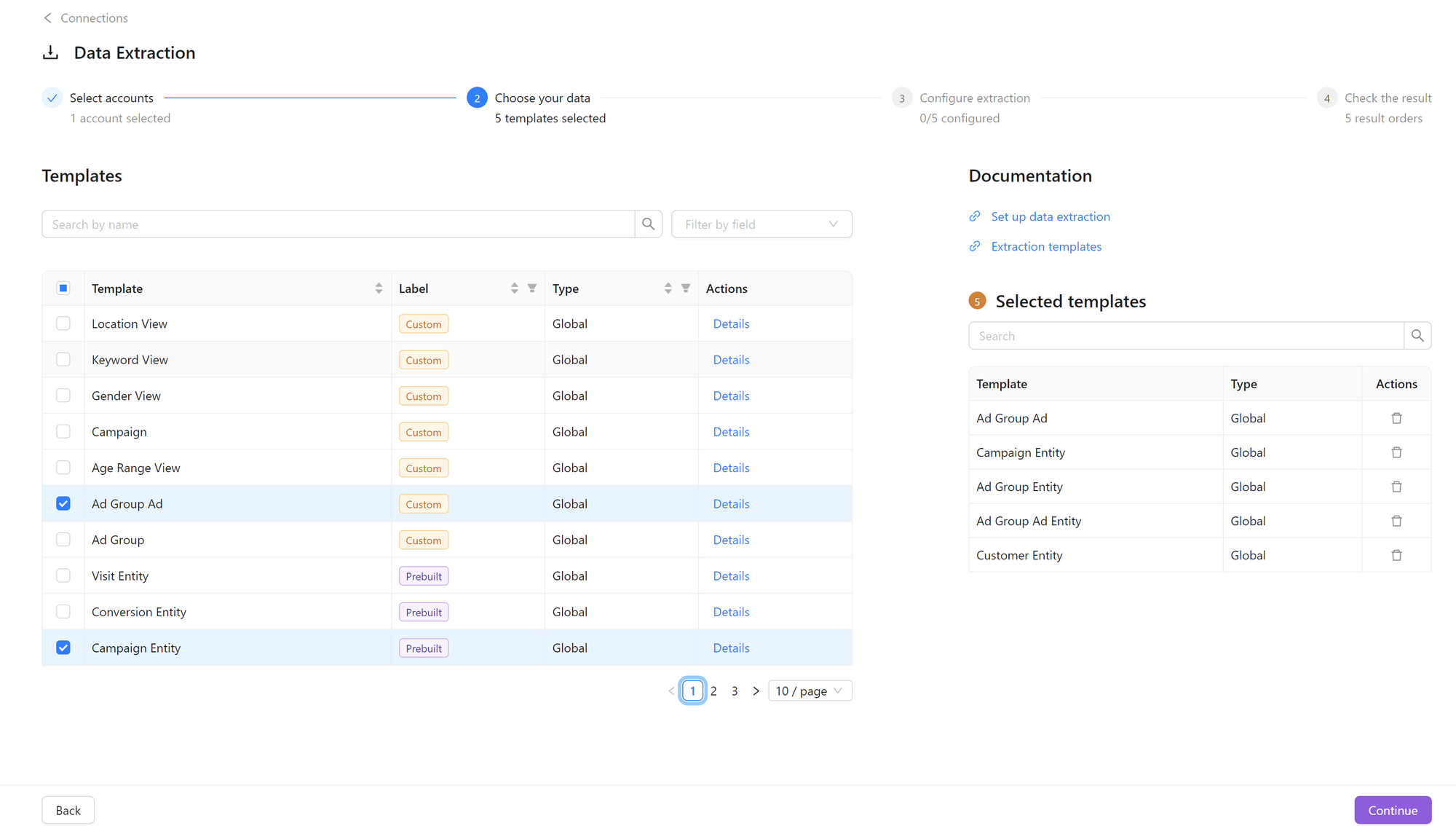
Select the necessary Extraction Templates on the 2nd step to extract the stats and entity reports.
For our example, we need to configure the following reports:
- Custom configurable report for
ad_group_ad - Entity reports for
customer_entity,campaign_entity,ad_group_entity,ad_group_ad_entity
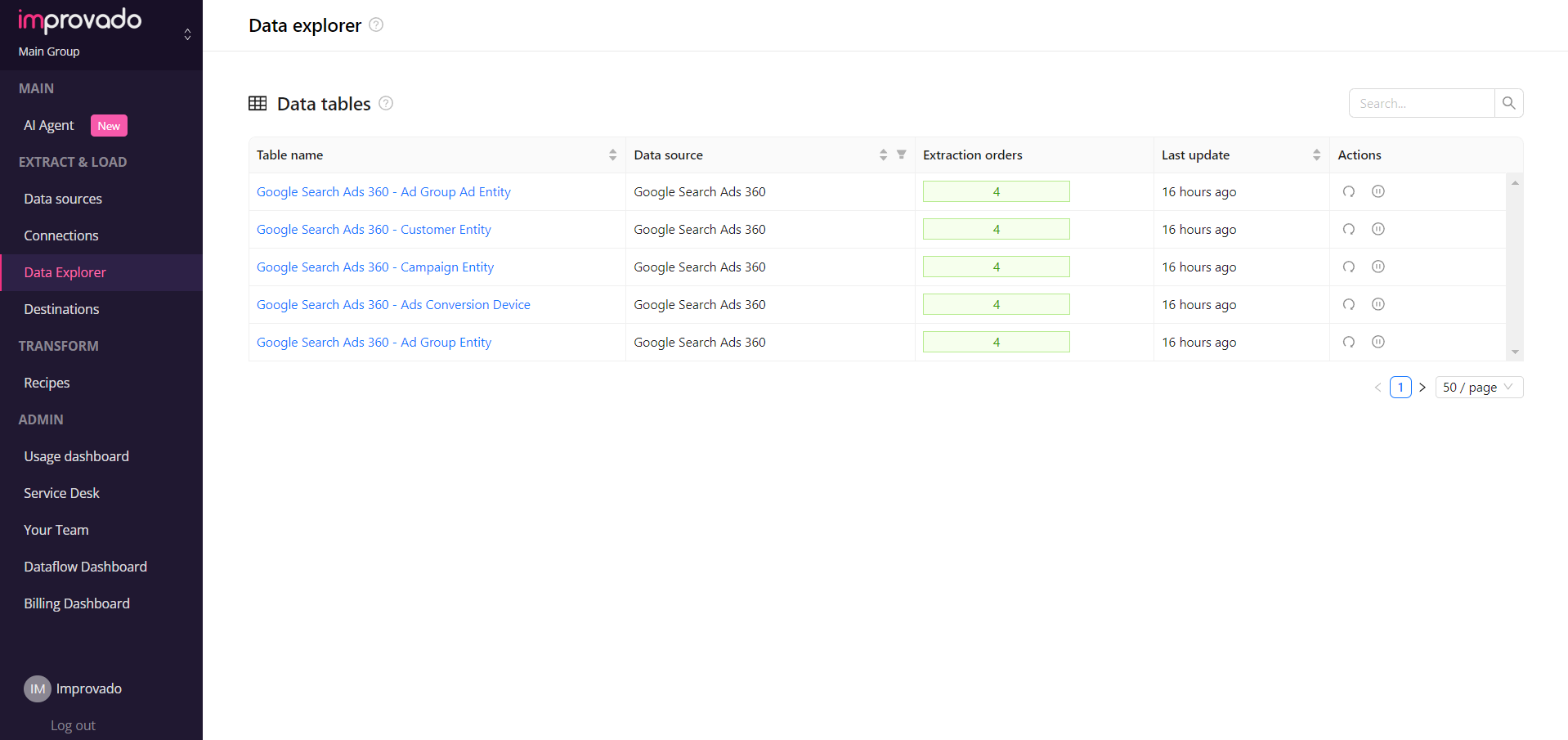
Step 2. Wait for the data extraction to finish
Wait until the extraction orders are ready and the data is available in the CH database. At that point, the generation of the final iew(s) will be launched automatically.
Step 3. Find generated mrt views in Data Explorer
Wait until the m view(s) is/are generated and shown on UI as a new table in “Data Explorer” (per each stats report will be generated one enriched view): Mrt Google Search Ads 360 {Stats Report Name}, Mrt Google Search Ads 360 Ads Conversion Device
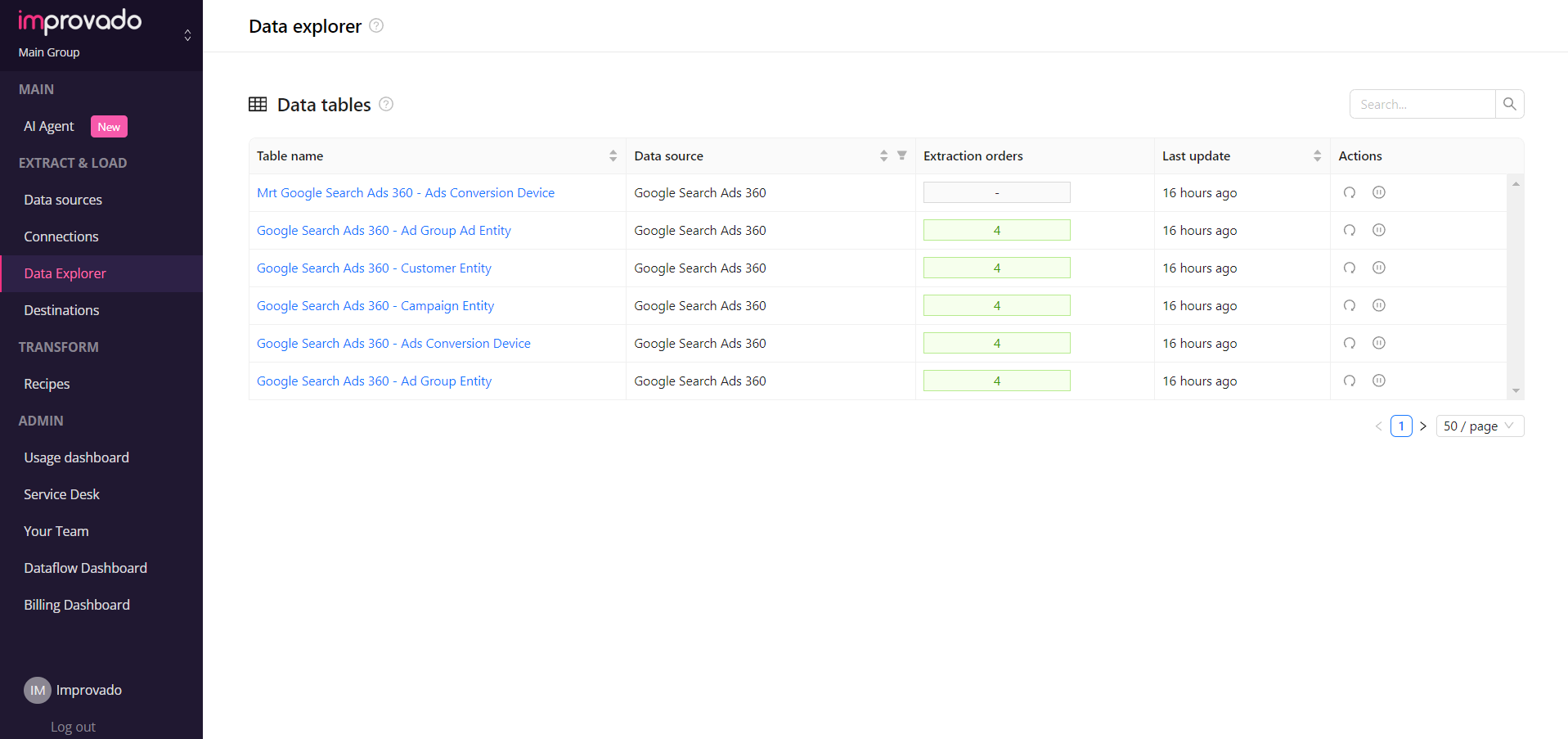
The final mrt naming convention is mrt_{{data_source_title}}_{{datatable_name}}:
data_source_title- the title of the data source in the snake case e.g. Google Search Ads 360 →google_search_ads_360datatable_name- the data table name set on the 3-rd step of the extraction flow “Configure extraction” for the main statistics report in the snake case e.g. Ads Conversion Device -ads_conversion_device
For our example, the final view name for the data table Mrt Google Search Ads 360 Ads Conversion Device will be: mrt_google_search_ads_360_ads_conversion_device.
Please note:
- The final mrt view will include all properties without the possibility of specifying the list
- Custom columns are not currently supported, but they are in the implementation phase and should be available very soon
- Selected properties in the final mrt view follow this naming convention:
{entity_name}_{field_name}(e.g.,account_typefrom Customer Entity will resolve tocustomer_account_type)
Improvado Product team is currently working on a new user flow to enhance transparency and streamline usability.
Q&A
You’ll need to set up Entity reports and then look for Mrt Data table.Why do I only have IDs (e.g., <strong>Campaign ID</strong>) in my report?
Currently, we don’t support this capability natively, but we’re working on it right now. You can request a custom transformation for your case by contacting our Support Team.How can I remove fields from being loaded into the final mrt view?
It can take up to 30 minutes for your Mrt data table to be generated, depending on the amount of data in your Stats & Entity reports.I can’t see Mrt data table in Data Explorer, how long do I have to wait for it to be generated?
Was this article helpful?
Thanks for the feedback!