

June 2026
New API integrations 🧩
We have added several new data sources with the following report types:
- Contacts
- Events
- Messages
- Analytics Posts
- Analytics Profiles
- Messages
- Publishers Entity
- Transaction Details
- Ads Entity
- Ads Stats
- Bids Entity
- Campaigns Entity
- Campaigns Stats
- Fund Modifications
- Spots Entity
- Stats
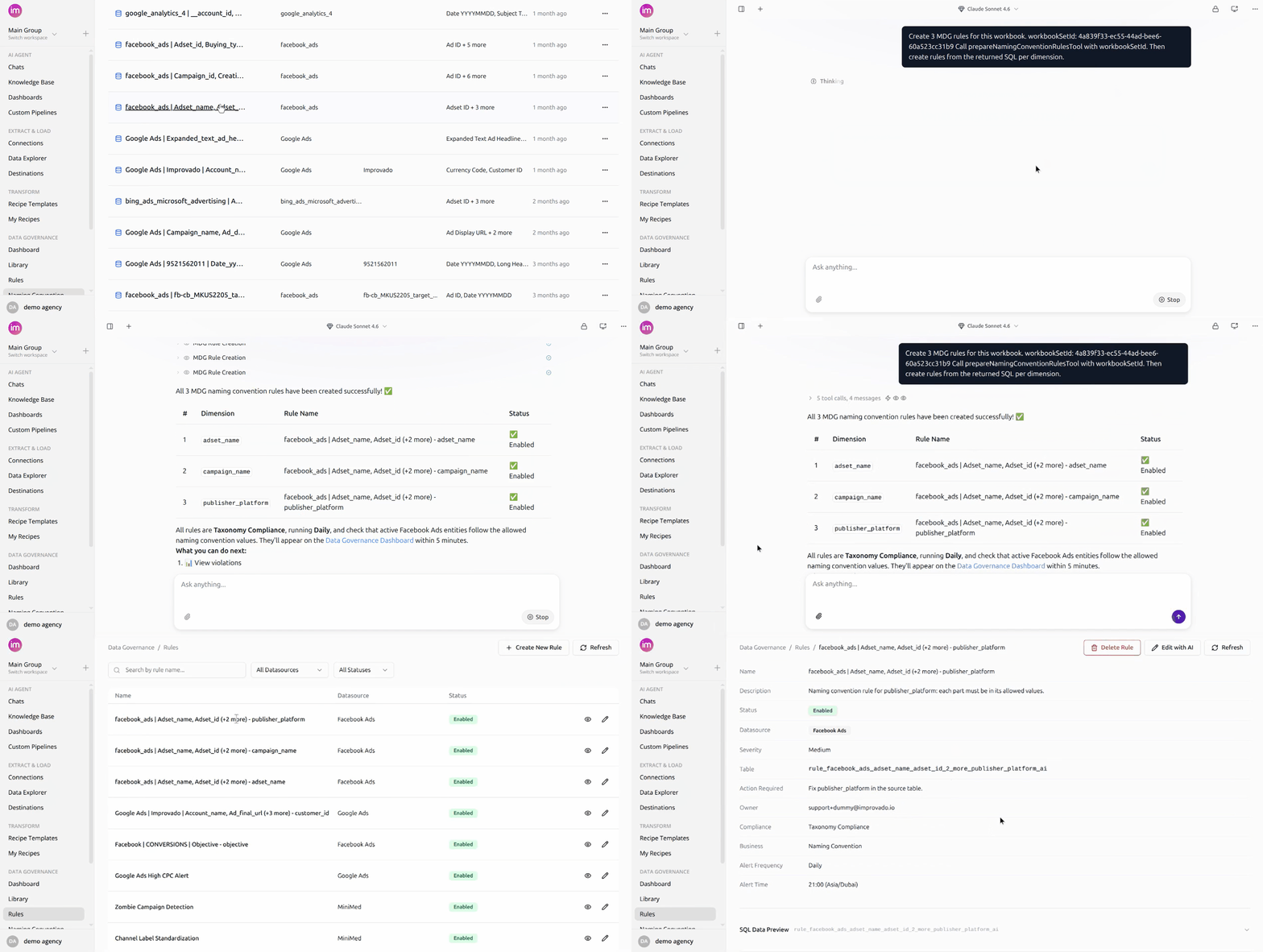
Data Governance Rules for Naming Conventions
Automatically generate data governance rules that enforce naming convention compliance across your marketing data.
Why it matters
- Catch naming issues before they affect reporting.
- Generate compliance rules with one click.
- Keep rules automatically in sync with naming convention changes.
Learn more in Data Governance Rules for Naming Conventions documentation.
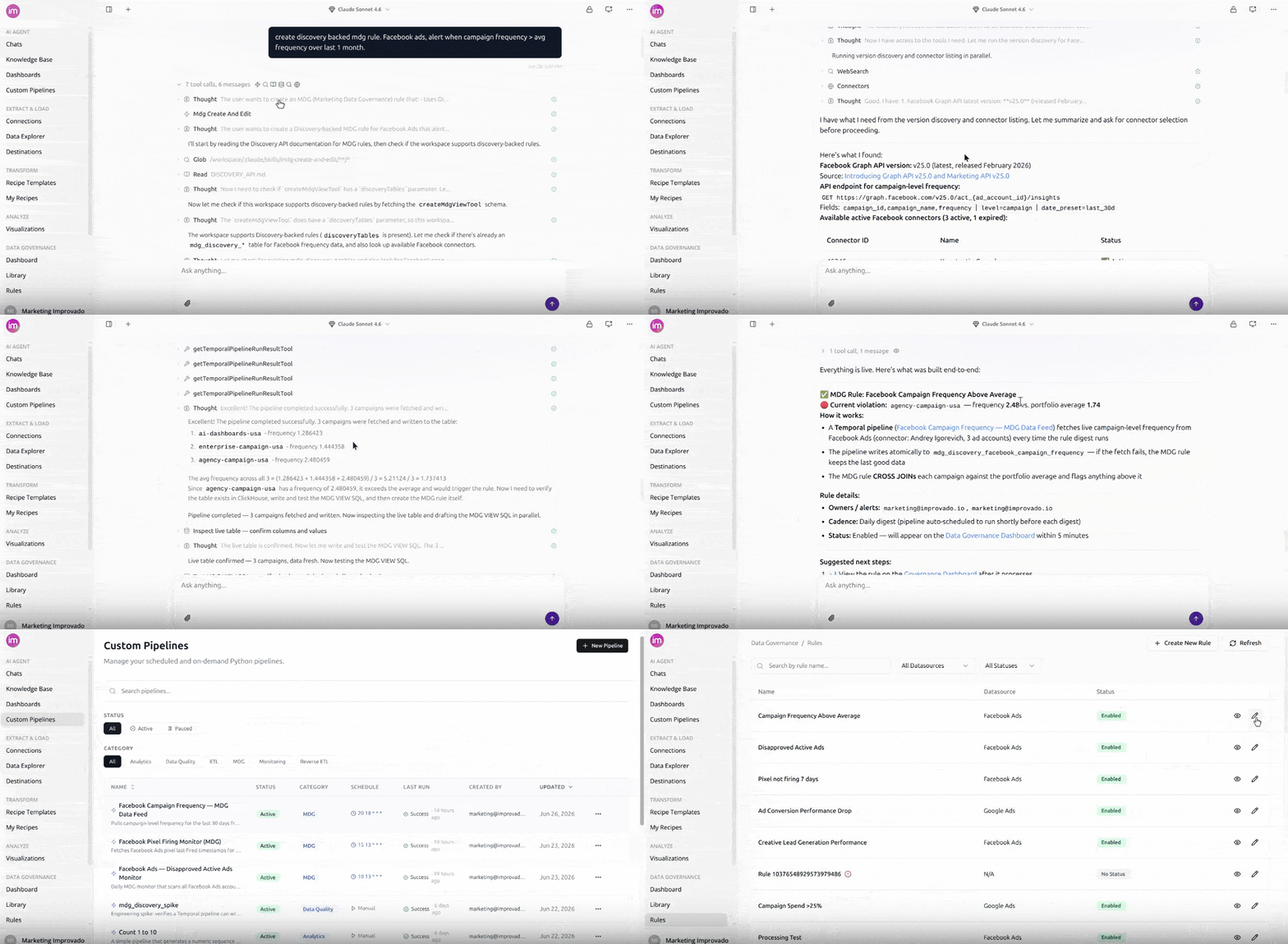
Monitor Connected Source with Discovery API Rules
AI-powered data governance rules for any connected marketing platform — no extraction pipeline required. Describe the metric you want to monitor in natural language, and the Improvado AI agent sets up the Custom Pipeline and writes the rule on top of it.
Why it matters
- Expands governance coverage beyond extracted data.
- Reduces implementation time and setup effort.
- Enables fast monitoring of critical metrics across connected platforms.
Learn more in Monitor Any Connected Source with Discovery API Rules documentation.
Actionable error notifications
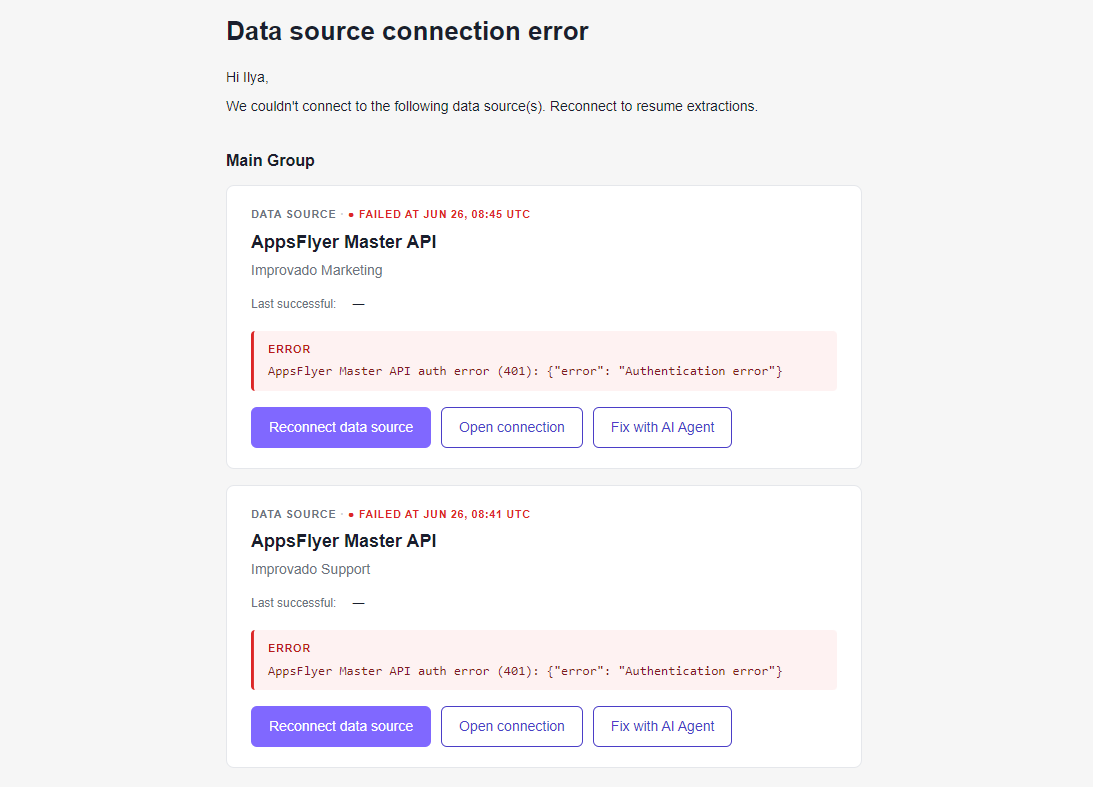
When an extraction, data load, or source/destination connection fails, the notification email now tells you exactly what broke — and links you straight to fixing it, with no digging through the platform.
- Error shown inline — the actual failure message appears right in the email, so you see what went wrong at a glance.
- Deep links to the failing object — jump straight to the specific data table, load, or connection that failed instead of a generic page.
- Context-aware actions — buttons like View failing load or Reconnect data source match the problem at hand.
- Fix with AI Agent — one click opens the AI Agent pre-loaded with the error context, so you can diagnose and resolve in seconds (where AI Agent is enabled).
Why it matters: alerts should help you act, not just inform. Every failure notification now points to the exact problem and the fastest path to a fix — less digging, faster recovery.
Learn more in Improvado Notifications documentation.
Export data to CSV — straight from the preview
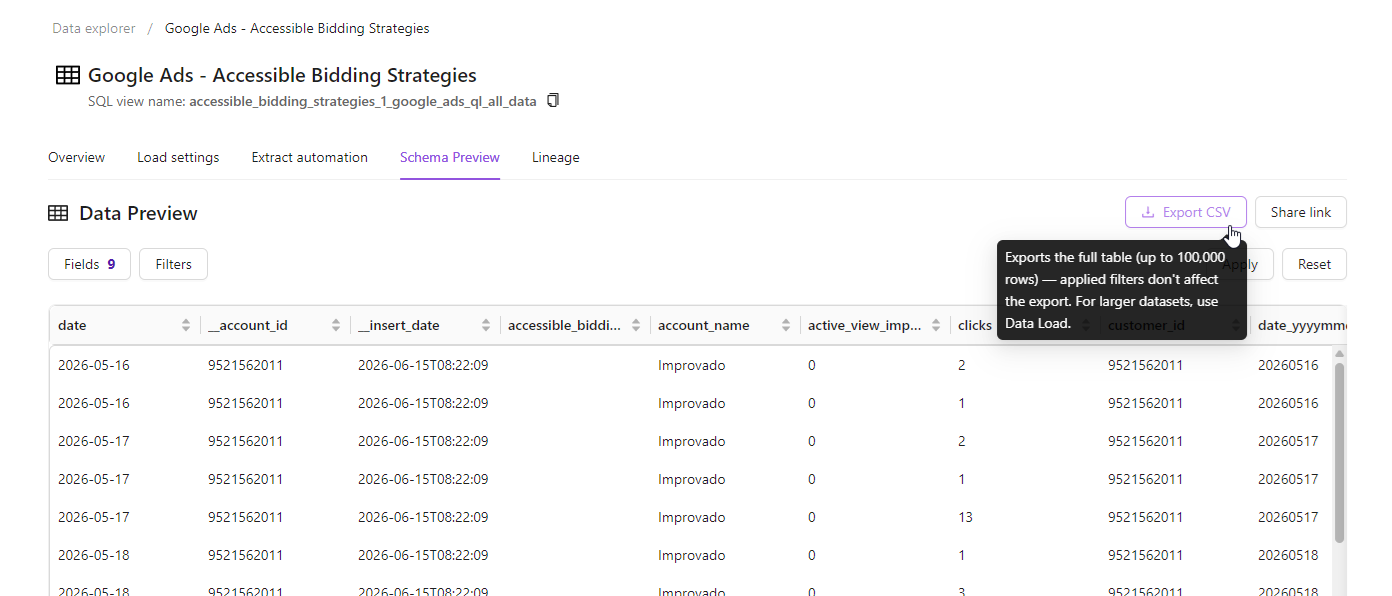
Need your data in a spreadsheet? Now you can grab it the moment you see it. Export any data table to CSV directly from the Data Preview — no separate tools, no extra steps.
- One-click export — click Export CSV right in the Data Preview header
- Full table, every time — download up to 100,000 rows in standard CSV format
- Spreadsheet-ready — open instantly in Excel, Google Sheets, or wherever you work
Why it matters: ad-hoc analysis shouldn't mean a detour. Pull a clean CSV from exactly where you're already exploring your data, and get to work in seconds.
Good to know: the export always contains the full table (up to 100,000 rows). On-screen filters and grouping shape only the preview — they don't change the file. For larger or filtered deliveries, use Data Load to send data to your destinations.
Learn more in Export to CSV documentation.
Organize dashboards with folders
Dashboards now live in folders, so a growing workspace stays organized and easy to navigate.
- Tree & List views — browse dashboards as a nested folder tree or a flat, sortable list. Your view is remembered.
- Create & nest folders — group dashboards by team, client, or campaign.
- Drag-and-drop or Move to folder — file dashboards from anywhere, including search results.
- Safe delete — deleting a folder moves its contents up to the parent instead of removing them.
You can also ask the AI Agent to create folders and move dashboards for you.
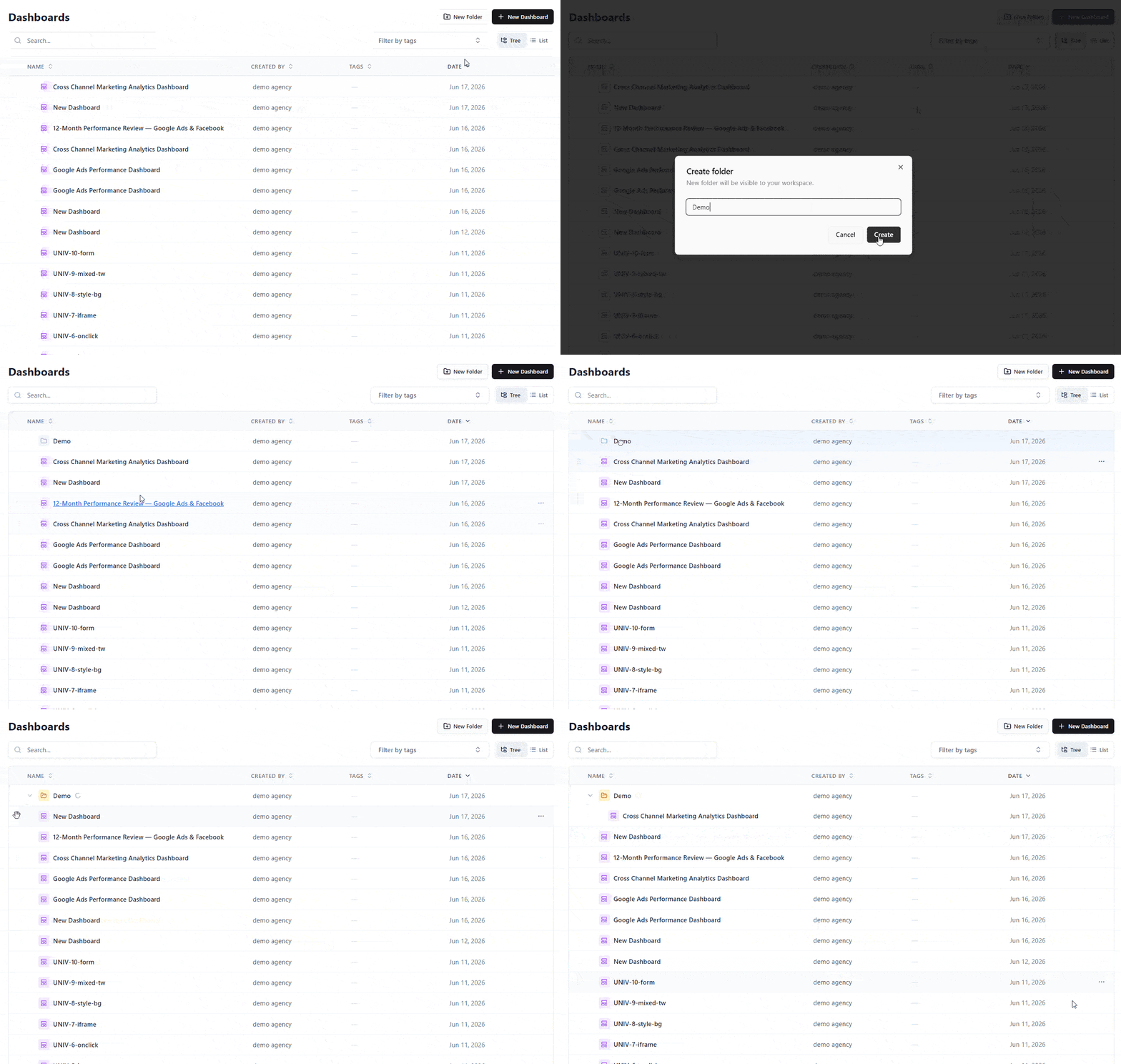
Learn more in Organizing Dashboards with Folders.
Tag your dashboards
You can now add tags to any dashboard directly from the dashboards list — in both List and Tree views. Open a dashboard's ⋯ menu → Edit tags to apply an existing tag or create a new one on the fly, then use the tag filter to find the right dashboard in seconds.
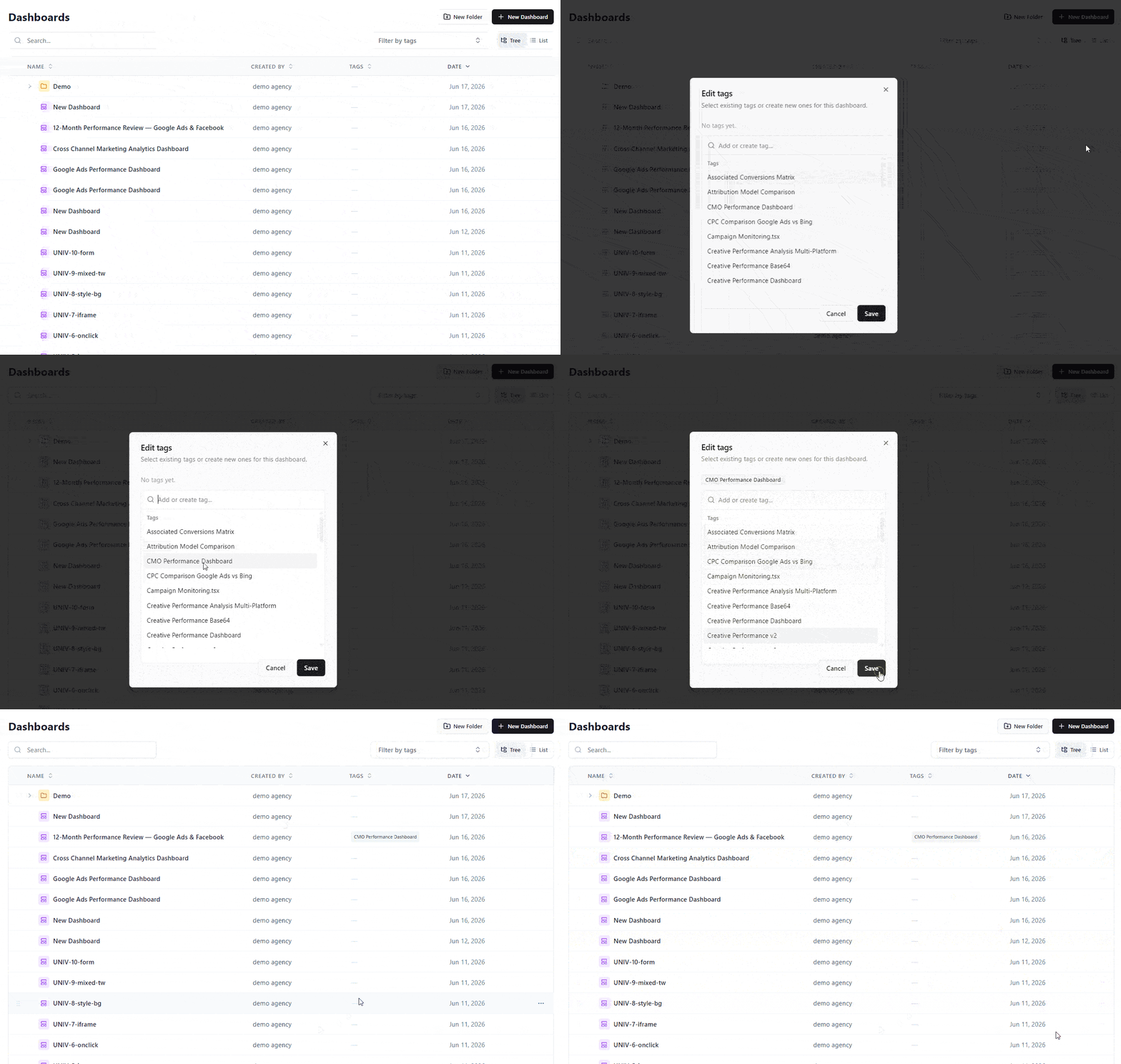
Learn more in Organizing Dashboards with Folders & Tags.
Export Dashboards as Branded PDF Reports
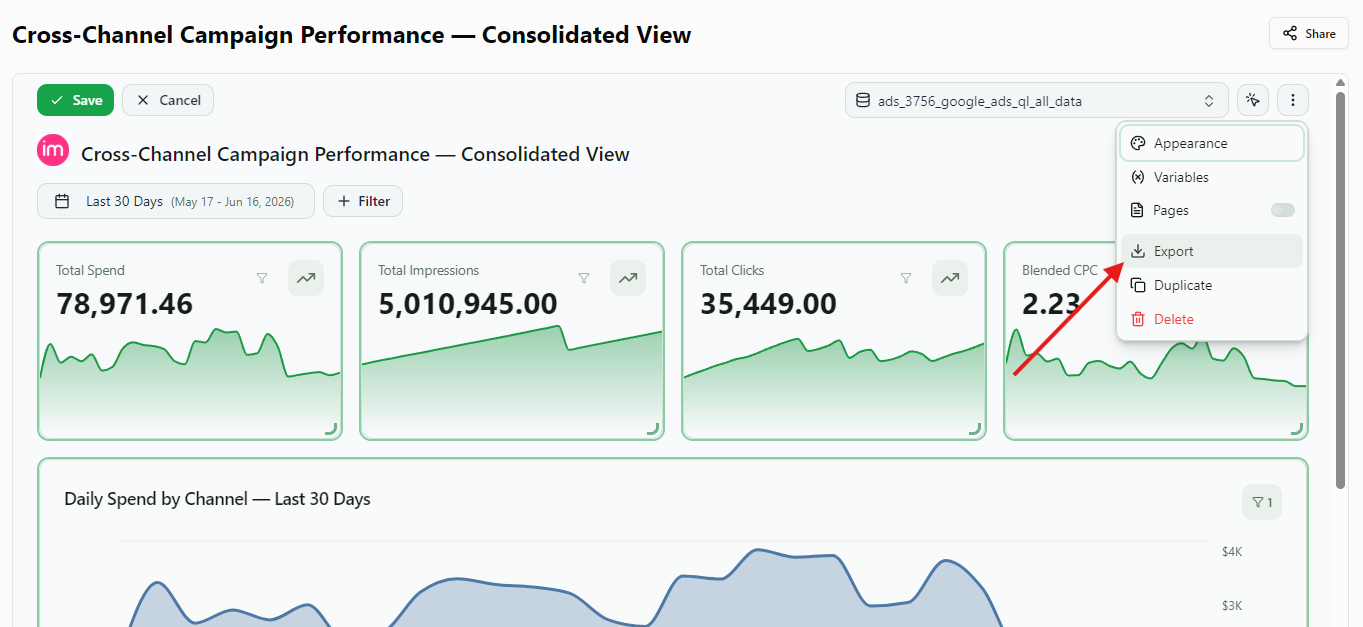
You can now export any dashboard as a polished, branded PDF report — ready to share with clients and stakeholders, no screenshots required.
Open a dashboard, click Export in the header, and keep File Format: PDF Document. Improvado renders the page you are on server-side into a clean, multi-page document — turn on Include all tabs to add every tab of a multi-page dashboard. KPI cards, charts, and tables are laid out to fit the page, your workspace branding and white-label theme are preserved, and the dashboard's filters and date range are applied exactly as you see them on screen. Pick Portrait or Landscape and A4 or Letter.
Great for recurring client reports, QBRs, and leave-behinds — your live dashboard, captured pixel-perfect.
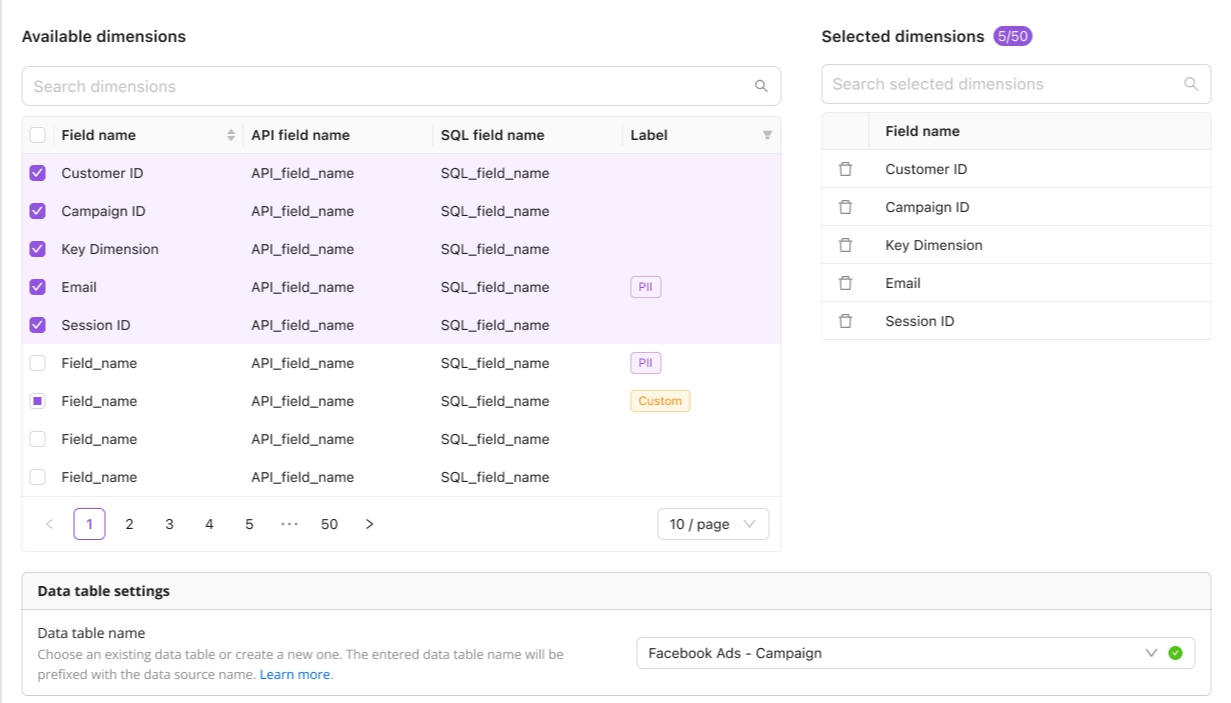
Edit Dimensions for Existing Wide Report Extractions
You can now add or remove dimensions on an existing Wide Report extraction without recreating it from scratch. Improvado spins up a new versioned extraction order with the updated schema and routes it to a new data table, while your original order is paused and your historical data stays fully intact. Available across the platform UI, the AI Agent, and the API.
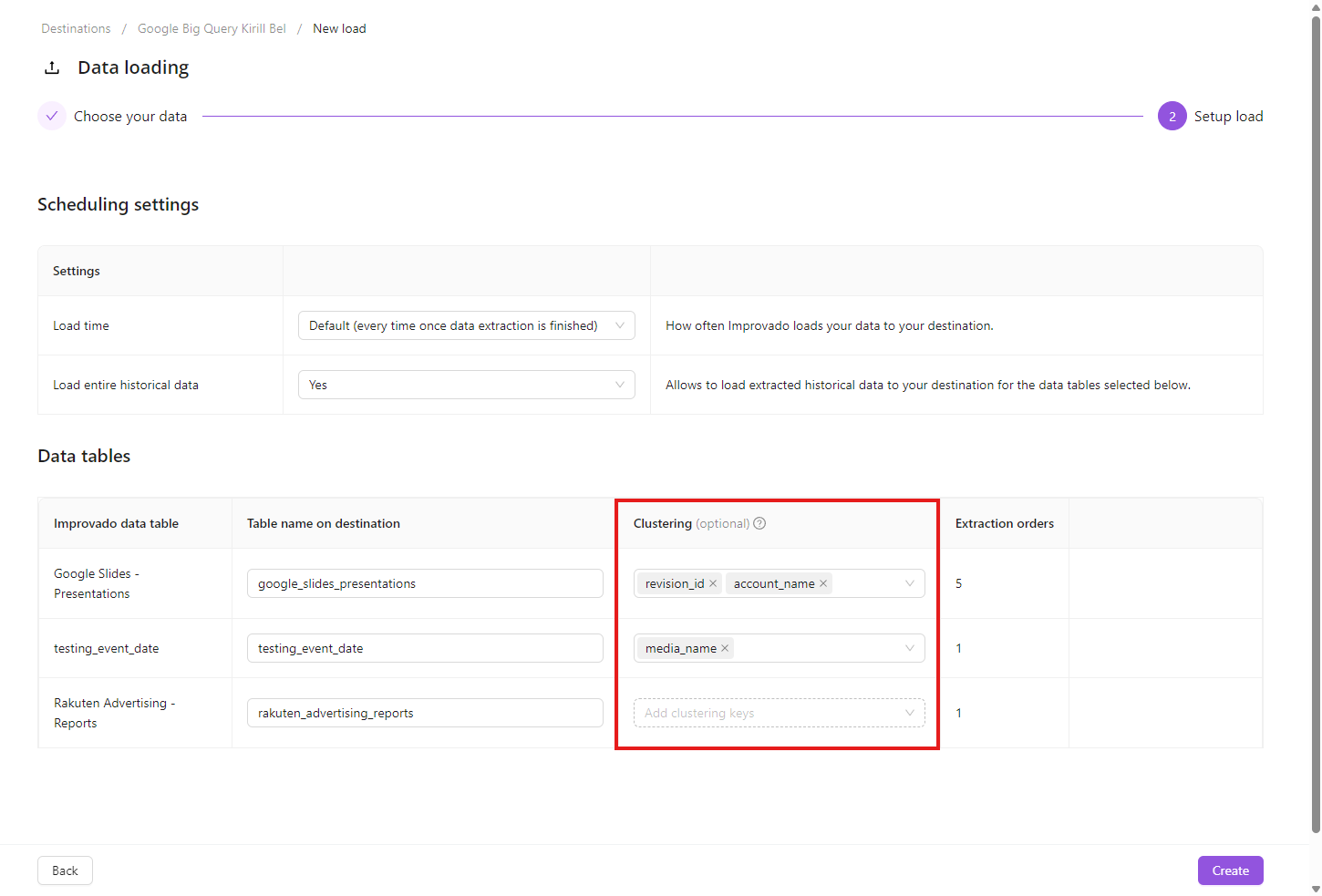
Clustering Keys for Google BigQuery Destination
You can now set BigQuery clustering keys when creating a new load order to a Google BigQuery destination.
On step 2 of the New load flow, each data table gets a Clustering column — pick up to 4 fields, in the order BigQuery should filter by. Clicking the cell fetches the available fields from the source table on demand; metrics are filtered out automatically.
Was this page helpful?
Thanks for the feedback!
Questions? The Improvado team is always happy to help. Send us an email, contact your Customer Success Manager, or raise a request in the Improvado Service Desk.