

September 2026
New API integrations 🧩
We have added several new data sources with the following report types:
- Business Units
- Campaigns
- Customers
- Invoices
- Jobs
- Marketing Ads Attributed Leads
- Marketing Ads Performance
- Technicians
- Product Catalog Uploads
- Segments
- Webhooks
- Lighthouse Scores
- Lighthouse Audits
- Files
- Campaigns
- Campaigns Entity
- Creatives
- Creatives Entity
- Keywords
- Sources
- Activity Logs
- Boards
- Column Values
- Columns
- Groups
- Items
- Teams
- Users
- Workspaces
- Global Email Statistics
- Products
- Reviews
- Events
- Persons
- Projects
- Calls
- Channel Members
- Channels
- Direct Messages
- Files
- Group Direct Messages
- Message Replies
- Messages
- Private Channel Messages
- Private Channels
- User Groups
- Users
- Campaigns Entity
- Creatives Entity
- Reports
Drill-Down in Charts and Sankey, and Reusable SQL Sources in AI Dashboards
Two updates to AI Dashboards: bar charts and Sankey diagrams now support drill-down, and custom SQL has been rebuilt as SQL sources — named queries you write once in the UI and reuse across widgets.
Drill-down in bar charts and Sankey
Set up a hierarchy — for example Campaign → Ad group → Ad — and click any bar or node to open its next level right in place. The parent and its siblings stay on screen, so you can compare a branch against the rest without losing context.
- Expand in place. Click a bar to expand it into grouped child bars; click again to collapse. Open several branches at once and use Collapse all to return to the top level.
- Sankey drill-down. Click a node to reveal the flows behind it. Ribbons animate in and out, and repeated names stay tied to their own parent path.
- Drill and filter together. A plain click drills down; Cmd/Ctrl + click filters the other widgets by the full path (for example, Campaign A → Prospecting).
- Same chart settings. Expanded bars keep the chart's colors, number formats, orientation, stacking, value labels and sorting.
- One setup for tables, charts and Sankey. Turn on Drill-Down Mode in the widget's Data section and order the levels. Documentation →
SQL sources: reusable named queries
Instead of replacing a widget's whole query, you now write SQL as a source — a query that widgets read from, just like a data table. You pick metrics, dimensions and the date field on top of it as usual, and the dashboard date range and filters apply automatically. Edit the source, and every widget that uses it updates — the same way custom metrics work.
- Editable in the UI. In the widget's Data section, switch from Table to SQL, write the query in a built-in SQL editor with highlighting and one-click formatting, and save.
- Named, reusable queries. Pick an existing source from a searchable list or create a new one. Each widget keeps its own metrics and grouping.
- Regular widget controls. No placeholders to remember — date range, filters, grouping and limits work exactly as they do on a table.
- Works across widgets. Table, Chart, KPI, Pie, Funnel, Heatmap, Sankey, Geo map and Custom Component widgets.
- Easy clean-up. Sources no widget uses are marked Not used and can be deleted from the picker; rename a source without breaking its widgets. Documentation →
Why it matters
Finding what drives a number no longer takes a separate widget for every level — go from campaign to ad group to ad in the same chart and share the finding with the rest of the dashboard in one click. And custom logic such as a CRM join or cleaned-up channel names now lives in one place instead of being copied into every widget, so a dashboard stays consistent as it grows.
Available on all AI dashboards. Existing custom SQL widgets keep working.
Dashboards: Click-to-Filter, Geo Maps, Sankey Charts, and More
Explore data with a click, share filtered views, and reuse dashboards across workspaces.
- Click-to-filter. Select a bar, pie slice, or table row to filter compatible widgets on the page. Enable it in Customize. How it works →
- Share a focused view. Links preserve your selected tab and dashboard filters. Temporary click-to-filter selections are excluded.
- Copy to another workspace. Choose a destination when duplicating a dashboard. Copies retain their original data source.
- Geo maps and Sankey charts. Compare countries or US states, and visualize flows across channels, campaigns, and audiences.
Other updates
- All tabs: include every page when duplicating or exporting to PDF or PowerPoint.
- Match dashboard layout: keep widgets arranged as they appear on the dashboard when exporting to PowerPoint.
- Color-coded table labels: show text values as colored tags and pin colors to specific values.
- Faster navigation: find overflow tabs in a searchable N more menu, and search both Customize and individual widget settings.
- Fonts and icons: choose a dashboard font and add an icon or emoji.
- Speed and UX: faster repeat visits with cached results (beta), freshness indicators, and smoother editing and filtering.
AI Dashboards Open in Seconds — Cached Widget Results with One-Click Refresh (Beta)
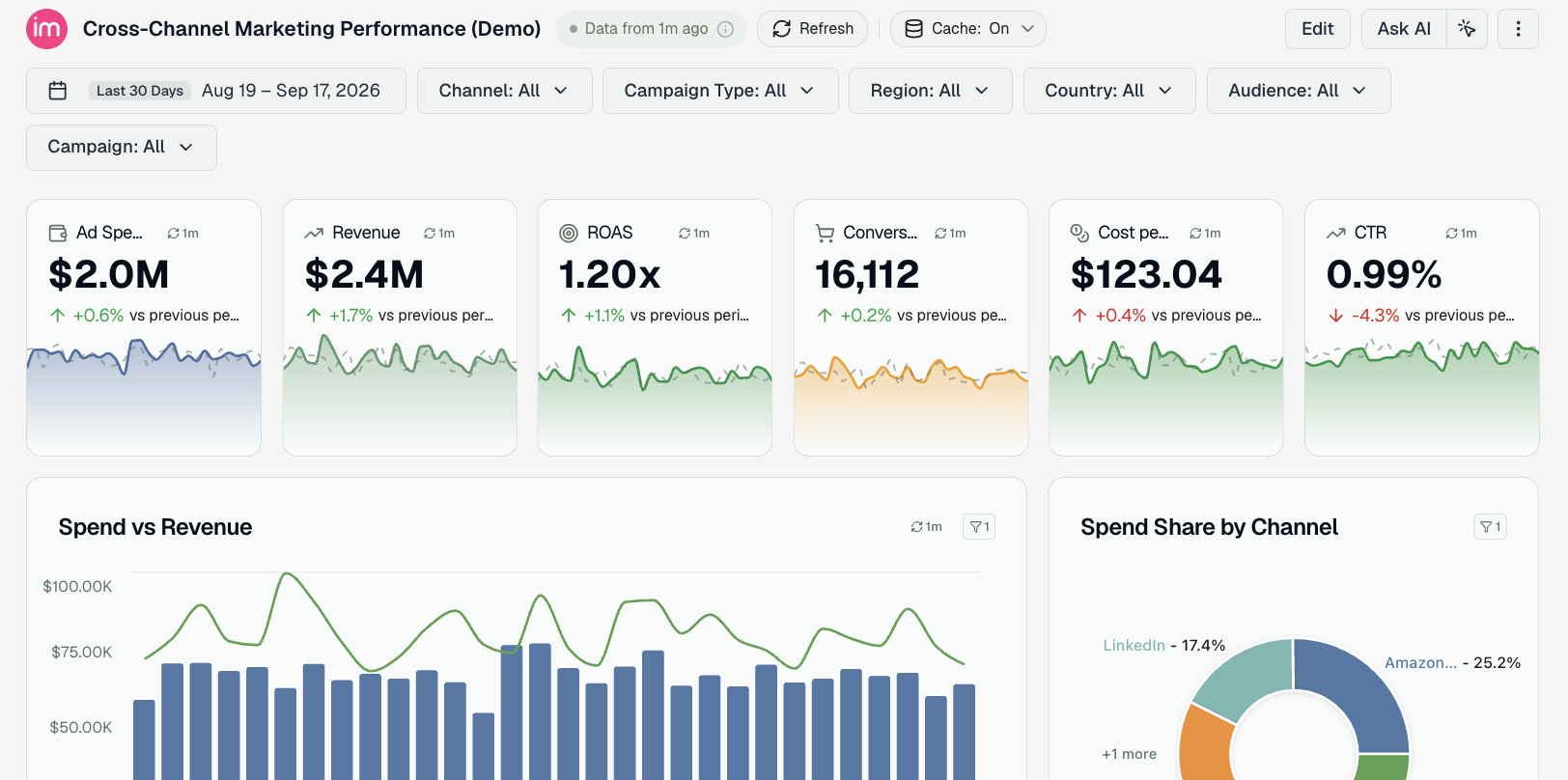
Dashboards built with the AI agent now open in seconds, even when their widgets run heavy queries. The first time a slow widget query runs, its result is saved; the next time anyone opens that dashboard, the widget is drawn from the saved result right away and quietly refreshed in the background. A dashboard that used to take close to a minute to fill in now shows every widget in about a second.
This caches query results, not your data. Your data is still pulled from the platforms on its usual schedule — the cache only skips re-running the same heavy query over data that is already in Improvado. Every dashboard shows how fresh its numbers are, and reloading them on demand is one click.
What's new
- Instant reopen. Widget queries that take more than a few seconds are saved after they run and served from that copy on the next open — by you or by anyone else who can view the dashboard.
- Always refreshing. Saved results are refreshed in the background as they age, so a dashboard you keep coming back to stays current without waiting.
- Freshness at a glance. Next to the dashboard title you'll see Data from 20 min ago; each widget carries a small chip with its own age. Hover either one to see exactly when the numbers were last computed and how long the underlying query takes without the cache.
- Refresh on demand. The Refresh button next to the title re-runs every widget query from scratch; the chip on a single widget reloads just that widget; the ↻ inside any filter's dropdown reloads that filter's list of values.
- Turn it off per dashboard. If a dashboard must recompute on every open, use Disable cache next to the title or the switch under Appearance → Data. The dashboard then behaves exactly as before.
Why it matters
Heavy queries are what make a rich dashboard slow, and most opens ask the same questions as the last one. Reusing those answers takes the wait out of opening a dashboard for the tenth time in a day — while the freshness label, Refresh, and the per-dashboard switch keep you in control of when the numbers are recomputed.
Cached widget results are in beta. Available on all AI-built dashboards. No setup required — it's on by default. Check the documentation →.
Creative Analytics: Overview Reads Like a Briefing
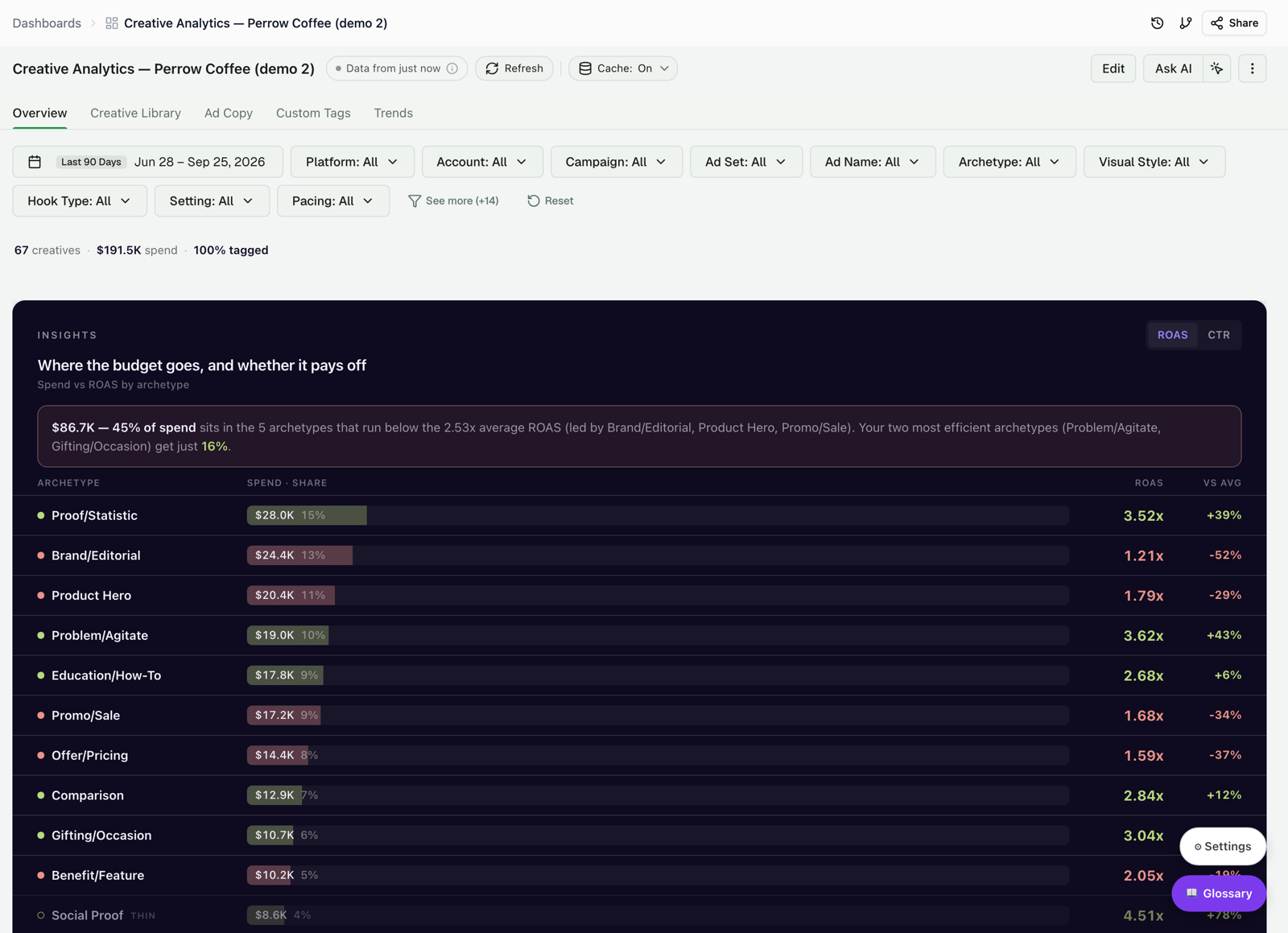
The Creative Analytics Intelligence dashboard now opens on an Overview tab that starts from the conclusion, then shows the numbers behind it.
- Insights. One sentence on where the budget goes and whether it pays off, with every archetype ranked by spend share, ROAS, and distance from the account average.
- Prior period and funnel. Six KPIs against the previous period of the same length, and an impression-to-purchase funnel with the biggest drop-off highlighted.
- AI Deep Analysis. Under the funnel, click Ask Agent for a written read of the current view, then refine it in chat.
- Top and bottom creatives. Cards ahead of and behind average; strong creatives that get too little budget are flagged UNDERFUNDED.
Learn more in Dashboard and stats.
Creative Analytics: Creative Library, Ad Copy and Trends
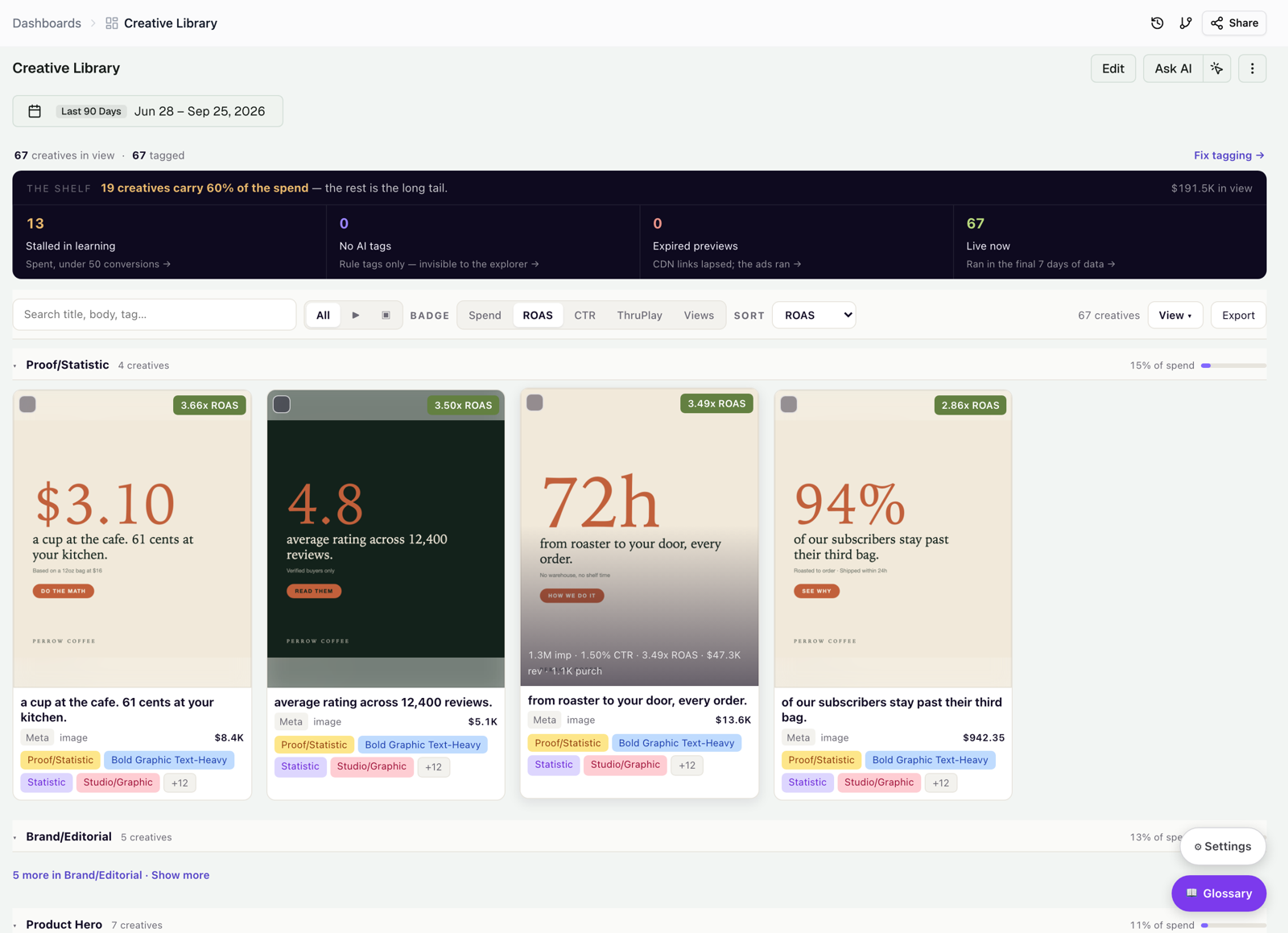
Three tabs of the Creative Analytics Intelligence dashboard were rebuilt.
- Creative Library. The Shelf shows how concentrated your spend is and flags creatives that are still in learning, have no AI tags, or have expired previews. Cards are grouped by archetype, and Export saves the filtered library as a PDF catalog.
- Ad Copy. See whether short or long headlines and body copy win, which message types beat the average, which intents pay on which topics, and every copy variant with its creative.
- Trends. A verdict compares the latest complete month with the previous one on efficiency, lineup, and scale, with the evidence behind each.
Learn more in Dashboard and stats and Exporting data.
Was this page helpful?
Thanks for the feedback!
Questions? The Improvado team is always happy to help. Send us an email, contact your Customer Success Manager, or raise a request in the Improvado Service Desk.