

July 2026
New API integrations 🧩
We have added several new data sources with the following report types:
- Releases
- Calls
- Reporting Metrics
- Queries Entity
- Tags
- Triggers
- Variables
- Bitlinks Entity
- Clicks Report
- Digital Currency
- Forex
- Time Series
- Campaign Analytics
- Campaigns Entity
- Campaigns Lifetime Analytics
- Channels
- Channels History
- Contacts
- Contacts History
- Currencies
- Currencies History
- Order Statuses
- Order Statuses History
- Orders
- Orders History
- Price Lists
- Price Lists History
- Product Availability
- Product Availability History
- Products
- Products History
- Sales Credits
- Sales Credits History
- Sales Orders
- Sales Orders History
- Shipping Methods
- Shipping Methods History
- Tax Codes
- Tax Codes History
- Warehouses
- Warehouses History
Filter by Fields in the Extraction Flow
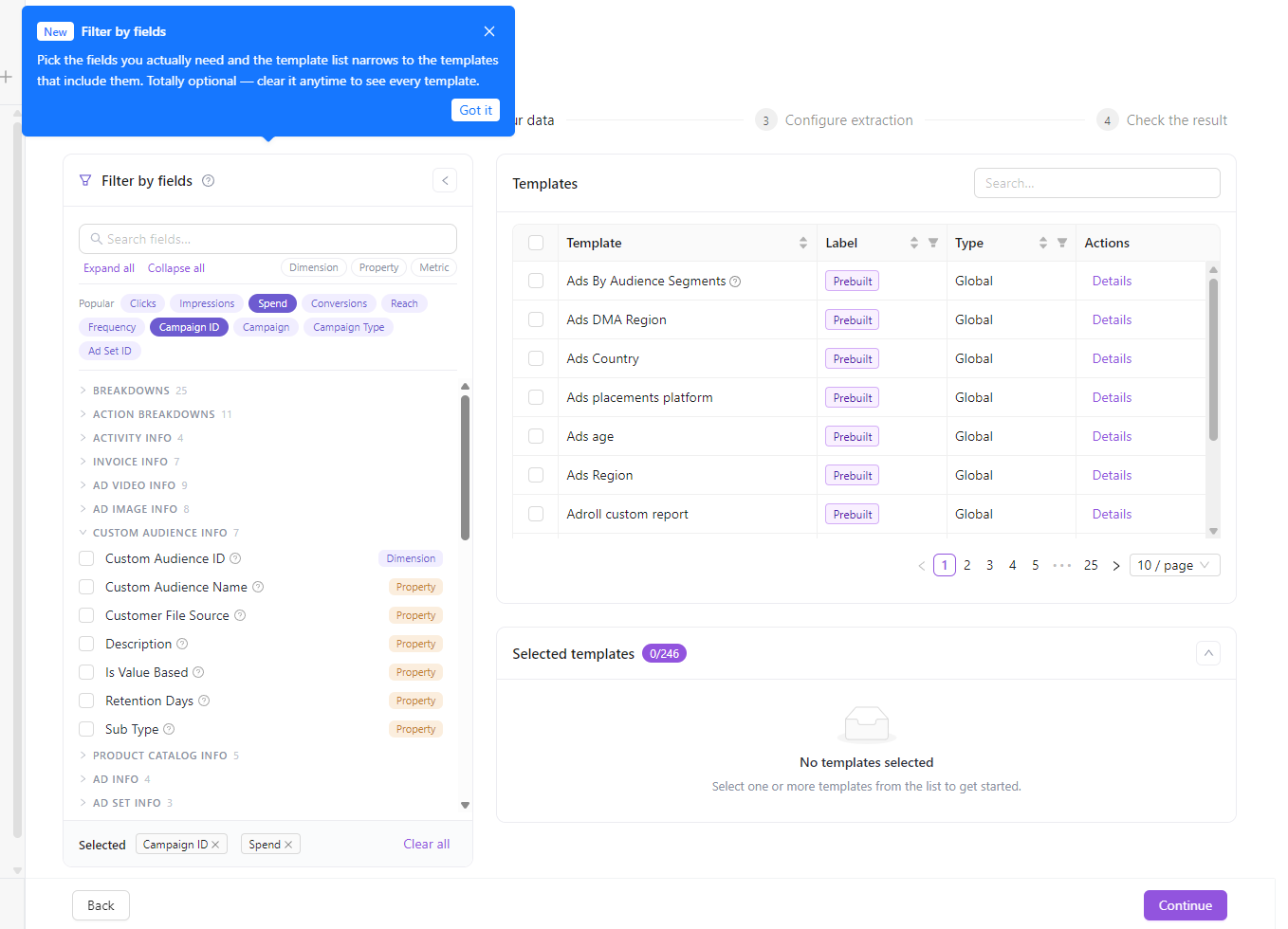
Choosing the right report template used to mean scrolling through a long list and opening templates one by one to check whether they contained the field you needed. Filter by fields flips that around: tell us which fields matter, and Step 2 “Choose your data” instantly narrows the template list to only the templates that include them.
The new panel sits on the left of Step 2. Search for any field by name, add it, and the Templates table on the right updates in place to show only matching templates — so you go from “which template has spend, impressions and campaign?” to a short, relevant shortlist in seconds.
What's new
- Narrow templates by the fields you need. Pick one or more fields and the template list is filtered down to only the templates that contain all of them.
- Search across every field. Type any field name to find it instantly, no matter which group it lives in.
- Popular fields, one click away. The most-used fields — clicks, impressions, spend, conversions, campaign and more — sit at the top as quick-add chips.
- Filter by field type. Quick toggles for Dimensions, Metrics and Properties let you focus on just one kind of field at a time.
- Fields grouped and counted. Fields are organized into logical groups (Breakdowns, Action Breakdowns, Performance, Costs, and so on) with a count on each — expand and collapse them, or expand all at once.
- See the exact SQL name. Each field’s tooltip shows the raw SQL column name, so you know precisely what will land in your data table.
Why it matters
Prebuilt templates cover a lot of ground, and that breadth used to make the right one hard to find. Filter by fields turns template selection into a fields-first workflow: start from the data you want in your report, and let the flow surface the templates that deliver it. Less scrolling, fewer wrong turns, and a faster path from connection to a running extraction.
Filter by fields is available now in the extraction flow — no setup required.
Dashboard Version History & One-Click Restore
Dashboards built and edited with the AI agent now keep a full version history. Every save — whether it came from you in the editor or from the AI agent — is automatically captured as a restore point, so you can always go back to a working state.
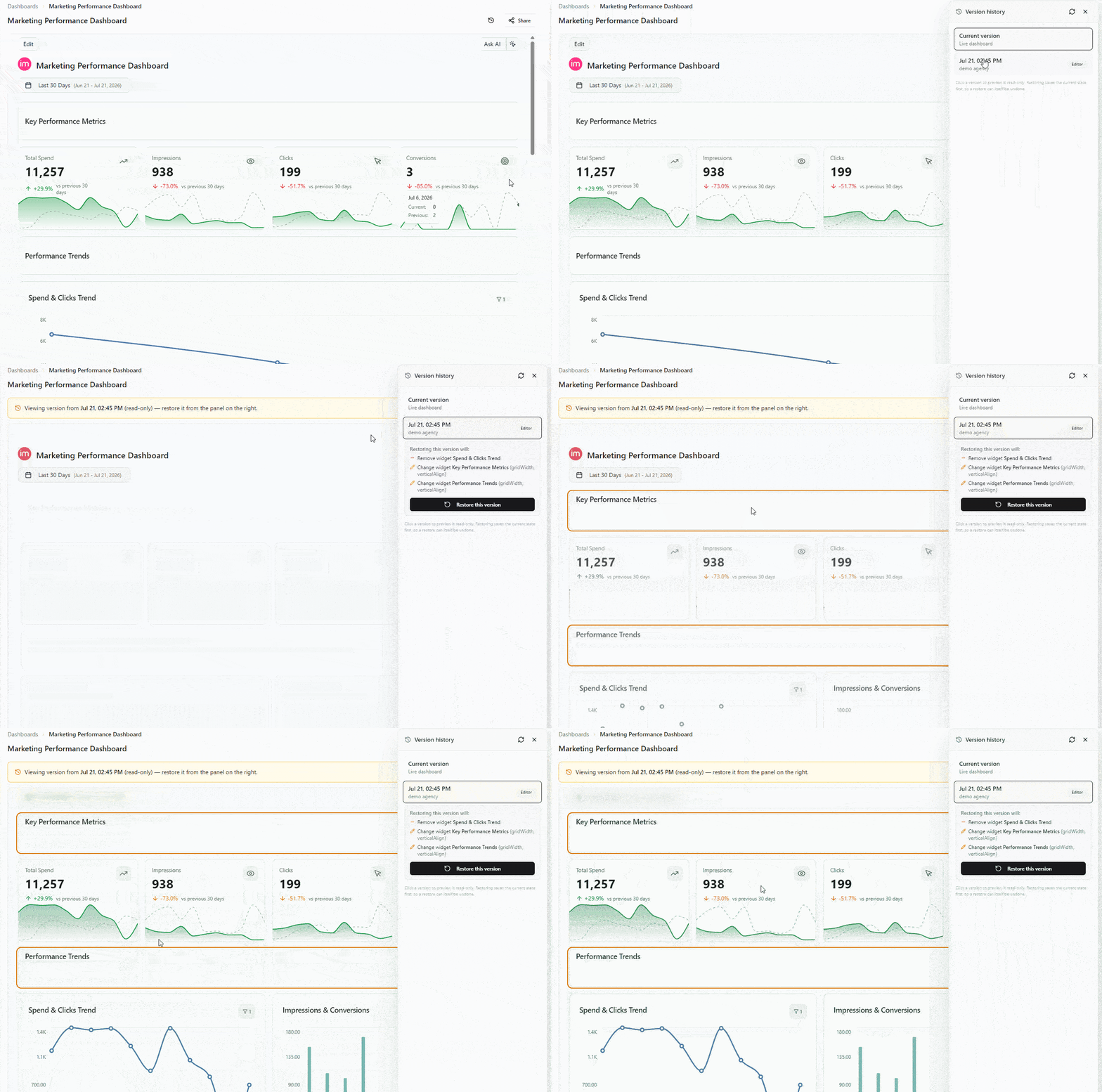
Open Version history from the dashboard header (next to Share) to see every change over time: when it happened, who made it, and whether it came from the editor or the AI agent. Select any entry to preview that version live and read-only, review exactly what a restore would change, and roll back with a single click.
What's new
- Automatic restore points. Every dashboard save is snapshotted — no manual "save a copy" step.
- Live read-only preview. Click a past version to see the dashboard exactly as it looked then, without touching the current one.
- See what changes before you restore. Each version shows which widgets and settings a rollback would add, remove, or change.
- One-click restore — itself undoable. Restoring saves your current state first, so you can always undo a restore too.
- Clear attribution. Each version is labeled by author and source (Editor / AI Agent), and agent changes link back to the chat that made them.
- Ask the agent to do it. You don't have to open the panel — just ask the AI agent to list past versions, preview one, or restore it. The same version-history actions are exposed as MCP tools, so they also work from any client connected to Improvado's MCP server.
Why it matters
AI makes editing dashboards fast — and version history makes it safe. If a change doesn't look right, you no longer need support to recover the previous state: browse the history, preview, and restore it yourself in seconds.
Version history is available on editable dashboards in the AI agent. No setup required — it's on by default. Read the dashboard version history guide.
Was this page helpful?
Thanks for the feedback!
Questions? The Improvado team is always happy to help. Send us an email, contact your Customer Success Manager, or raise a request in the Improvado Service Desk.