

Dashboard Comments with AI Agent Replies
Business Intelligence
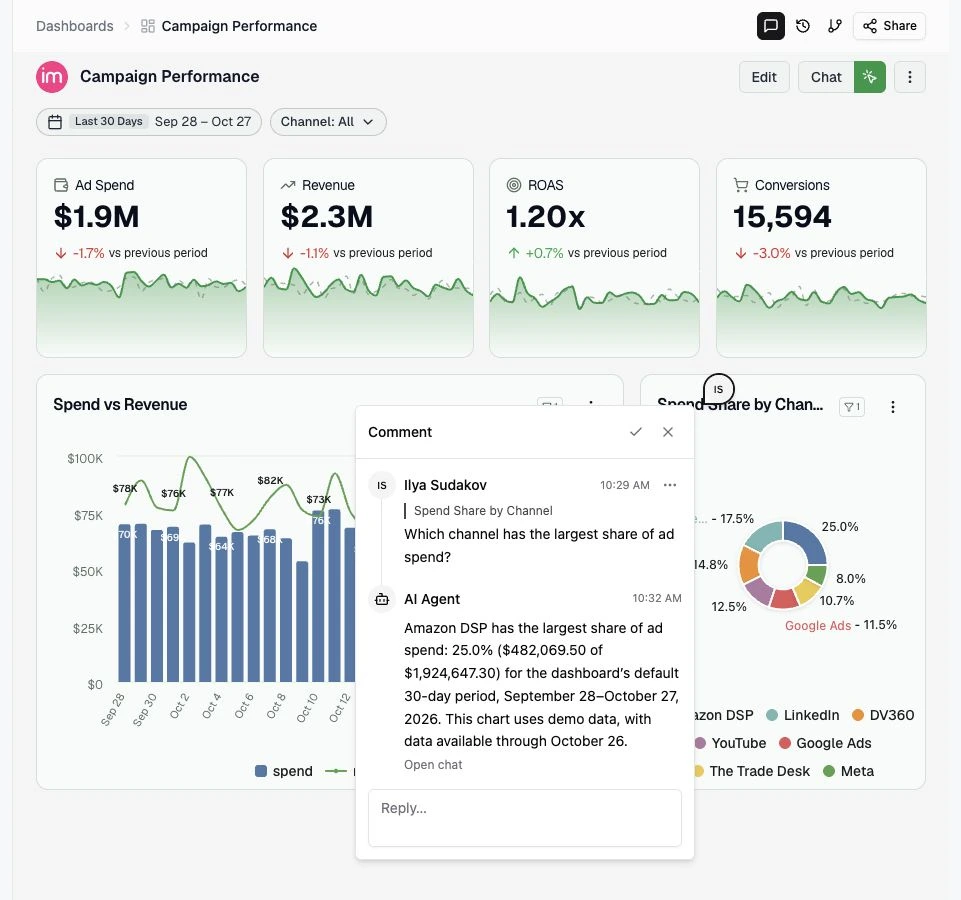
October 27, 2026 Keep dashboard feedback next to the chart it belongs to. Place a comment on a widget, discuss it with your team, and ask the AI Agent to answer a question or make a change without leaving the dashboard.
What's new
- Comment where it matters. Click the Comments icon in the page header, then click a widget to leave a comment. Pins show exactly where feedback was placed.
- Bring in your team. Reply in the same thread, mention workspace members with @, and resolve a discussion when it is done. The header marks unread comments; filters help you find open, resolved, unread, or mentioned discussions.
- Ask AI from a comment. Leave Send to AI Agent checked to send the question or change request to your personal AI chat. The Agent can post its answer back to the shared thread, with a link to the source chat. The full chat stays private.
- Keep adding requests. While the Agent is working, type another message and click the usual Send arrow. It waits above the input and runs after the current request. You can edit or remove a waiting message.
Comments are shared with people who can access the dashboard. Mentioning a teammate or linking to an AI chat does not grant them access. Sending a comment to AI requires permission to edit the dashboard and use the AI Agent.
Was this page helpful?
Thanks for the feedback!
Questions? The Improvado team is always happy to help. Send us an email, contact your Customer Success Manager, or raise a request in the Improvado Service Desk.