

Protect your account with multi-factor authentication
Protect your Improvado account with multi-factor authentication (MFA). Verify email and password sign-ins with an authenticator app or passkey, and keep recovery codes for backup access.
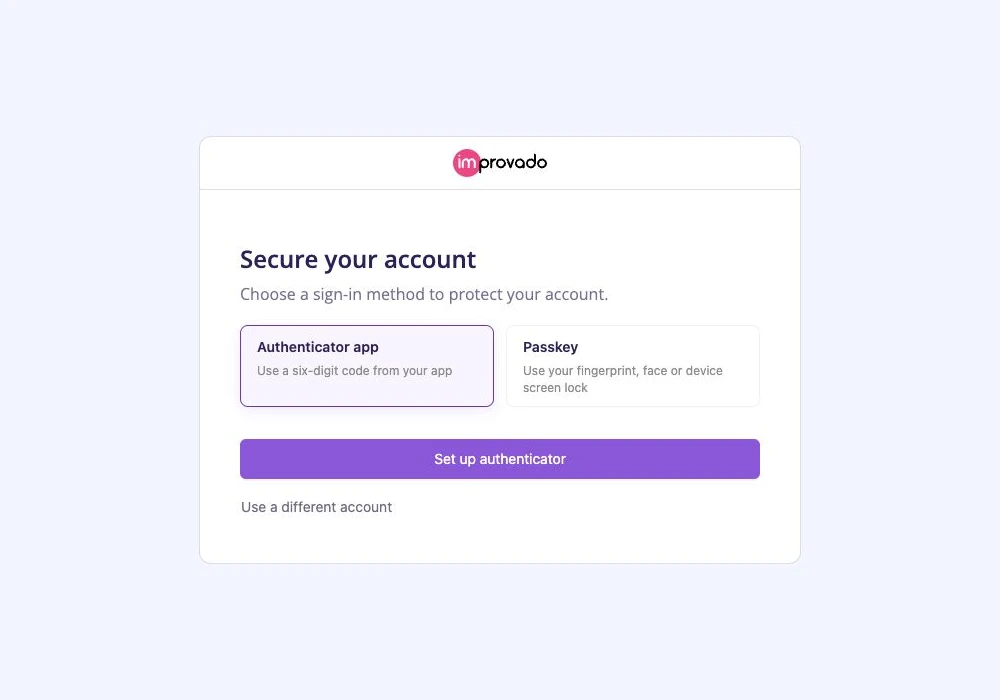
Choose how you verify
- Authenticator app: confirm sign-in with the current six-digit code from your app.
- Passkey: confirm with your fingerprint, face or device screen lock through your browser or password manager.
- Recovery codes: download a backup set and use an unused code if your regular method is unavailable.
Manage your methods in Security
Open your profile menu and select Security to connect a method, add a passkey, replace your authenticator or generate new recovery codes. Security emails notify you about changes to your account.
Follow your organization’s policy
Your organization can require MFA for email and password sign-in. If it does, you will complete setup before entering the product. Where optional MFA is enabled, you can set it up yourself in Security; future password sign-ins will then require verification.
MFA availability depends on your organization’s settings. Contact your administrator if it is not available. Google and SSO sign-in continue to follow your identity provider’s authentication policies.
Was this page helpful?
Thanks for the feedback!
Questions? The Improvado team is always happy to help. Send us an email, contact your Customer Success Manager, or raise a request in the Improvado Service Desk.