
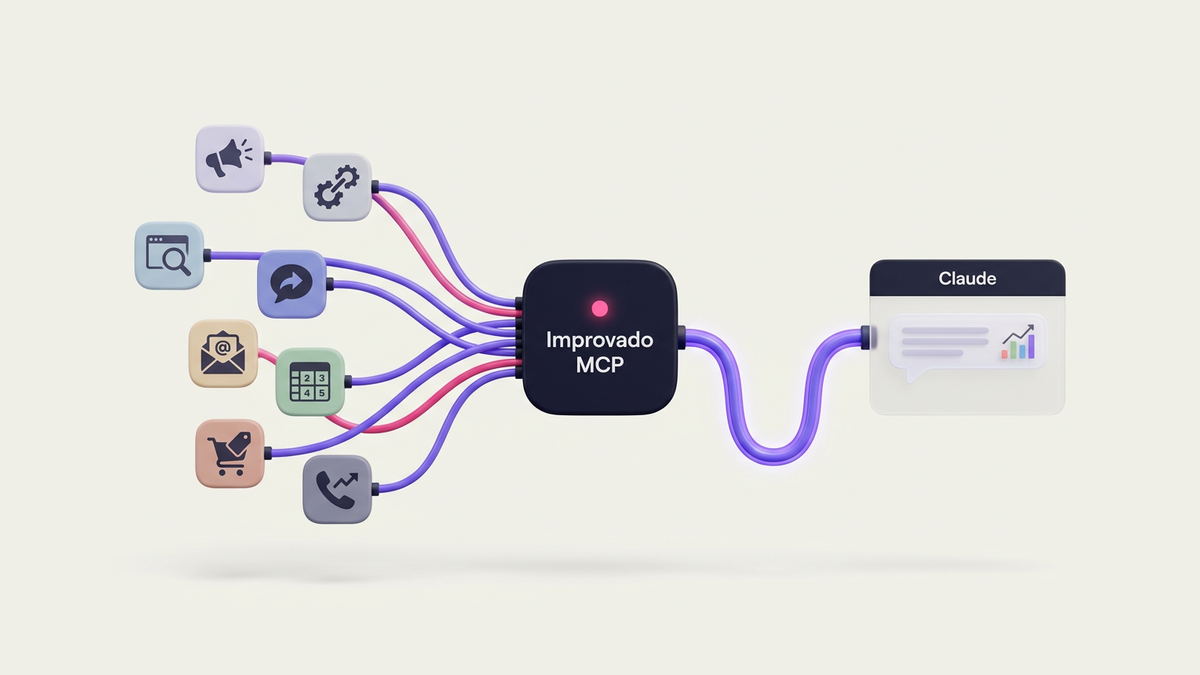
Improvado MCP connects Claude to your Improvado workspace, so every ad platform, CRM and warehouse table you already have in Improvado becomes something Claude can query, chart and act on. Below are seven workflows we run ourselves, each with the exact prompt we typed, what Claude did with it, and the result it produced.
Key Takeaways
- One OAuth connection lets Claude call Improvado on your behalf; Improvado enforces your role permissions on every tool call, so a read-only role gets read-only tools.
- The best prompts name the period, the channels and the output you want (a dashboard, a plan, an audit), then let Claude discover the tables and run the queries itself.
- Every query and every write action is shown in Claude before it runs, and you approve it once or for the whole task, so nothing touches a campaign or a budget silently.
- The same connector works in Claude Chat, in Cowork (Anthropic's task mode in Claude Desktop, the Cowork toggle next to Chat in the composer, where Claude works through a multi-step job and asks for approval before each tool call) and in Claude Code; Cowork is the best fit for tasks that end in a saved artifact such as a dashboard.
What is Improvado MCP?
Improvado MCP is a remote MCP server that exposes an Improvado workspace to AI assistants such as Claude. Through it, Claude can list connected data sources, query the marketing warehouse, build and share dashboards, run extracts, check naming conventions and push audiences, all as governed tool calls on the user's behalf, with platform credentials staying inside Improvado.
Setup takes a couple of minutes: in Claude Desktop open Settings, go to Connectors, add a custom connector with the Improvado MCP URL, click Connect and authorize with your Improvado account. The step-by-step guide, including Claude Code and the Claude API, is in the Improvado MCP documentation. If you want the architecture behind it, read why we built one MCP gateway instead of fifty MCP servers.
How we picked these seven
These are workflows our own marketing and product teams run in Improvado through Claude, not a ranking. The screenshots are real outputs of the prompts shown, produced in an Improvado demo workspace and in our own workspace, so the figures on them describe those accounts and are not benchmarks. Your results depend on which sources you have connected and how much history Improvado holds for them. Two of the seven (the audience sync and the budget reallocation, if you let it pause campaigns) write back to platforms, so run them in a workspace where you are comfortable approving changes.
What can you do with Improvado MCP in Claude?
Ask Claude for an outcome rather than a query. Improvado MCP lets Claude discover what data you have, pull it with SQL against the warehouse, reason over it and then produce a dashboard, a plan or a change in the platform. The seven prompts below cover reporting, planning, pacing, governance and activation, roughly in the order a marketing team meets them.
1. Build a live cross-channel performance dashboard
This is the prompt from our Cowork demo, unedited:
Use Improvado to analyze our cross-channel paid marketing performance. Discover the available data and use the most recent complete 30-day period with reliable coverage. Compare spend, clicks, conversions, and efficiency across the available channels; identify three actionable insights and explain any data limitations. Create a dashboard in Improvado named "Cross-channel performance | Claude Cowork demo" with an executive summary and useful charts, then give me its link. Use real workspace data and Improvado tools throughout.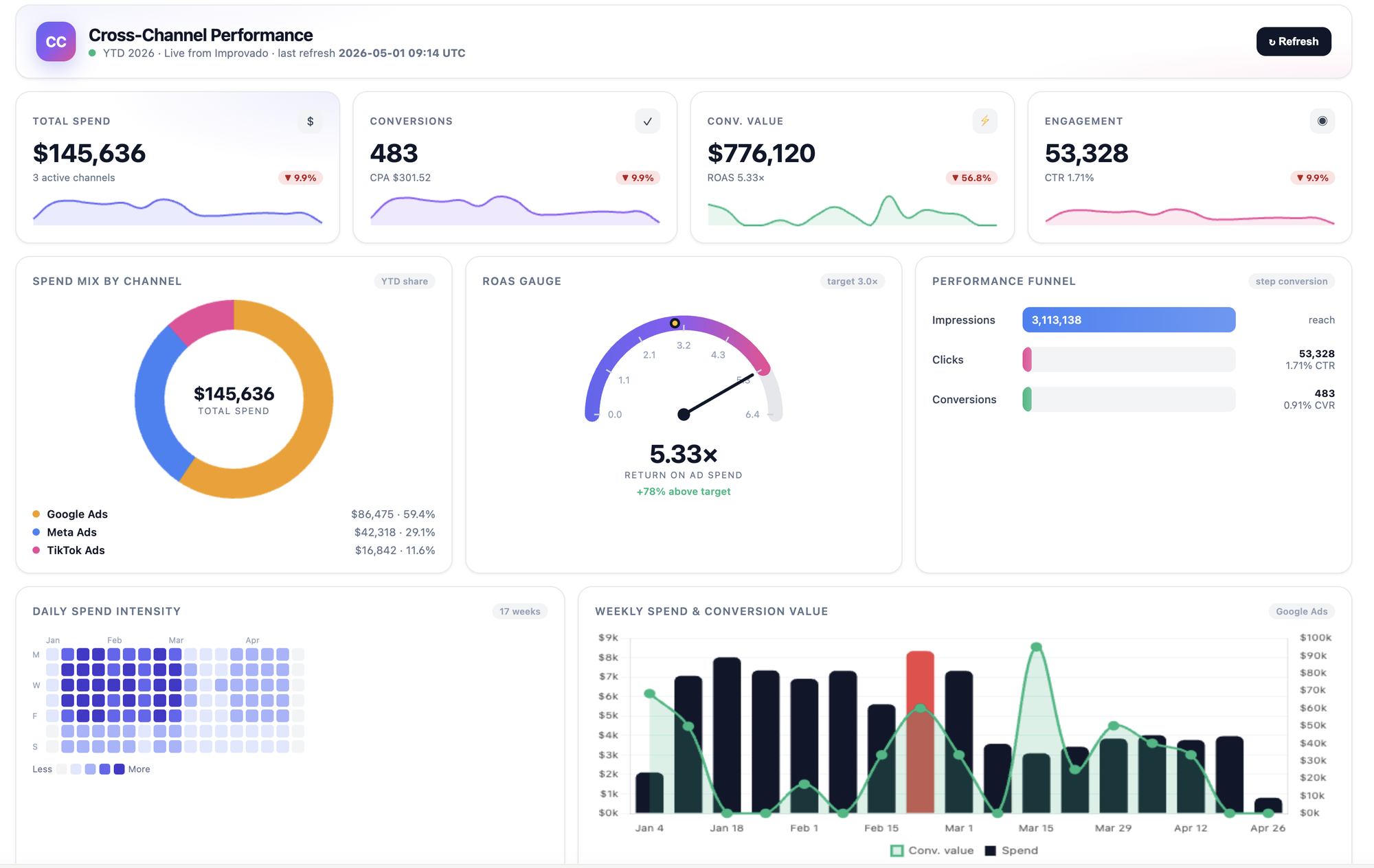
What happens: Claude starts with the schema tools (list data tables, get connections), then calls Improvado's Run ClickHouse Query tool (the tool calls are visible in the screenshot), which runs the queries against the Improvado warehouse to find the last complete 30-day window. Claude compares the channels from those results and creates the dashboard through Improvado's dashboard tools. The link it returns opens in Improvado like any other dashboard, so the team can edit, share and refresh it without Claude.
Why it matters: the executive summary Claude writes spells out the data limitations it found, for example a platform that reports impressions but no cost for the last two days, which is exactly the caveat a human analyst would add and a static template never does.
2. Get a CMO briefing for the last 30 days
Build a CMO dashboard for the last 30 days versus the prior 30: blended CPL, MQLs, attributed pipeline, channel by funnel-stage spend, and a channel efficiency profile. Highlight the one change that moved pipeline the most.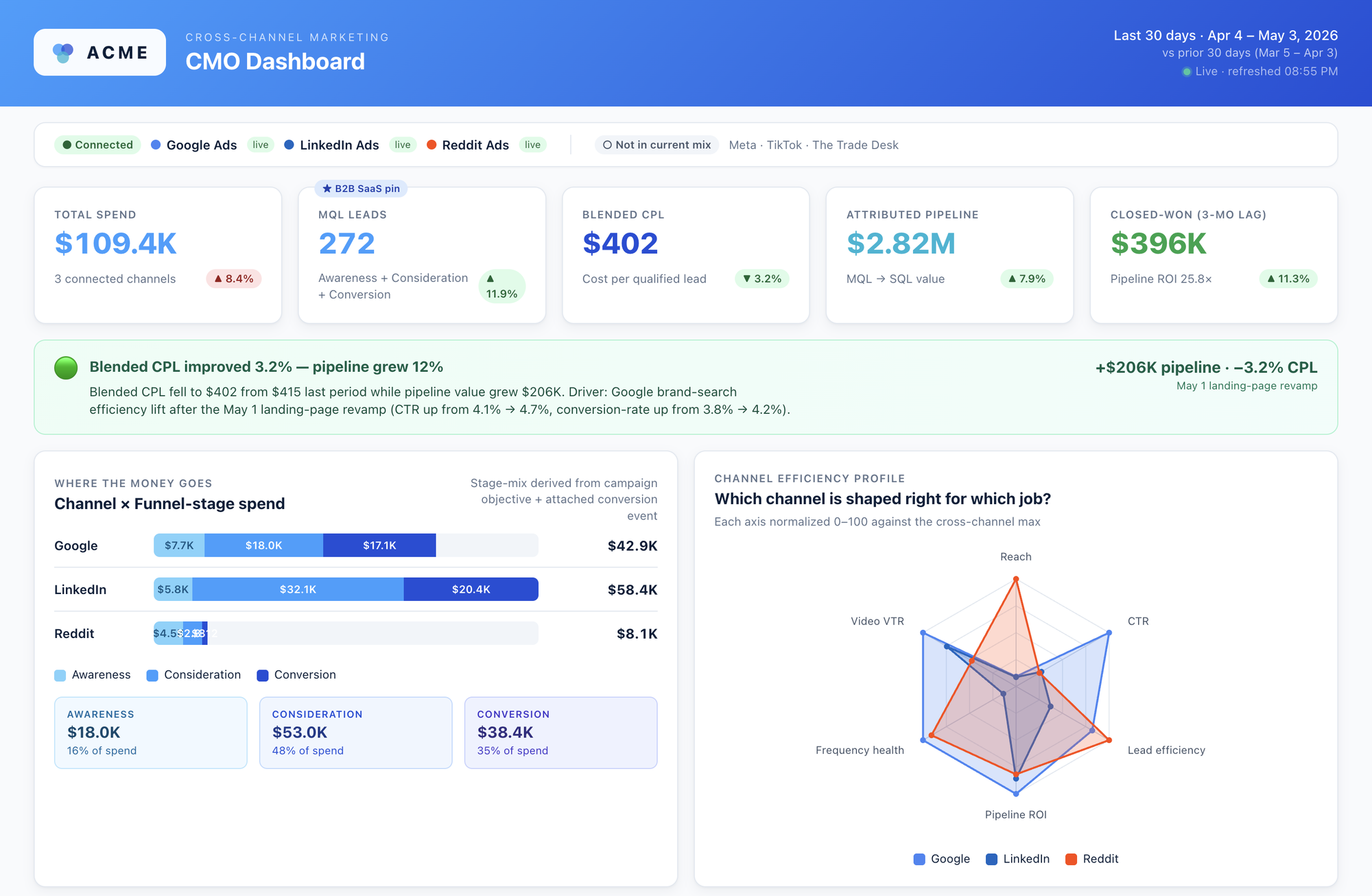
What happens: through Improvado's query tools, Claude joins ad spend with the CRM tables Improvado already holds, computes cost per qualified lead and pipeline by channel, and writes the headline as a plain sentence with the driver it found. The channel efficiency profile normalizes each channel against the cross-channel maximum, so a small channel can still show where it is shaped right for a job.
Talk to an Improvado expert about running these workflows on your own sources.
3. Model a budget reallocation with scenarios
Model a Q2 paid-media reallocation across our channels: keep the envelope flat, pause the bottom 20 percent of campaigns by ROAS, scale the top five, and show optimistic, base and conservative pipeline scenarios with diminishing returns.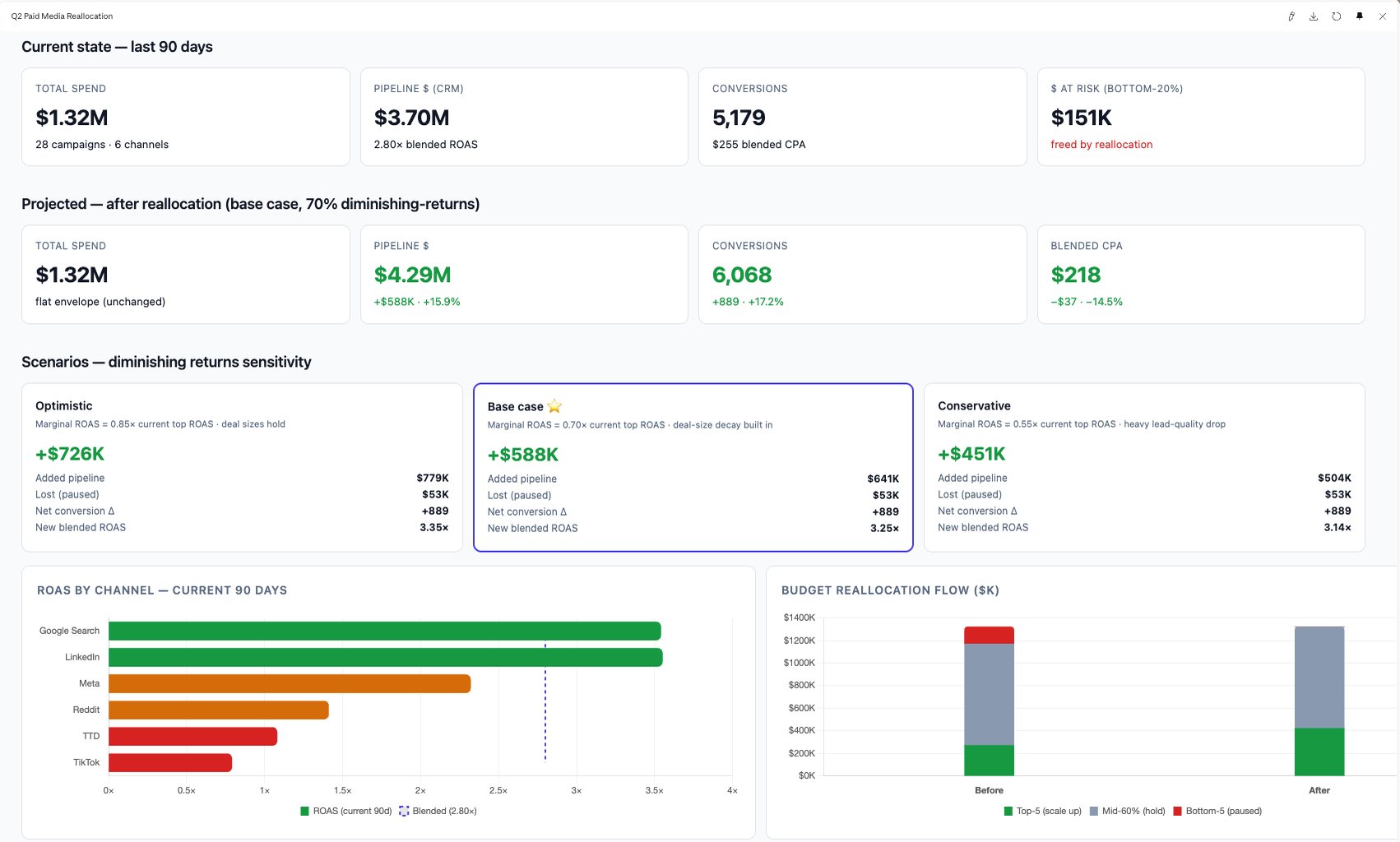
What happens: Claude calls Improvado's query tools to retrieve 90 days of campaign-level spend, conversions and pipeline; it then ranks campaigns by ROAS and models the reallocation under three diminishing-returns assumptions. Because the write tools are available too, the same session can pause the campaigns it flagged, but only after you approve each change in Claude.
4. Check daily pacing across channels
Give me today's pacing across Google, LinkedIn, Meta and Bing: month-to-date spend versus plan, today versus the same day last week, and flag any budget at risk.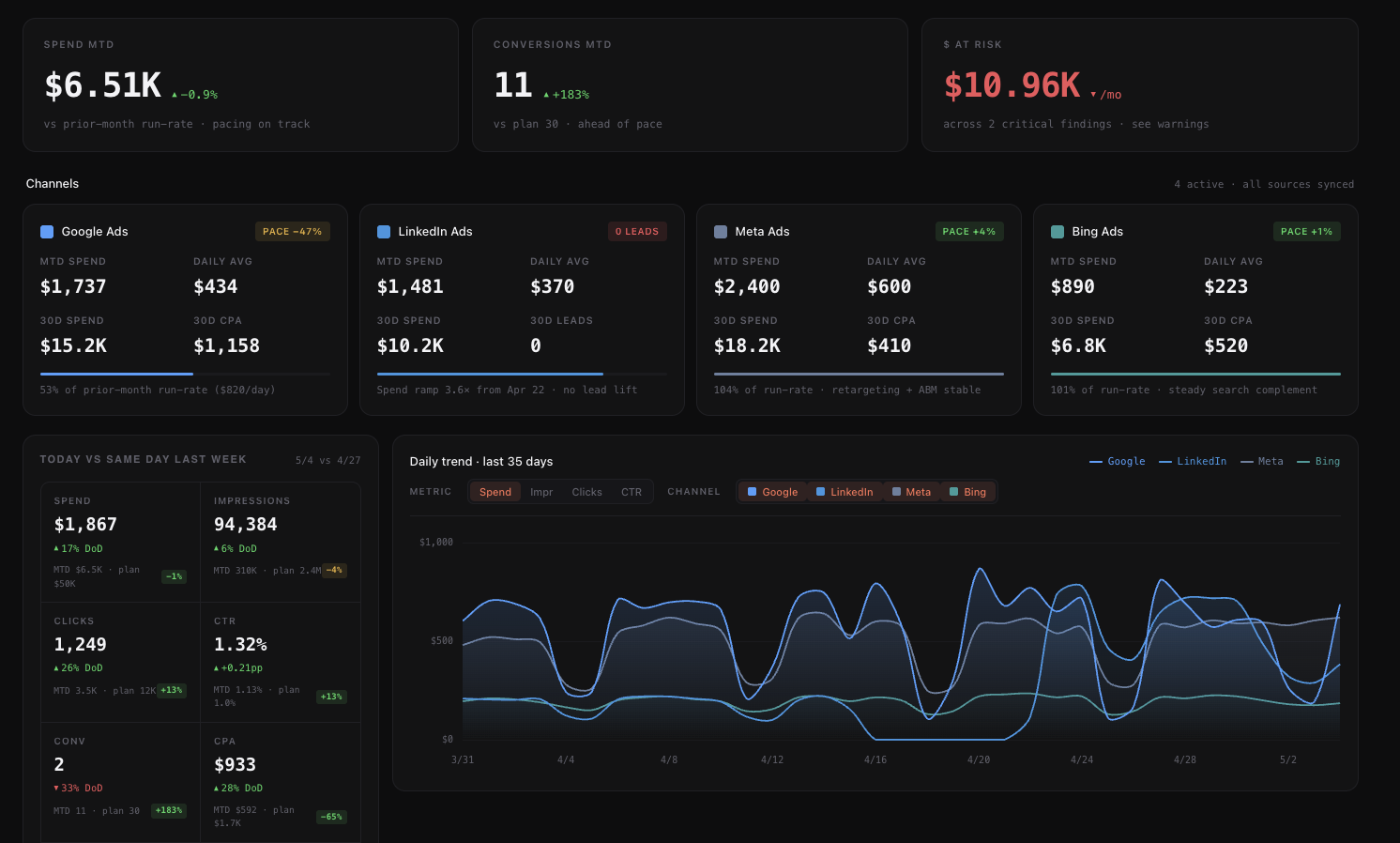
What happens: this is the prompt that becomes a morning routine. Claude compares month-to-date spend with the run rate for each channel, flags the ones pacing well above or below plan, and turns the findings into a single at-risk number. Claude Desktop can run a Cowork task on a schedule (the Scheduled section in the sidebar), so the briefing is waiting for you instead of the other way round.
5. Audit naming conventions and set the standard
Audit our Meta campaign, ad set and ad names against our naming convention. Show which tokens are missing or out of order, then propose the standard with allowed values per token and an example for each level.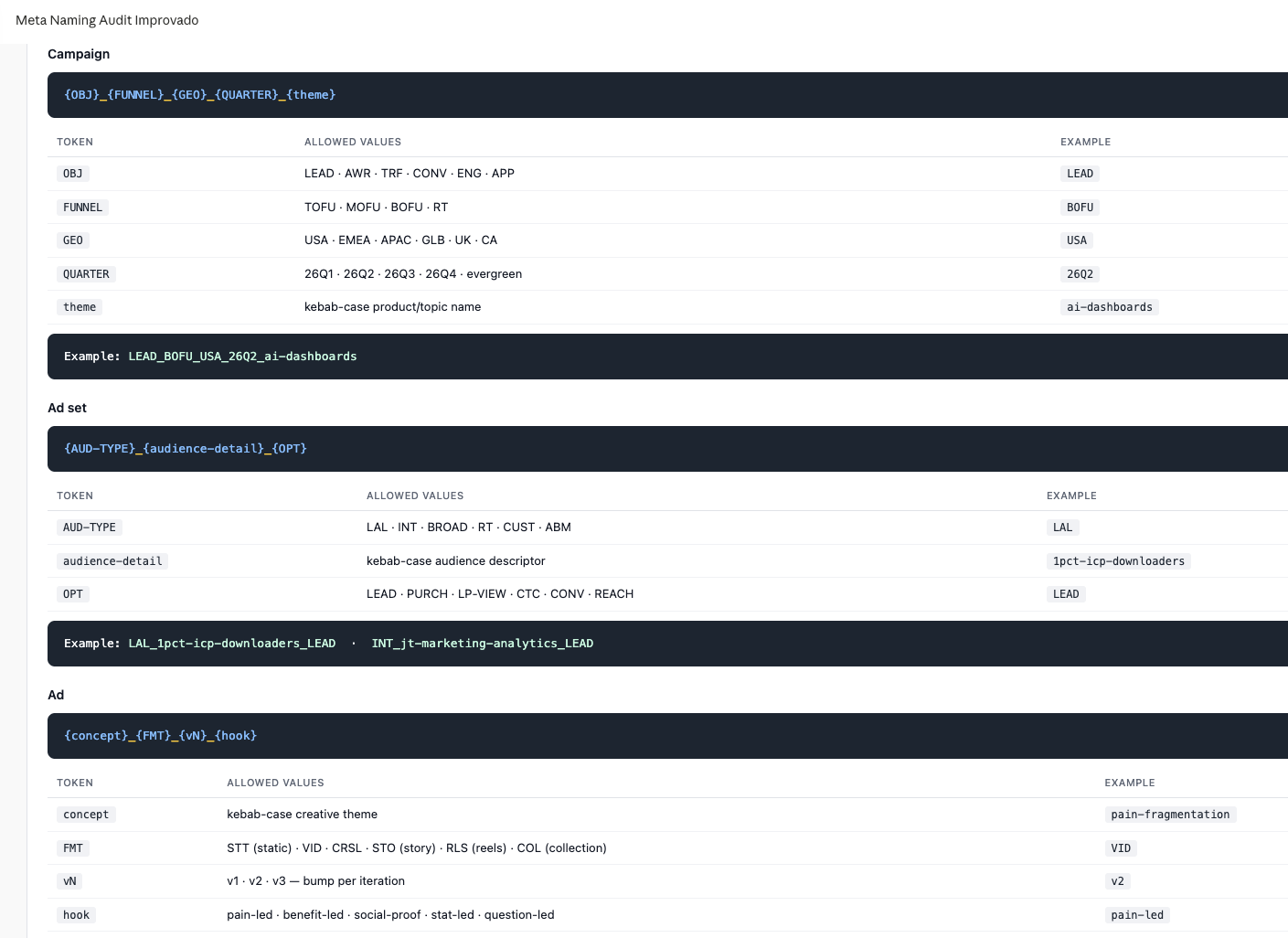
What happens: Claude reads the campaign, ad set and ad names Improvado has extracted, splits them into tokens, checks each token against the allowed values and writes the standard back as a document. Claude can also call Improvado's data governance tools to register the convention as a rule, so Improvado flags future names that break it automatically.
6. Turn last quarter's actuals into next quarter's plan
Turn Q1 actuals into an interactive Q2 reallocation plan with a slider per channel. Keep the total envelope equal to Q1 spend, scale campaigns proportionally within each channel, and project conversions and blended CPA for the new mix.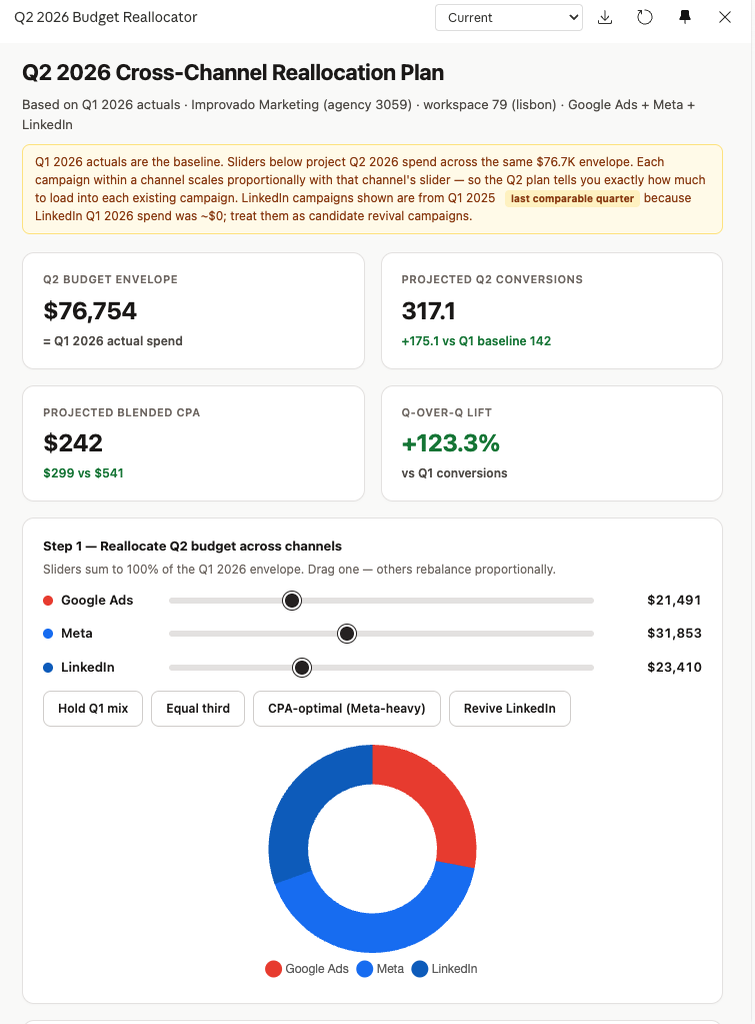
What happens: Claude builds the plan as an artifact with real Q1 actuals behind it, so the projected conversions and CPA update as you drag the sliders. It is the fastest way we have found to get a finance conversation onto the same page as the channel owners.
7. Sync CRM segments to ad platform audiences
Take our CRM lists (VIP customers, all marketing leads, high-intent titles, target-account contacts, form submissions, inactive suppression) and sync each one to a matching Meta custom audience through our connected Meta account. Show adds per audience and the match rate Meta reports.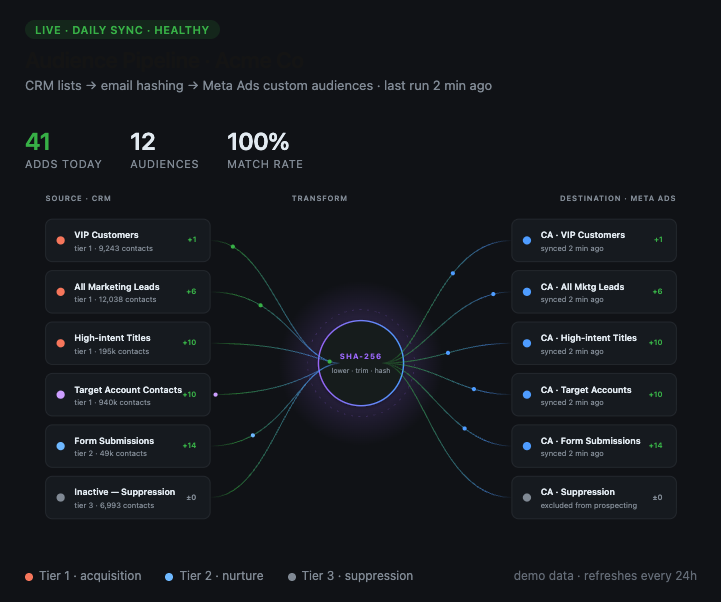
What happens: this is the write-back workflow. Claude reads the CRM segments through Improvado's query tools, then calls Meta's audience API through Improvado's connection tools, using the Meta account your workspace already has connected, to create the audiences and add the lists. Meta only accepts customer lists in its own matched identifier format; the diagram Claude drew shows that step between the lists and the audiences. Platform credentials never leave Improvado, and each push is a governed write action you approve in Claude before it runs. The adds and match rate on the screen are what Meta reports back.
Which Claude surface should you use: Chat, Cowork or Claude Code?
Use Chat for questions and one-off charts, Cowork (the task mode of Claude Desktop) for multi-step tasks that end in a saved artifact such as a dashboard or a plan, and Claude Code when the workflow is part of an engineering pipeline. All three use the same Improvado MCP connector and the same permissions, so the choice is about how you want to work, not about what you can reach.
- Chat: quick questions, single dashboards and charts, a fast look at a number.
- Cowork: long-running tasks, approvals for every tool call, scheduled runs such as daily pacing.
- Claude Code: the same tools from the terminal, useful when marketing data feeds a build, a test or a data pipeline.
How do you connect Improvado MCP to Claude?
Connecting takes four steps and no API keys. In Claude Desktop open Settings and go to Connectors, add a custom connector, paste the Improvado MCP server URL from the documentation, and click Connect. Claude opens Improvado's sign-in page, you authorize once with your existing Improvado account, and the connector shows up as connected for Chat and Cowork.
In Claude Code the same connection is one command, followed by /mcp to sign in:
claude mcp add --transport http improvado https://report.improvado.io/experimental/agent/api/mcp-customer/v1/invoke/The full walkthrough, including the Claude API snippet, is in the Improvado MCP documentation. For a broader look at the MCP landscape for marketing data, see the best MCP servers for marketing data.
Book a session with an Improvado expert to set up Claude on your workspace.
Frequently asked questions
Does Improvado MCP only read data, or can it change things?
Both. The connector exposes read tools (data tables, warehouse queries, dashboards, extracts, governance rules) and write tools (create dashboards, run extracts, push audiences, pause campaigns through connected platforms). Write tools are marked as such, and Claude asks for approval before each write action runs.
Where do the platform credentials live?
Inside Improvado. Claude authorizes against your Improvado account through OAuth and calls Improvado's API on your behalf; it never receives a Meta, Google or LinkedIn credential. Revoking the Improvado authorization cuts Claude off immediately.
What does a user with a read-only Improvado role get?
Read-only tools. Improvado role permissions apply to every tool call, so a viewer can query data and read existing dashboards; creating dashboards, running extracts, pushing audiences and changing campaigns all require a role that has those permissions in Improvado.
Does it work with Claude Code and the Claude API?
Yes. Claude Code adds the server with one command and authenticates through the same OAuth flow. The Claude API reaches it through the MCP connector feature with an OAuth access token; the snippet is in the documentation.
Which sources can Claude reach through Improvado MCP?
Everything connected to your Improvado workspace: the ad platforms, CRMs, web analytics and warehouses you have set up as sources, plus the data tables and dashboards built on them. Claude discovers the available sources at the start of a task, so you do not need to list them in the prompt.
How much does Improvado MCP cost?
Improvado MCP is part of Improvado; current plans and self-serve options are listed on the pricing page.
Related reading: Google Ads MCP and Meta Ads MCP: Connect Claude to Ad Data