

AWS S3 Data source (external buckets)
Note: This article covers AWS S3 Data source setup process. You can learn how to load data to AWS S3 Destination here.
How to set up AWS S3 (external buckets) integration
- On the AWS S3 (external buckets) authorization page, fill in the following fields:
- Enter the Bucket Name
- Enter the AWS Access Key ID
- Enter the AWS Access Secret Key
- Enter the AWS Region
- Fill in the form and click the Authorize button.
How to extract data from AWS S3
Step 1. Import page
- Click to select a file from your computer, or drag and drop your file to this area
Note
- Supported file formats: csv, tsv, txt, xls, xlsx, avro, parquet, zip, gzip
- Maximum size: 10 GB
- A file must begin with column headers starting in column A. If additional information is provided before — it is necessary, use the Header rows to skip field to skip a certain number of rows to import data correctly.
- After picking the file a processing bar will show the upload progress.
- You can click on the “trash bin” icon to cancel the uploading process of a file
- After your file has been uploaded and checked for security, let’s move to the settings.
- Click on the Continue button.
Step 2. Match page
- Enter the data table name or leave it as is.
- In the Root path field, enter the full directory path where the system should search for files.
- In the File mask field, specify a regex pattern to filter filenames or types.
- Select the fields you need to import. By default, all fields are selected.
- Check the type. Each field in a data table can be assigned a text, number, or date type.
- The date field is a unique date-key in the database and should be singular. Also, you have the flexibility to choose from a wide range of date formats for this field.
- If you have field with numeric values that you don't want to include in your calculations, change the type from Number to Text.
Note
You can learn more about how to work with dates in Flat Data here.
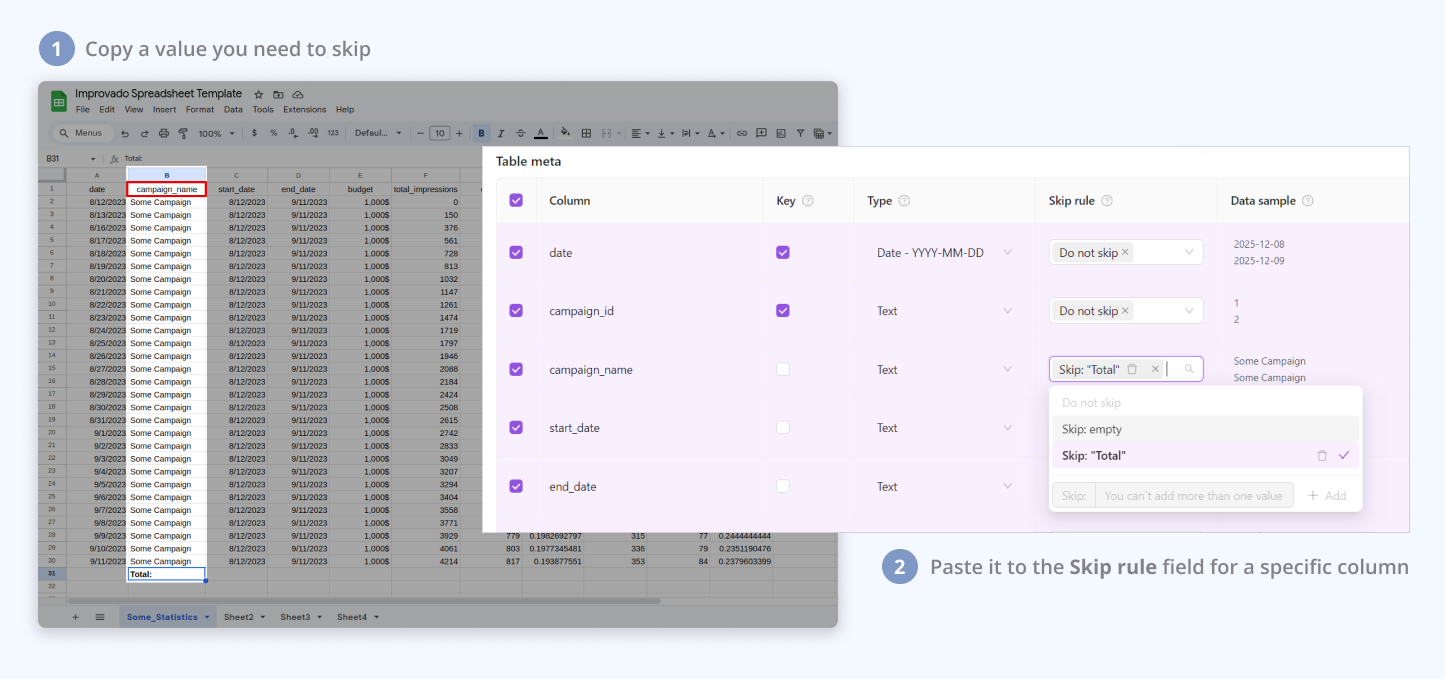
- The skip rule allows you to exclude empty rows and rows with specific values in a selected field
- Default to 'Do Not Skip': Ensures all data is initially included.
- Multi-Select Options: Combine 'Skip: empty' and 'Skip: value' for targeted exclusions. Selecting 'Do Not Skip' disables other skip options.
- Custom Rule addition: Add one custom rule; the form is disabled afterward to maintain focus
- Custom Rule deletion: Hover over and click on the red-highlighted basket icon next to the rule to exclude it.
Usage Note: the component is designed for straightforward value-based selections and does not support complex expressions like '<10'.
- Choose Write strategy that will be used when extracting data from your files and uploading it into Improvado Storage. Learn more.
- Set the Data table name which will be used for loading data to your destination.

- Click on the Import N fields button to continue.
Step 3. Preview page
- Check the Data Structure Preview.
- In this step, you see the first row of data that will be extracted after you click the Continue button.
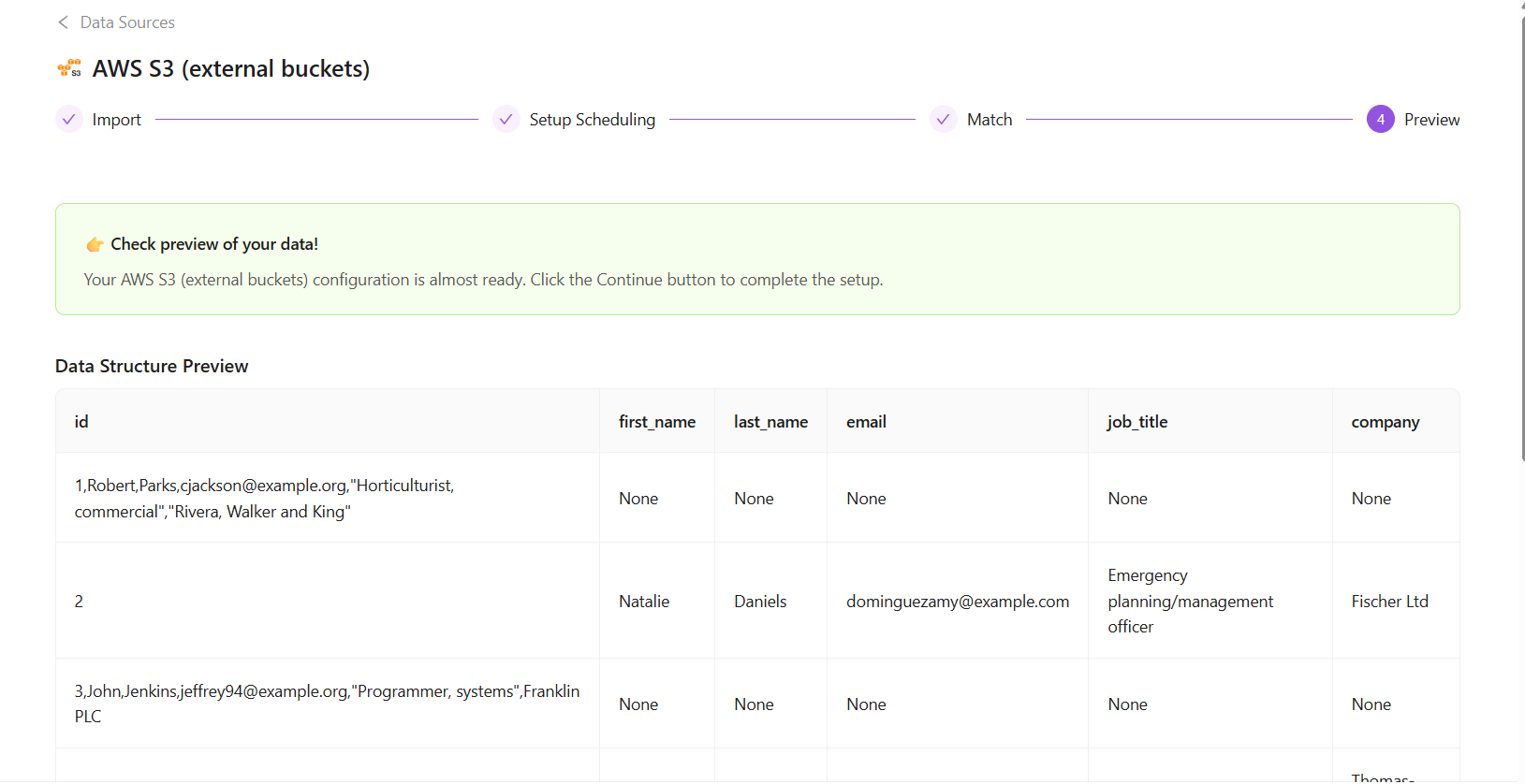
- Click the Continue button to confirm settings and proceed with data extraction.
Order Details page
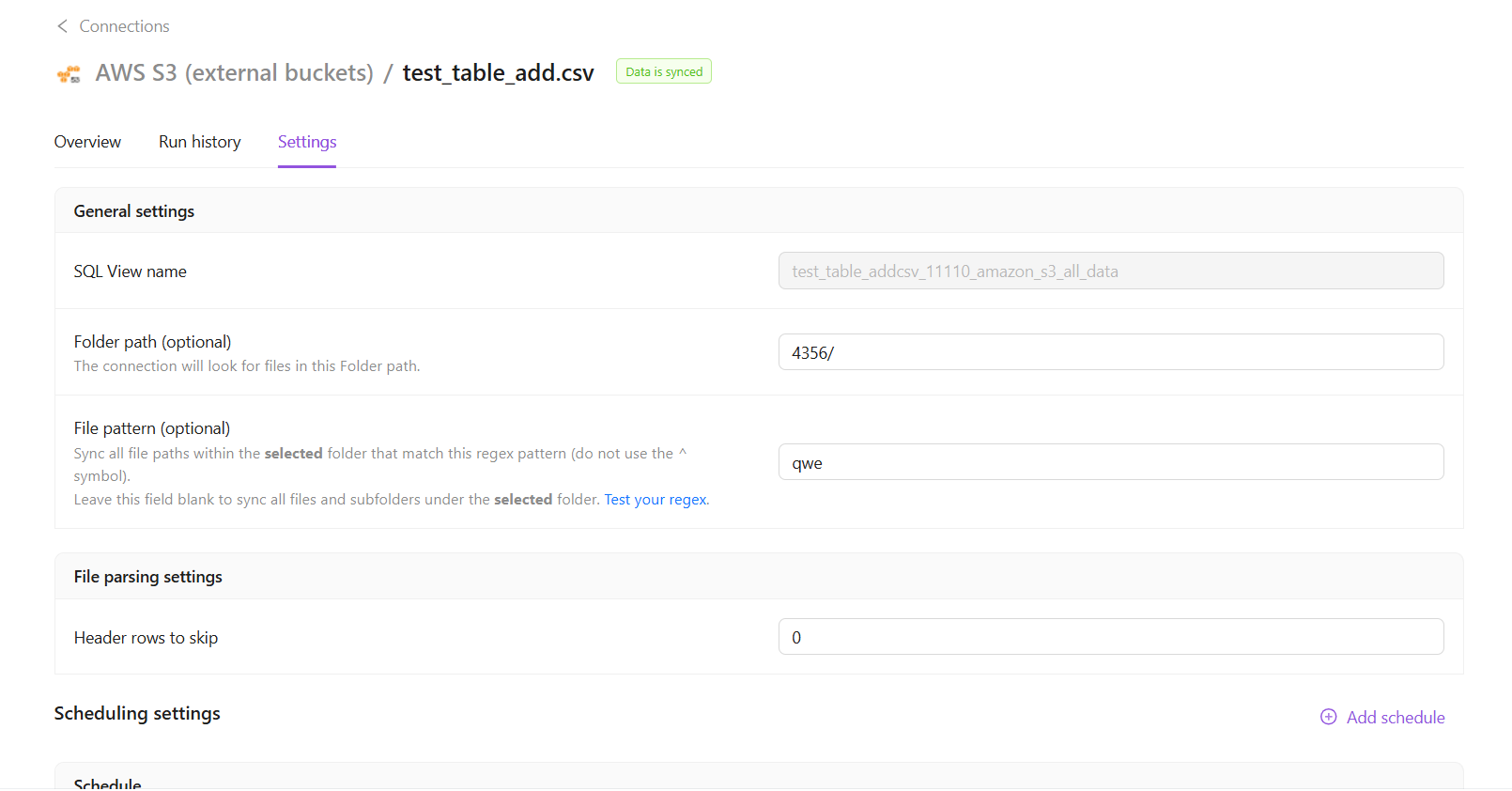
Settings tab
Here you can copy your Root path, File Mask and Table meta for your data extraction.
See also: How write strategies and date keys work in Flat Data integrations →
Was this article helpful?
Thanks for the feedback!
Questions? The Improvado team is always happy to help. Send us an email, contact your Customer Success Manager, or raise a request in the Improvado Service Desk.