

How to Configure Load Orders
Choose the required load order from the Load orders list to dive into its settings.
Here you see a Page header and two sections:
- Data table info
- Load order settings
Page header
The Page header shows brief details about the load order name and status.
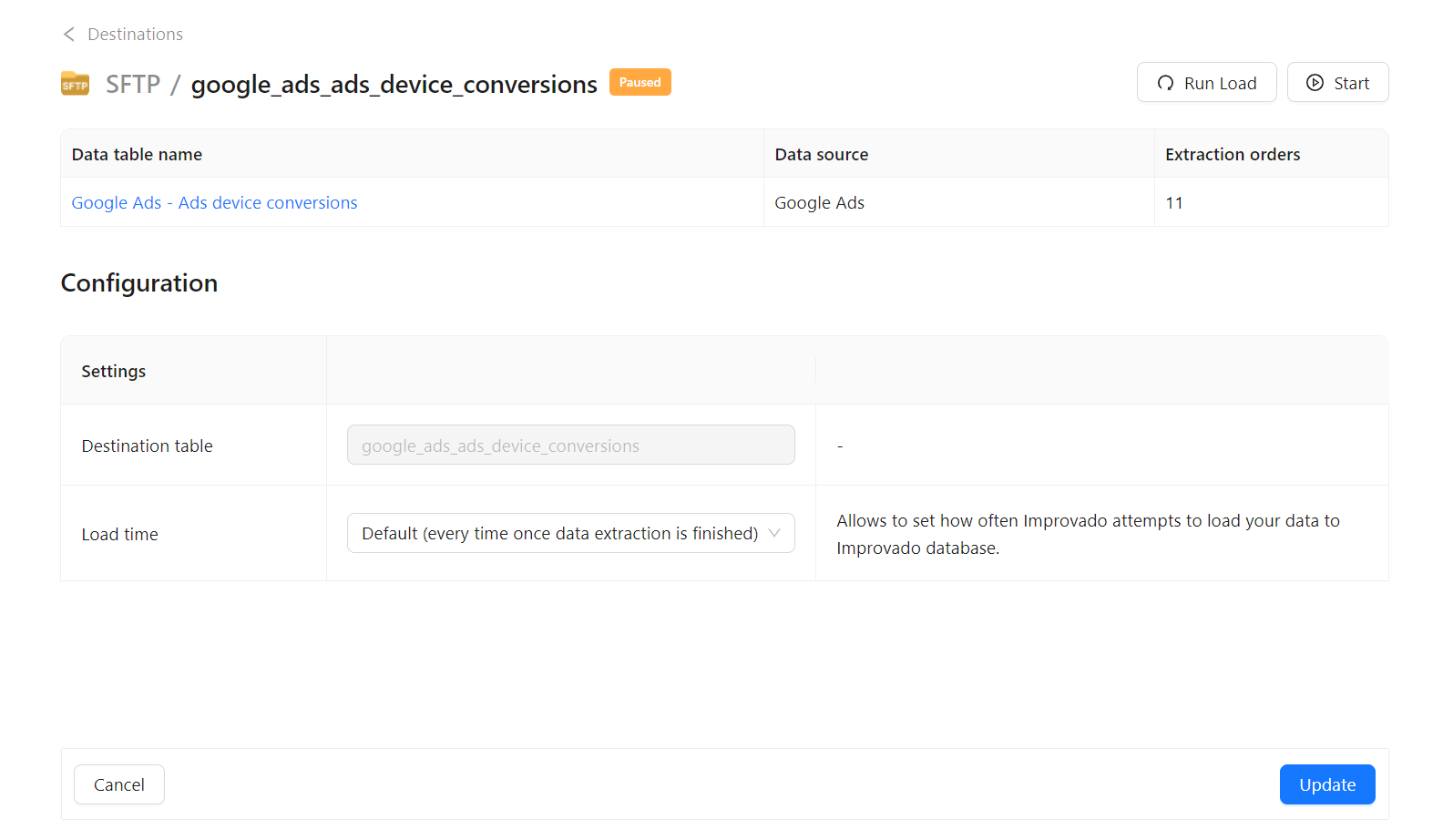
On the top right corner of this page, you’ll see Run Load button and a button for starting/pausing data load for a Load Order depending on its status.
Run Load button
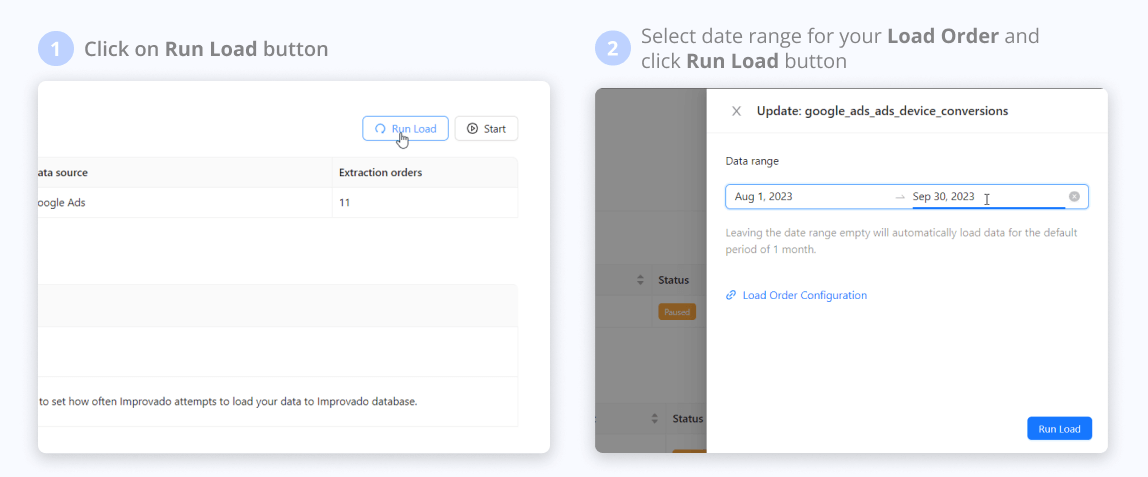
Click this button to run the Load order for the selected date range.
Settings
Data table info
This section contains information about the data table to which the current load order refers. Here you see the data source and a number of extraction orders related to the data table.
Load order settings
Destination table/file name
The type of data object that is created on the destination depends on the current destination.
We use files for:
- FTP
- SFTP
- Databricks
- Amazon S3
- Azure Blob Storage
- Google Cloud Storage
In all other cases, you will see the destination Table name.
By default, the destination table name compiles according to the corresponding data table. All words are written with lowercase letters and underscores replace all the spaces. The load order has the same name too.
Load time
Load time defines how often Improvado loads your data to the Improvado database. By default, this happens every time the data extraction is finished.
Run history
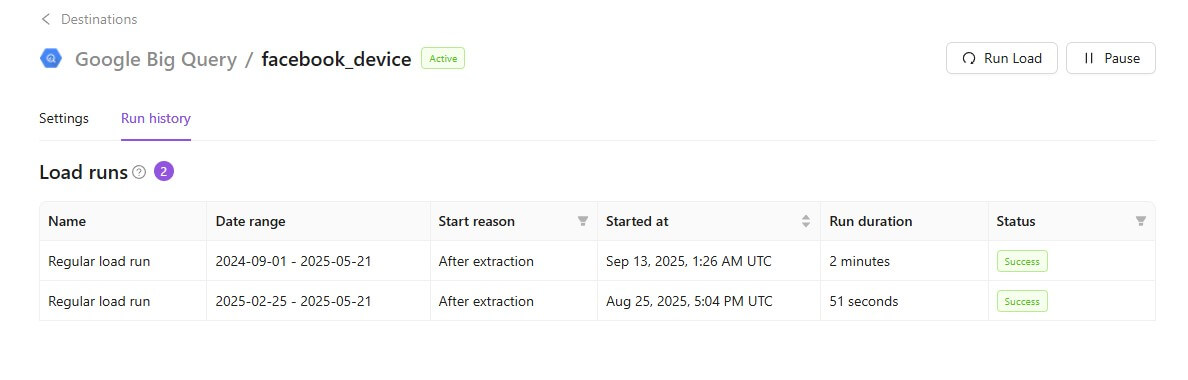
This tab lets you view detailed records of each order’s runs, making it easier to track statuses, timing, and performance. It provides clear visibility into all runs from the last 60 days.
Was this article helpful?
Thanks for the feedback!
Questions? The Improvado team is always happy to help. Send us an email, contact your Customer Success Manager, or raise a request in the Improvado Service Desk.